VPN Free for Edge: The Best Options and How to Choose
Find a free VPN for Microsoft Edge, compare safer options, and learn how to install an extension without compromising privacy.
If you’re looking for a VPN free for Edge, start with a reputable provider that offers a free plan or a free browser extension through the Microsoft Edge Add-ons store. Check what the extension protects, what the free tier limits, and how the provider handles your data before installing it. A free VPN can be useful for basic browsing and added privacy on public Wi-Fi, but it may have data caps, fewer server locations, or slower speeds than a paid service.
Free VPN options to compare
| Option | How it works in Edge | Free access | Best for | Key check |
|---|---|---|---|---|
| Edge VPN extension | Runs in the browser | Depends on provider | Browser-only traffic | Extension permissions |
| VPN provider’s Edge add-on | Connects through a provider | Depends on provider | Existing VPN customers | Account requirements |
| VPN desktop app | Protects device traffic | Depends on provider | More than browser traffic | Edge compatibility |
| Built-in Edge features | Not a VPN | Usually included | Privacy settings | Does not change VPN location |
| Free VPN plan | Provider’s service with limits | Limited plan | Occasional use | Data and speed limits |
| Free trial | Paid service for a trial period | Temporary | Testing before paying | Renewal terms |
Compiled November 2026; check the provider's site for current details.
| VPN | Obfuscation | From / month | Plan | Free plan | Refund | Alipay | UnionPay | Crypto | Website opens in China | Trustpilot | |
|---|---|---|---|---|---|---|---|---|---|---|---|
 Proton VPN | Turn on manually Stealth, free plan too | $2.99/mo | 12 months: $35.88 | Yes | 30 days | ✗ | ✗ | ✗ | ✓ | ✗ Blocked | 2.1/5 (1,040 reviews) |
 Windscribe | Turn on manually Stealth / WStunnel | $5.75/mo | 12 months: $69 | Yes | See site | ✗ | ✗ | ✗ | ✓ | ✗ Blocked | 4.7/5 (13,355 reviews) |
 ZoogVPN | Turn on manually Shadow | $2.49/mo | 27 months: $59.99 | Yes | 7 days | ✓ | ✓ | ✓ | ✓ | Official site blocked; our special link opens (4.4 s) | 4.2/5 (195 reviews) |
 NordVPN | Turn on manually Obfuscated Servers / NordWhisper | $3.49/mo | 27 months: $94.23 | No | 30 days | ? | ✗ | ✓ | ✓ | ✗ Blocked | 4.2/5 (51,628 reviews) |
 ExpressVPN | ✓ On by default all servers | $3.00/mo | 28 months: $84 | No | 30 days | ✗ | ✗ | ✓ | ✗ | ✗ Blocked | 4.4/5 (29,706 reviews) |
 Surfshark | ✓ On by default Camouflage, with OpenVPN | See site | See site | No | 30 days | ✗ | ✗ | ✗ | ✓ | ✗ Blocked | 4.3/5 (31,823 reviews) |
 Astrill VPN | Turn on manually StealthVPN / OpenWeb | $12.50/mo | 24 months: $300 | No | See site | ✗ | ✗ | ✗ | ✓ | ✗ Blocked | 1.3/5 (110 reviews) |
 Private Internet Access | Turn on manually Shadowsocks, OpenVPN only | $2.03/mo | 40 months: $81.2 | No | 30 days | ✗ | ✗ | ✗ | ✗ | ✗ Blocked | 4.2/5 (11,033 reviews) |
 CyberGhost | Turn on manually selected servers | $2.19/mo | 28 months: $61.32 | No | 45 days | ✗ | ✗ | ✗ | ✓ | ✗ Blocked | 4.0/5 (24,178 reviews) |
 PureVPN | Turn on manually switch to OpenVPN | $1.69/mo | 60 months: $101.55 | No | 31 days | ? | ? | ✗ | ✓ | ✗ Blocked | 4.4/5 (17,994 reviews) |
 AdGuard VPN | ✓ On by default TrustTunnel | $2.99/mo | 24 months: $71.76 | Yes | 30 days | ✓ | ✗ | ✓ | ✓ | Official site blocked; our special link opens (3.7 s) | 4.3/5 (290 reviews) |
 Mullvad | Turn on manually QUIC / Shadowsocks / LWO | $5.61/mo | €5/mo | No | 14 days | ✗ | ✗ | ✗ | ✓ | ✗ Blocked | 3.2/5 (192 reviews) |
 StrongVPN | Turn on manually Scramble, OpenVPN TCP | See site | See site | No | 30 days | ✓ | ✗ | ✗ | ✗ | ✗ Blocked | 4.4/5 (2,695 reviews) |
 LightXtreme 闪连 | Not listed | $7.08/mo | 12 months: $84.99 | Yes | 30 days | ✓ | ✓ | ✓ | ✓ | ✓ Yes (3.5 s) | No page |
Prices checked 2026-11-10 on each vendor's pricing page (cheapest long plan, USD). Check the vendor's checkout for the final price.
Obfuscation checked 2026-11-14 on each vendor's site and help center: "on by default" = nothing to set; "turn on manually" = switch protocol or mode in settings; "not listed" = the vendor describes no obfuscation.
Payment methods checked 2026-11-10 on each vendor's payment pages: all 14 take cards and PayPal; ✗ = not listed, ? = the vendor's own pages disagree.
China access: whether the official website opens from mainland China networks (tests the website only, not the VPN connection). Last checked 2026-11-18 01:02 Beijing time.
Trustpilot score and review count checked 2026-11-10.
What a free VPN for Edge does
A VPN creates an encrypted connection between your device and a VPN server. When you use a VPN extension in Edge, it typically routes traffic from the browser through that server, changing the IP address websites see and helping protect browser traffic on shared networks.
However, an Edge extension and a full VPN app are not always the same thing. Some extensions manage a browser-only VPN connection. Others act as a control panel for a VPN app installed on your computer. That distinction matters: browser-only protection generally does not cover traffic from other browsers, games, messaging apps, or system services.
A VPN can improve privacy, but it does not make you anonymous. Websites may still identify you through account logins, cookies, or other tracking methods. It also does not replace antivirus software or protect you from phishing.
Free VPN options to consider
A practical starting point is to compare established providers that clearly explain how their free service works. Availability and plan details can change, so confirm current terms on the provider’s official website and in the Edge Add-ons store. VPN IPsec: How It Works, Benefits, and When to Use It
| Option | What to check | Potential fit |
|---|---|---|
| Proton VPN | Free-plan limits, available locations, and whether Edge access requires its app | Users who value a clear privacy focus and do not need many server choices |
| Windscribe | Monthly data allowance, location choices, and extension features | Users who want browser controls and can manage a data cap |
| TunnelBear | Free-plan data allowance and supported features | Occasional browsing or trying a VPN before deciding |
| A provider’s free Edge extension | Whether it is a full VPN or a browser proxy, and what data it collects | Users who only need browser-specific protection |
These are examples to research, not a guarantee that every feature is free or available in every country. Read the current plan details before signing up. Be especially cautious of unfamiliar extensions that promise unlimited service without explaining how they pay for it.
How to choose a safe Edge VPN
A free VPN should be transparent about its business model and limitations. Before installing one, look for:
- A clear privacy policy: Find out whether the service logs browsing activity, connection details, or IP addresses, and how long it keeps any records.
- Strong security: Look for modern encryption and secure connection protocols. Avoid products that make vague claims without explaining their protections.
- A trustworthy provider: Check the developer’s identity, official website, support information, and recent user feedback.
- Honest free-plan terms: Confirm data limits, speed restrictions, server access, and whether payment details are required.
- Useful leak protection: If offered, check for safeguards against DNS or IP leaks, which can expose information outside the VPN tunnel.
- Clear extension permissions: An extension may need permission to handle browser traffic. Make sure its requested access is consistent with its stated purpose.
Do not assume “free” means private. Some services may monetize through advertising or data collection. If the privacy policy is difficult to find, unclear, or overly broad, choose another provider.
How to choose a safe Edge VPN TunnelBear Extension: What It Does, How to Use It, and Its Limits
| Check | What to look for | Why it matters | Warning sign |
|---|---|---|---|
| Publisher | Recognized VPN provider | Helps verify who runs it | Unknown developer |
| Privacy policy | Clear data-handling terms | Shows what may be collected | Vague or missing policy |
| Permissions | Only necessary access | Reduces unnecessary exposure | Broad, unexplained access |
| Encryption | Security details explained | Helps protect connection data | No details provided |
| Business model | Transparent free-plan terms | Clarifies how service is funded | Unclear funding or data use |
| Independent reviews | Credible security assessments | Adds outside scrutiny | Unsupported security claims |
| Support | Clear help and contact options | Makes issues easier to resolve | No usable support channel |
Compiled November 2026; check the provider's site for current details.
How to install a VPN in Microsoft Edge
The safest approach is to begin at the provider’s official website, then follow its link to the Microsoft Edge Add-ons store. This helps reduce the risk of installing a copycat extension.
- Open the provider’s official website and confirm that it supports Microsoft Edge.
- Follow its link to the Edge Add-ons store.
- Check the developer name, description, permissions, and recent reviews.
- Select Get, then review and approve the requested permissions.
- Sign in or create an account if required.
- Choose a server and connect before using the browser.
- Visit a reputable IP-checking site to confirm that your browser appears to use the VPN connection.
If the provider requires a desktop app, install it only from the official source. Keep the app and extension updated, and disconnect or switch servers if the connection becomes unreliable.
Limitations and common mistakes
A free plan may impose a monthly data cap, restrict server locations, limit simultaneous connections, or reduce speeds during busy periods. Video streaming and large downloads can use up a small allowance quickly. Some free services also block certain sites or do not support every feature available to paying customers. Clash for iPad: How to Install and Use It Safely
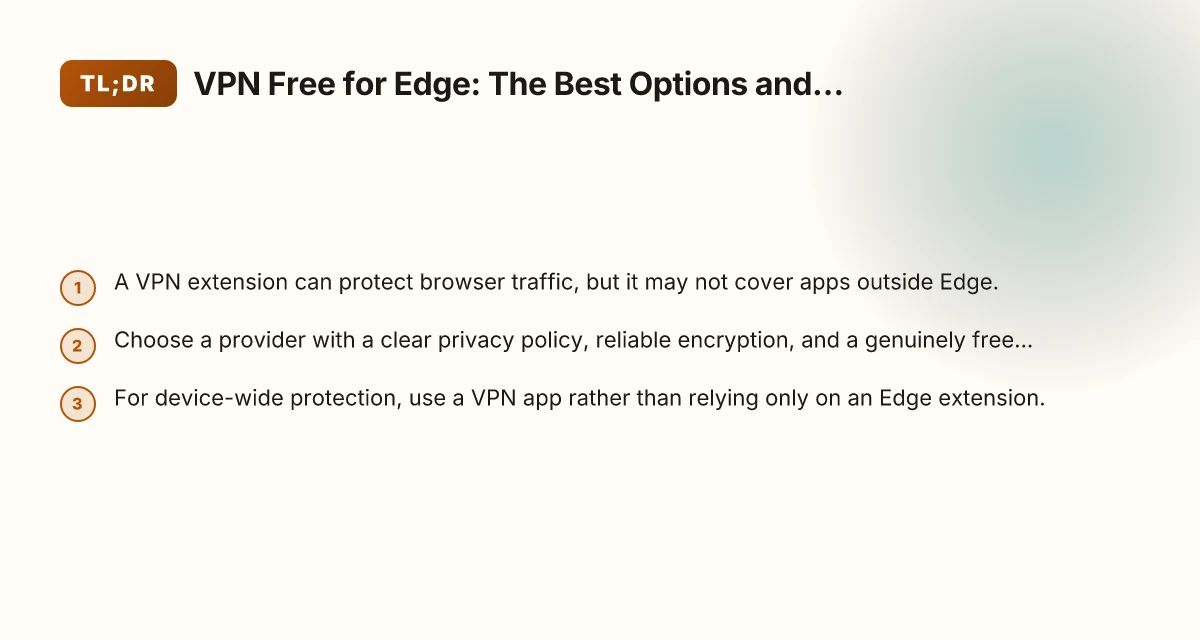
Remember that an Edge extension may protect only Edge. If you need protection for every application on your computer, choose a provider that offers a full VPN app for your operating system and confirm that its free plan includes app-based access.
Avoid installing multiple VPN extensions at once. They can conflict, slow browsing, or make it harder to tell which service is handling your traffic. Also, a VPN does not guarantee access to every region-restricted service. Websites may detect and block VPN servers, and bypassing restrictions may violate their terms.
Installation and use decision guide
| Situation | Recommended approach | Main benefit | Main limitation | Before you start |
|---|---|---|---|---|
| Protect only browser activity | Edge VPN extension | Simple browser setup | May not cover other apps | Check what traffic it protects |
| Protect the whole device | VPN desktop app | Covers more than Edge | Requires app installation | Confirm device compatibility |
| Test a provider | Free plan or trial | Try before committing | Limits or renewal terms may apply | Review the terms |
| Need a different browsing location | VPN with location choices | Can route traffic through another location | Free choices may be limited | Check available locations |
| Use sensitive accounts | Reputable VPN provider | Better basis for trust | Free access is not automatically safe | Review privacy and security details |
| Troubleshoot connection problems | Check extension and app status | Helps identify conflicts | May interrupt protection while testing | Avoid sensitive browsing during checks |
Compiled November 2026; check the provider's site for current details. FortiClient VPN Setup: A Step-by-Step Guide
Recommendation
For a VPN free for Edge, choose a well-known provider with a clearly documented free plan and install its extension or app through an official source. If you only need extra privacy while browsing in Edge, a browser extension may be enough. If you want protection for your whole device, use a full VPN app instead. Compare current limits and privacy terms before committing, and avoid any service that cannot explain how it protects, or uses, your data.