Clash for iPad: How to Install and Use It Safely
Find out how to get Clash on iPad, what to check before installing it, and how to choose a safe, compatible app.
If you’re looking for Clash for iPad, start by identifying which Clash app you mean. The name may refer to a game, a network utility, or another product, and each has different installation requirements. Search the App Store on your iPad, verify the developer and app details, and install it only if the listing matches the app you want. If it isn’t available, check the developer’s official website for current iPad support rather than relying on an unofficial download.
Compare Clash app options for iPad
| Option | How to identify it | Install source | Best for | Safety check |
|---|---|---|---|---|
| Official Clash app | Confirm the exact app name and developer | App Store | Users who find the intended app | Check the developer listing |
| Similar-name app | Name resembles Clash | App Store | Only if its purpose is verified | Don’t assume it is official |
| Unavailable app | Intended app is not listed | None yet | Checking availability first | Avoid unverified downloads |
| Web page offering an app file | Download link outside the App Store | Website | Not recommended for routine installation | Verify the source before proceeding |
| Alternative app | Different name or developer | App Store | When the intended app is unavailable | Compare purpose and developer |
| Existing installation | Already appears on the iPad | App Store or device | Rechecking the installed app | Confirm the app identity |
Compiled November 2026; check the provider's site for current details.
Find the right Clash app
Open the App Store and search for the full name of the Clash product you’re looking for. Don’t choose an app based on its name or icon alone: similar names can belong to unrelated developers.
Before downloading, check:
- Developer: Does the name match the official publisher?
- Description: Does it explain the features you expect?
- Compatibility: Is your iPadOS version supported?
- Reviews and update history: Does the app appear actively maintained?
- Privacy information: What data does the developer say it collects?
If you already use the app on another device, check its official website or support materials for the exact iPad app name. That can help you distinguish the genuine product from similarly named apps.
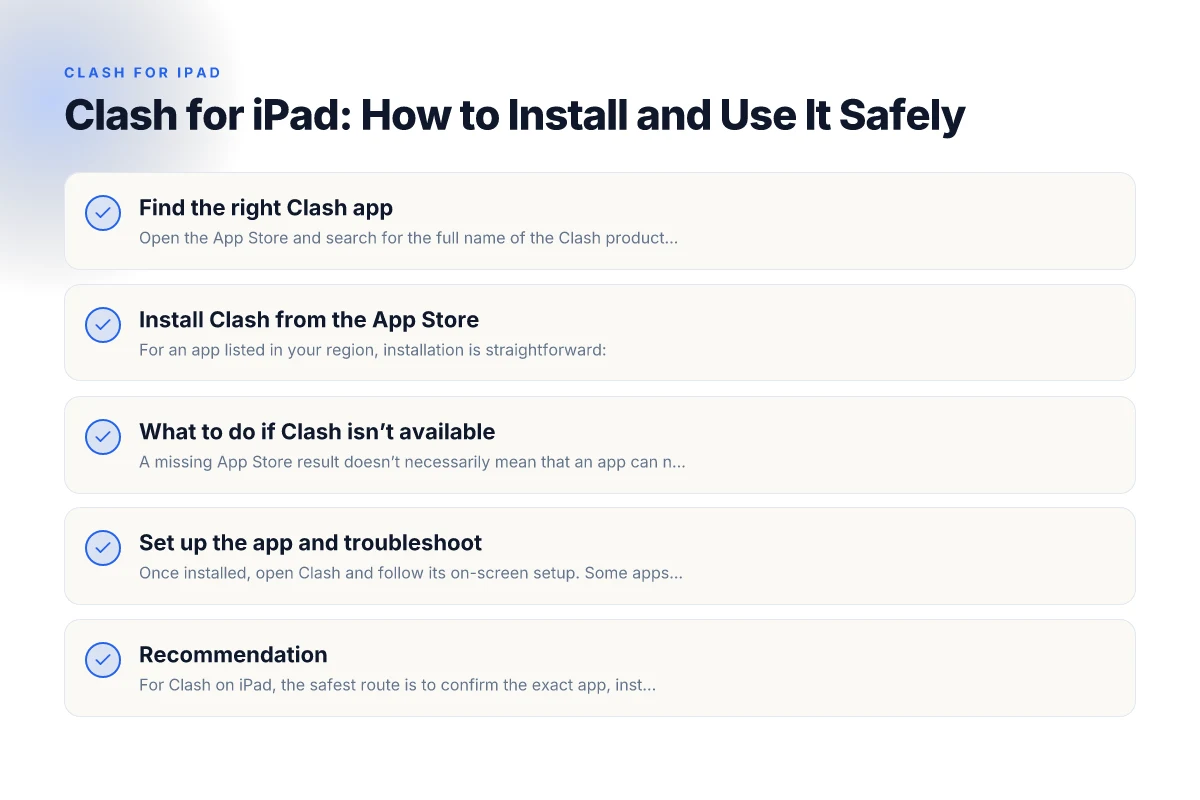
Install Clash from the App Store
For an app listed in your region, installation is straightforward: FortiClient VPN Setup: A Step-by-Step Guide
- Open the App Store on your iPad.
- Search for the app’s complete name.
- Open the listing and confirm its developer and compatibility.
- Tap Get or the displayed price, then authenticate if prompted.
- Open the app and follow its setup instructions.
If you previously downloaded the app with your Apple Account, you may also find it under your App Store account’s purchase history. Availability can change, however, and an app may not be downloadable in every country or region.
Keep iPadOS and the app updated. Updates can provide security fixes, improve compatibility, and address problems with newer devices. If the App Store says the app requires a newer version of iPadOS, check Settings > General > Software Update to see whether your iPad can update.
What to do if Clash isn’t available
A missing App Store result doesn’t necessarily mean that an app can never run on an iPad. It may be unavailable in your region, discontinued, restricted to certain devices, or published under a different name. Check the product’s official support page for current availability and supported platforms.
| What you find | What it may mean | Safe next step |
|---|---|---|
| No matching App Store result | Regional limits, a changed name, or no iPad release | Check the official website or support page |
| “Not compatible with this iPad” | Your model or iPadOS version may not meet the requirements | Review the app’s requirements and update iPadOS if possible |
| A similar app from another developer | It may be unrelated or unofficial | Verify the publisher before installing |
| A download link outside the App Store | It may require extra setup or come with security risks | Use it only if the developer clearly confirms it is official and supports iPad |
Be cautious with websites offering modified apps, downloadable installation files, or configuration profiles. These can expose your data or change how your iPad connects to the internet. Never enter your Apple Account password on an unrelated website, and don’t install a profile simply because a download page tells you to. Best VPN for Edge Extension: What to Choose and How to Set It Up
Choose an installation path
| Situation | Recommended next step | Source to use | Avoid | Before installing |
|---|---|---|---|---|
| App appears in App Store search | Open its listing | App Store | Similar-name listings without verification | Check name and developer |
| Listing is unclear | Review the app details | App Store | Guessing from the icon alone | Confirm it matches the intended app |
| App does not appear | Recheck the exact name | App Store | Random download links | Verify availability |
| App is unavailable in your region | Check official availability information | Official source | Unverified workarounds | Confirm the app is offered for iPad |
| A website offers an install file | Pause and verify the source | Official source, if available | Installing an unknown file | Assess source trustworthiness |
| An alternative is considered | Compare its purpose and developer | App Store | Assuming it is the same app | Decide whether it meets your needs |
Compiled November 2026; check the provider's site for current details.
Set up the app and troubleshoot
Once installed, open Clash and follow its on-screen setup. Some apps require an account, while others work without one. If the app requests access to features such as notifications, photos, or local network devices, consider whether that permission is needed for the feature you want.
If the app won’t open or install, try these basic checks: Tuxler VPN Chrome: How It Works, Setup, and Safety Tips
- Restart the iPad.
- Confirm that you have enough storage in Settings > General > iPad Storage.
- Check your internet connection and App Store account.
- Install any available iPadOS updates.
- Review the app’s support page for known compatibility issues.
For a network-related Clash utility, setup may involve adding a configuration or approving a network connection. Read each prompt carefully and use configurations only from a source you trust. A network app may be able to affect your internet traffic, so check what data it handles and how the developer explains its privacy practices.
If troubleshooting doesn’t help, contact the developer using the support link in the App Store listing or on its official website. Include your iPad model, iPadOS version, and the exact error message, but don’t send passwords or other sensitive account details.
Recommendation
For Clash on iPad, the safest route is to confirm the exact app, install it from the App Store when it’s available, and check the developer’s official support information when it isn’t. Avoid lookalike apps and unofficial downloads. If the product doesn’t officially support your iPad, wait for a supported release rather than risking your device or personal data with an unverified workaround.