Free VPN That Can Change Location: What to Use and What to Know
Learn how free VPNs change your apparent location, compare popular options, and choose one safely.
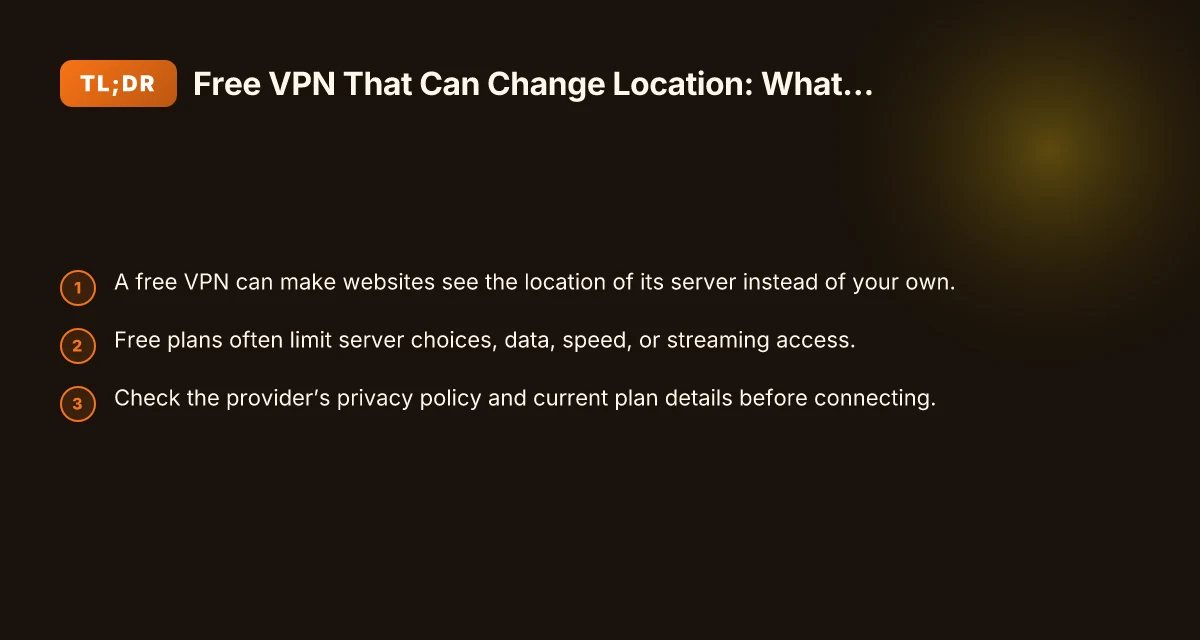
A free VPN that can change location can route your internet traffic through a server in another country, making websites and apps see the server’s IP address rather than your usual one. Proton VPN, Windscribe, and PrivadoVPN are among the providers that offer free plans with location-changing features, but their current server options and limits can vary. If you need a specific country, reliable streaming access, or frequent use, check the plan details first: “free VPN” does not necessarily mean unlimited locations or unrestricted access.
Comparing free VPNs for changing your apparent location
| Option | Free location choice | Data limit | Device support | Best for |
|---|---|---|---|---|
| Proton VPN Free | Limited server locations | Unlimited | Major desktop and mobile platforms | Occasional or regular use |
| Windscribe Free | Locations vary by plan | Monthly allowance | Major desktop and mobile platforms | Flexible location options |
| PrivadoVPN Free | Limited server locations | Monthly allowance | Major desktop and mobile platforms | Trying different locations |
| TunnelBear Free | Broad location selection | Small monthly allowance | Major desktop and mobile platforms | Simple, occasional use |
| Hide.me Free | Limited server locations | Monthly allowance | Major desktop and mobile platforms | Basic browsing |
| Free VPN browser extension | Often limited to selected locations | Varies by provider | Supported browser only | Browser-only location changes |
Compiled November 2026; check the provider's site for current details.
| VPN | Obfuscation | From / month | Plan | Free plan | Refund | Alipay | UnionPay | Crypto | Website opens in China | Trustpilot | |
|---|---|---|---|---|---|---|---|---|---|---|---|
 Proton VPN | Turn on manually Stealth, free plan too | $2.99/mo | 12 months: $35.88 | Yes | 30 days | ✗ | ✗ | ✗ | ✓ | ✗ Blocked | 2.1/5 (1,040 reviews) |
 Windscribe | Turn on manually Stealth / WStunnel | $5.75/mo | 12 months: $69 | Yes | See site | ✗ | ✗ | ✗ | ✓ | ✗ Blocked | 4.7/5 (13,355 reviews) |
 ZoogVPN | Turn on manually Shadow | $2.49/mo | 27 months: $59.99 | Yes | 7 days | ✓ | ✓ | ✓ | ✓ | Official site blocked; our special link opens (4.4 s) | 4.2/5 (195 reviews) |
 NordVPN | Turn on manually Obfuscated Servers / NordWhisper | $3.49/mo | 27 months: $94.23 | No | 30 days | ? | ✗ | ✓ | ✓ | ✗ Blocked | 4.2/5 (51,628 reviews) |
 ExpressVPN | ✓ On by default all servers | $3.00/mo | 28 months: $84 | No | 30 days | ✗ | ✗ | ✓ | ✗ | ✗ Blocked | 4.4/5 (29,706 reviews) |
 Surfshark | ✓ On by default Camouflage, with OpenVPN | See site | See site | No | 30 days | ✗ | ✗ | ✗ | ✓ | ✗ Blocked | 4.3/5 (31,823 reviews) |
 Astrill VPN | Turn on manually StealthVPN / OpenWeb | $12.50/mo | 24 months: $300 | No | See site | ✗ | ✗ | ✗ | ✓ | ✗ Blocked | 1.3/5 (110 reviews) |
 Private Internet Access | Turn on manually Shadowsocks, OpenVPN only | $2.03/mo | 40 months: $81.2 | No | 30 days | ✗ | ✗ | ✗ | ✗ | ✗ Blocked | 4.2/5 (11,033 reviews) |
 CyberGhost | Turn on manually selected servers | $2.19/mo | 28 months: $61.32 | No | 45 days | ✗ | ✗ | ✗ | ✓ | ✗ Blocked | 4.0/5 (24,178 reviews) |
 PureVPN | Turn on manually switch to OpenVPN | $1.69/mo | 60 months: $101.55 | No | 31 days | ? | ? | ✗ | ✓ | ✗ Blocked | 4.4/5 (17,994 reviews) |
 AdGuard VPN | ✓ On by default TrustTunnel | $2.99/mo | 24 months: $71.76 | Yes | 30 days | ✓ | ✗ | ✓ | ✓ | Official site blocked; our special link opens (3.7 s) | 4.3/5 (290 reviews) |
 Mullvad | Turn on manually QUIC / Shadowsocks / LWO | $5.61/mo | €5/mo | No | 14 days | ✗ | ✗ | ✗ | ✓ | ✗ Blocked | 3.2/5 (192 reviews) |
 StrongVPN | Turn on manually Scramble, OpenVPN TCP | See site | See site | No | 30 days | ✓ | ✗ | ✗ | ✗ | ✗ Blocked | 4.4/5 (2,695 reviews) |
 LightXtreme 闪连 | Not listed | $7.08/mo | 12 months: $84.99 | Yes | 30 days | ✓ | ✓ | ✓ | ✓ | ✓ Yes (3.5 s) | No page |
Prices checked 2026-11-10 on each vendor's pricing page (cheapest long plan, USD). Check the vendor's checkout for the final price.
Obfuscation checked 2026-11-14 on each vendor's site and help center: "on by default" = nothing to set; "turn on manually" = switch protocol or mode in settings; "not listed" = the vendor describes no obfuscation.
Payment methods checked 2026-11-10 on each vendor's payment pages: all 14 take cards and PayPal; ✗ = not listed, ? = the vendor's own pages disagree.
China access: whether the official website opens from mainland China networks (tests the website only, not the VPN connection). Last checked 2026-11-18 01:02 Beijing time.
Trustpilot score and review count checked 2026-11-10.
How a VPN changes your apparent location
A VPN, or virtual private network, creates an encrypted connection between your device and a VPN server. When you browse through that connection, websites generally see the server’s public IP address. If the server is in a different country, your apparent IP-based location may change accordingly.
This can help protect traffic on public Wi-Fi and reduce the exposure of your home IP address to websites. It does not make you completely anonymous, however. Websites may still identify you through account logins, cookies, device settings, GPS permissions, or other tracking methods.
A VPN also cannot guarantee that every service will treat you as being in the server’s country. Streaming platforms and other websites may use additional checks, and some block VPN connections. Using a VPN does not override a service’s terms or regional restrictions.
Free VPNs to consider
The providers below are examples worth comparing, not a guarantee of particular features. Free-plan limits, supported countries, and availability can change, so confirm the details on each provider’s official website before signing up. How Can I Tell If a VPN Is Blocking My Internet?
| Provider | Free-plan points to check | Best suited to |
|---|---|---|
| Proton VPN | Which countries are available, connection limits, and whether the free plan meets your speed needs | Regular browsing where a data cap is a concern |
| Windscribe | Monthly data allowance, location choices, and any account requirements | Occasional use when its free locations suit you |
| PrivadoVPN | Data allowance, available free servers, and connection limits | Trying a free plan with a defined usage allowance |
Free plans commonly differ in three important ways:
- Location choice: A plan may offer only a small selection of countries or servers.
- Usage limits: Some plans cap monthly data, while others may limit speed or simultaneous connections.
- Access to services: A free server may not work with a particular streaming platform, banking site, or other location-sensitive service.
Treat comparison tables and promotional claims as a starting point. The provider’s current terms are the best source for exact limits.
Choosing a free VPN plan
| Need | What to check | Good sign | Possible trade-off |
|---|---|---|---|
| Change apparent location | Free server locations | A location that meets your needs | Fewer choices than paid plans |
| Stream or download | Data allowance | Enough data for your activity | Monthly limits may run out |
| Browse regularly | Data policy | Unlimited or generous allowance | Limited locations or speeds |
| Protect multiple devices | App and device support | Apps for your devices | Some features may be paid |
| Keep activity private | Privacy policy | Clear data-handling practices | Free services may have limits |
| Avoid interruptions | Speed and congestion | Reliable performance | Free servers may be busy |
Compiled November 2026; check the provider's site for current details. Free VPN With Location Changer: What to Look For and How to Choose
How to choose the right free plan
Start with the location you actually need. If you want to appear to browse from a particular country, check that the free plan offers a server there. A list of many worldwide locations may apply only to paid subscriptions.
Next, consider how much data you use. Browsing and messaging often need less data than video streaming, large downloads, or video calls. If a free plan has a monthly allowance, estimate your typical use and check what happens when you reach the limit.
Privacy should matter more than a long server list. Look for a clear privacy policy explaining what information the provider collects, how it uses that information, and whether it shares data with others. Also check for details about encryption, independent security reviews, and the provider’s business model. A reputable service should explain how its free plan is funded rather than relying on vague promises.
Before installing, confirm that the app comes from the provider’s official website or a trusted app store. Avoid unfamiliar “free VPN” apps that request excessive permissions or make unrealistic claims, such as guaranteed anonymity or unrestricted access to every website. NordVPN Windows: How to Download, Install, and Use the App
Set up a VPN and check your location
Most reputable VPN apps are straightforward to use:
- Choose a provider and review its free-plan limits and privacy policy.
- Install its official app on your computer or phone.
- Create an account if the provider requires one.
- Open the server list and select an available country.
- Connect, then check your public IP address with a reputable IP-checking site.
If the IP checker still shows your usual location, confirm that the VPN connection is active and that you selected the intended server. Disconnect and reconnect if needed. You can also check whether the app offers protection against DNS or IP leaks.
Remember that an IP check only confirms the apparent location associated with your internet connection. It does not show what information a website already knows from your account, browser, or device. If you want to limit location sharing, review your browser and device location permissions separately.
Common trade-offs and safety tips
Free VPNs can be useful for occasional browsing, testing an app, or protecting traffic on an unfamiliar Wi-Fi network. They are less predictable when you need a particular country or consistent performance. Server congestion, data caps, and blocks imposed by websites can all affect the experience. F5 VPN Client Download: How to Get and Install the Right Client
Use these practical checks:
- Read the provider’s current free-plan terms before connecting.
- Avoid free VPNs with unclear ownership, privacy practices, or funding.
- Keep the app and your device’s operating system up to date.
- Do not assume a VPN replaces HTTPS, strong passwords, or two-factor authentication.
- Check the relevant website’s rules before using a VPN to access location-restricted content.
A VPN changes the route your traffic takes. It does not remove all online risks. Be cautious with links, downloads, and requests for personal information even when the VPN is connected.
Setup and safety checklist
| Step | What to do | How to check | If it does not work |
|---|---|---|---|
| Choose a provider | Review its free-plan limits | Confirm locations and data allowance | Compare another free plan |
| Install the app | Use the provider’s official source | Check the publisher name | Remove unfamiliar downloads |
| Connect to a server | Select an available location | App shows an active connection | Try another server |
| Check your apparent location | Visit an IP location checker | Location differs from your usual one | Reconnect and check again |
| Test the websites you need | Open the relevant service | Confirm access and performance | Try another supported location |
| Protect your account | Use unique passwords and updates | Review security settings | Disconnect if the app seems suspicious |
Compiled November 2026; check the provider's site for current details. Microsoft Edge Secure Network VPN Reviews: Is It Safe and Worth Using?
Recommendation
For a free VPN that can change location, compare Proton VPN, Windscribe, and PrivadoVPN by checking whether their current free plans include the country you need, how much data they allow, and what their privacy policies say. Choose a provider with transparent terms and an official app. If you need a specific location, heavy data use, or dependable access to a particular service, a free plan may not be enough. Consider a reputable paid plan rather than relying on promises a free VPN cannot guarantee.