How Can I Tell If a VPN Is Blocking My Internet?
Learn how to check whether your VPN is cutting off internet access and what to try before changing your settings.
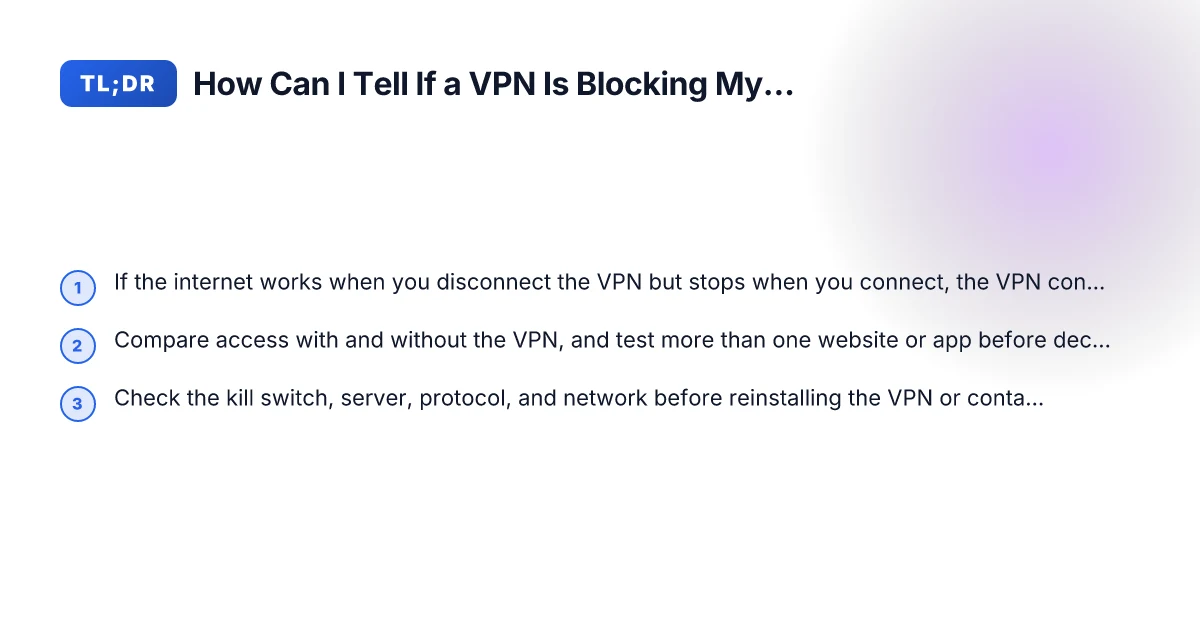
If you’re asking, “how can I tell if a VPN is blocking my internet,” start with a simple comparison: test your connection with the VPN turned off, then turn it on and test again. If websites and apps work without the VPN but fail when it connects, the VPN or a related setting may be stopping traffic. That does not prove the VPN is the only cause, so use the checks below to narrow it down.
Connection checks with the VPN on and off
| Check | VPN on | VPN off | What the result suggests |
|---|---|---|---|
| Open a familiar website | Try loading it | Try loading it again | Works only off: VPN may be involved |
| Check several websites | Test more than one | Test the same sites | One site failing points to a site-specific issue |
| Try an app or service | Check whether it connects | Check it again | App-only trouble may be limited to that service |
| Review VPN status | Confirm it says connected | VPN is disconnected | A disconnected VPN may leave settings or errors behind |
| Check kill switch | See whether it is active | Note whether access returns | An active kill switch can block traffic if VPN drops |
| Compare network behavior | Check Wi-Fi or mobile data | Retest on the same network | Same-network results help isolate the VPN |
| Record the outcome | Note errors and timing | Note errors and timing | Matching details make changes easier to assess |
Compiled November 2026; check the provider's site for current details.
| VPN | Obfuscation | From / month | Plan | Free plan | Refund | Alipay | UnionPay | Crypto | Website opens in China | Trustpilot | |
|---|---|---|---|---|---|---|---|---|---|---|---|
 ZoogVPN | Turn on manually Shadow | $2.49/mo | 27 months: $59.99 | Yes | 7 days | ✓ | ✓ | ✓ | ✓ | Official site blocked; our special link opens (4.4 s) | 4.2/5 (195 reviews) |
 NordVPN | Turn on manually Obfuscated Servers / NordWhisper | $3.49/mo | 27 months: $94.23 | No | 30 days | ? | ✗ | ✓ | ✓ | ✗ Blocked | 4.2/5 (51,628 reviews) |
 ExpressVPN | ✓ On by default all servers | $3.00/mo | 28 months: $84 | No | 30 days | ✗ | ✗ | ✓ | ✗ | ✗ Blocked | 4.4/5 (29,706 reviews) |
 Surfshark | ✓ On by default Camouflage, with OpenVPN | See site | See site | No | 30 days | ✗ | ✗ | ✗ | ✓ | ✗ Blocked | 4.3/5 (31,823 reviews) |
 Proton VPN | Turn on manually Stealth, free plan too | $2.99/mo | 12 months: $35.88 | Yes | 30 days | ✗ | ✗ | ✗ | ✓ | ✗ Blocked | 2.1/5 (1,040 reviews) |
 Astrill VPN | Turn on manually StealthVPN / OpenWeb | $12.50/mo | 24 months: $300 | No | See site | ✗ | ✗ | ✗ | ✓ | ✗ Blocked | 1.3/5 (110 reviews) |
 Private Internet Access | Turn on manually Shadowsocks, OpenVPN only | $2.03/mo | 40 months: $81.2 | No | 30 days | ✗ | ✗ | ✗ | ✗ | ✗ Blocked | 4.2/5 (11,033 reviews) |
 CyberGhost | Turn on manually selected servers | $2.19/mo | 28 months: $61.32 | No | 45 days | ✗ | ✗ | ✗ | ✓ | ✗ Blocked | 4.0/5 (24,178 reviews) |
 PureVPN | Turn on manually switch to OpenVPN | $1.69/mo | 60 months: $101.55 | No | 31 days | ? | ? | ✗ | ✓ | ✗ Blocked | 4.4/5 (17,994 reviews) |
 AdGuard VPN | ✓ On by default TrustTunnel | $2.99/mo | 24 months: $71.76 | Yes | 30 days | ✓ | ✗ | ✓ | ✓ | Official site blocked; our special link opens (3.7 s) | 4.3/5 (290 reviews) |
 Mullvad | Turn on manually QUIC / Shadowsocks / LWO | $5.61/mo | €5/mo | No | 14 days | ✗ | ✗ | ✗ | ✓ | ✗ Blocked | 3.2/5 (192 reviews) |
 Windscribe | Turn on manually Stealth / WStunnel | $5.75/mo | 12 months: $69 | Yes | See site | ✗ | ✗ | ✗ | ✓ | ✗ Blocked | 4.7/5 (13,355 reviews) |
 StrongVPN | Turn on manually Scramble, OpenVPN TCP | See site | See site | No | 30 days | ✓ | ✗ | ✗ | ✗ | ✗ Blocked | 4.4/5 (2,695 reviews) |
 LightXtreme 闪连 | Not listed | $7.08/mo | 12 months: $84.99 | Yes | 30 days | ✓ | ✓ | ✓ | ✓ | ✓ Yes (3.5 s) | No page |
Prices checked 2026-11-10 on each vendor's pricing page (cheapest long plan, USD). Check the vendor's checkout for the final price.
Obfuscation checked 2026-11-14 on each vendor's site and help center: "on by default" = nothing to set; "turn on manually" = switch protocol or mode in settings; "not listed" = the vendor describes no obfuscation.
Payment methods checked 2026-11-10 on each vendor's payment pages: all 14 take cards and PayPal; ✗ = not listed, ? = the vendor's own pages disagree.
China access: whether the official website opens from mainland China networks (tests the website only, not the VPN connection). Last checked 2026-11-18 01:02 Beijing time.
Trustpilot score and review count checked 2026-11-10.
Compare your connection with the VPN on and off
First, confirm that your device has internet access when the VPN is disconnected. Open a few different websites or apps rather than relying on a single site. If nothing loads in either state, the problem may be your Wi-Fi, mobile data, router, or internet provider, not the VPN.
Next, connect to the VPN and repeat the test. Note whether the VPN app reports a successful connection and whether the problem affects everything or just one service.
| What you observe | What it may indicate |
|---|---|
| The internet fails both with and without the VPN | A general connection or device issue |
| The internet works without the VPN but fails when connected | A VPN setting, server, protocol, or connection issue |
| Most sites work, but one site or app does not | A site-specific block, compatibility issue, or service restriction |
| The VPN says it is connected, but pages do not load | The VPN tunnel, DNS, or kill-switch behavior may be involved |
These are clues, not definitive diagnoses. A website can also block VPN traffic, while a temporary network problem can happen at the same time you connect to a VPN.
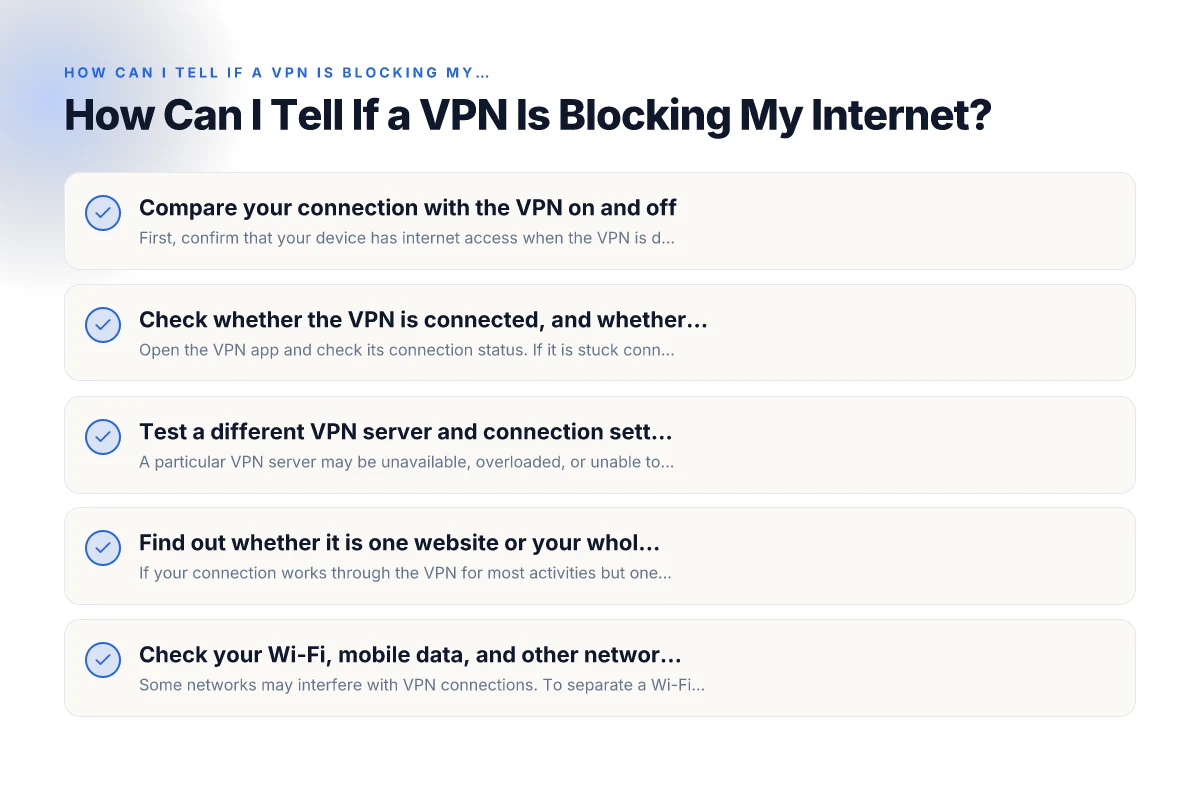
Check whether the VPN is connected, and whether a kill switch is active
Open the VPN app and check its connection status. If it is stuck connecting, repeatedly disconnects, or shows an error, your device may not have a working VPN tunnel. Try disconnecting and reconnecting once, then check whether the app displays a specific error message. Free VPN With Location Changer: What to Look For and How to Choose
Look for a setting called kill switch, network lock, or similar. A kill switch is designed to block internet traffic if the VPN connection drops, helping prevent unprotected traffic from getting through. If the VPN disconnects unexpectedly, this feature can make it appear that the internet is completely blocked.
You can briefly turn the feature off as a diagnostic test, but be aware that your traffic may no longer be protected by the VPN. Turn it back on afterward if you want that protection. If internet access returns only when the kill switch is off, the VPN connection may be unstable or the kill-switch setting may need attention.
Also check whether your device shows a VPN or proxy connection in its network settings. On a computer, this may be visible in Wi-Fi or network settings. On a phone, look for the VPN status or VPN settings. The exact location varies by device and operating system.
Checks to narrow down a VPN connection problem NordVPN Windows: How to Download, Install, and Use the App
| Check | What to try | If it works | If it does not |
|---|---|---|---|
| VPN connection | Confirm the VPN is connected | Continue testing normally | Reconnect or review the app status |
| Kill switch | Check whether it is active | Keep it enabled if desired | Turn it off briefly only to test |
| VPN server | Choose a different server | The original server may be the issue | Try another connection setting |
| Connection setting | Switch the VPN protocol or mode | The previous setting may be incompatible | Test another server |
| Website scope | Open several websites | A single site may be affected | Check the whole connection |
| Other network | Try Wi-Fi or mobile data | The original network may be involved | Check VPN and device settings |
| VPN off | Disconnect and retry | VPN-related settings may be blocking access | Investigate the network or device |
Compiled November 2026; check the provider's site for current details.
Test a different VPN server and connection setting
A particular VPN server may be unavailable, overloaded, or unable to reach a service you need. Disconnect, choose another server location, and test again. If the new server works, the issue may be limited to the original server.
If the VPN app lets you select a connection protocol, switching protocols can help identify a compatibility problem. Some networks restrict certain types of VPN traffic, and a different protocol may connect more reliably. Use the VPN provider’s recommended settings if you are unsure what to choose.
Try these changes one at a time so you can see which one makes a difference: F5 VPN Client Download: How to Get and Install the Right Client
- Select a different VPN server.
- Reconnect to the current server.
- Change the protocol, if the app offers that option.
- Restart the VPN app and your device.
- Check for an available update to the VPN app.
If you are using a work or school device, its network administrator may control VPN or proxy settings. Avoid changing managed settings without permission.
Find out whether it is one website or your whole internet connection
If your connection works through the VPN for most activities but one website or app fails, the VPN may not be blocking your entire internet access. The service itself might restrict VPN or proxy connections, or it may be experiencing a temporary outage.
Compare the same service with the VPN on and off. If it loads without the VPN but not with it, try another VPN server. If it fails in both cases, look for a service-side issue or a problem with the app or website.
A VPN or proxy detection tool can indicate whether an IP address is recognized as belonging to a VPN or proxy. That may help explain why a particular service refuses access, but it does not tell you whether your VPN is blocking all internet traffic. It also does not replace the on-and-off comparison. Microsoft Edge Secure Network VPN Reviews: Is It Safe and Worth Using?
Check your Wi-Fi, mobile data, and other network settings
Some networks may interfere with VPN connections. To separate a Wi-Fi issue from a VPN issue, test the VPN on another network if one is available, for example, switch from Wi-Fi to mobile data. If the VPN works on one network but not another, the network or its settings may be involved.
If you use a proxy, firewall, security app, or custom DNS setting, check whether it could be affecting the same traffic. Avoid disabling security protections broadly. Instead, make one change at a time and restore the original setting if it does not help.
If the VPN is installed on a router, rather than only on your device, remember that disconnecting the app on your phone may not disable the router’s VPN. Check the router’s VPN settings or ask the person who manages the network.
Next steps based on what still works Edge VPN Free Extension: Safe Options, Limits, and What to Check
| What you observe | Likely area to check | Next step | What to compare |
|---|---|---|---|
| Sites work with VPN off only | VPN connection or settings | Check connection status and kill switch | Access with VPN on and off |
| One website fails | Website or server route | Try another website and VPN server | The same site across servers |
| All websites fail on one server | VPN server | Connect to a different server | Access before and after switching |
| Access changes with connection setting | VPN protocol or mode | Keep testing a compatible setting | Results for each setting |
| Wi-Fi fails but mobile data works | Wi-Fi or router | Review Wi-Fi and network settings | Both networks with VPN on and off |
| Both networks fail with VPN on | VPN app or configuration | Recheck VPN status and settings | Each network with VPN enabled |
| Access fails with VPN off too | Device or network | Check internet access and network settings | Other sites, apps, and networks |
Compiled November 2026; check the provider's site for current details.
What to do if the VPN still blocks access
If the connection works without the VPN but consistently fails with it, save the VPN app’s error message and note which servers, protocols, and networks you tested. Contact the VPN provider’s support team with those details. They can help determine whether the issue is a server problem, app configuration, or a setting such as a kill switch.
Recommendation: Start by testing the same websites with the VPN off and on. If only the VPN-on test fails, try another server and check the kill switch before changing other settings. If the issue persists across servers or networks, contact your VPN provider rather than assuming your internet service is down.