FortiClient VPN Connection Failed. Please Check Your Configuration: How to Fix It
Fix the FortiClient VPN error by checking your connection, VPN settings, credentials, certificates, and network access.
If FortiClient displays “VPN connection failed. Please check your configuration,” it usually means the app could not establish a connection using the current network, account, or VPN settings. Start by confirming that your internet works and that the VPN profile matches the details provided by your organization. Then check your credentials and any required multi-factor authentication. If the problem continues, your IT administrator may need to verify that the VPN gateway is reachable and your account is authorized.
The message is broad, so it does not identify one specific cause. Work through the checks below in order, and note any error codes or changes in behavior. That information can help your support team diagnose the issue faster.
| VPN | Obfuscation | From / month | Plan | Free plan | Refund | Alipay | UnionPay | Crypto | Website opens in China | Trustpilot | |
|---|---|---|---|---|---|---|---|---|---|---|---|
 ZoogVPN | Turn on manually Shadow | $2.49/mo | 27 months: $59.99 | Yes | 7 days | ✓ | ✓ | ✓ | ✓ | Official site blocked; our special link opens (4.4 s) | 4.2/5 (195 reviews) |
 NordVPN | Turn on manually Obfuscated Servers / NordWhisper | $3.49/mo | 27 months: $94.23 | No | 30 days | ? | ✗ | ✓ | ✓ | ✗ Blocked | 4.2/5 (51,628 reviews) |
 ExpressVPN | ✓ On by default all servers | $3.00/mo | 28 months: $84 | No | 30 days | ✗ | ✗ | ✓ | ✗ | ✗ Blocked | 4.4/5 (29,706 reviews) |
 Surfshark | ✓ On by default Camouflage, with OpenVPN | See site | See site | No | 30 days | ✗ | ✗ | ✗ | ✓ | ✗ Blocked | 4.3/5 (31,823 reviews) |
 Proton VPN | Turn on manually Stealth, free plan too | $2.99/mo | 12 months: $35.88 | Yes | 30 days | ✗ | ✗ | ✗ | ✓ | ✗ Blocked | 2.1/5 (1,040 reviews) |
 Astrill VPN | Turn on manually StealthVPN / OpenWeb | $12.50/mo | 24 months: $300 | No | See site | ✗ | ✗ | ✗ | ✓ | ✗ Blocked | 1.3/5 (110 reviews) |
 Private Internet Access | Turn on manually Shadowsocks, OpenVPN only | $2.03/mo | 40 months: $81.2 | No | 30 days | ✗ | ✗ | ✗ | ✗ | ✗ Blocked | 4.2/5 (11,033 reviews) |
 CyberGhost | Turn on manually selected servers | $2.19/mo | 28 months: $61.32 | No | 45 days | ✗ | ✗ | ✗ | ✓ | ✗ Blocked | 4.0/5 (24,178 reviews) |
 PureVPN | Turn on manually switch to OpenVPN | $1.69/mo | 60 months: $101.55 | No | 31 days | ? | ? | ✗ | ✓ | ✗ Blocked | 4.4/5 (17,994 reviews) |
 AdGuard VPN | ✓ On by default TrustTunnel | $2.99/mo | 24 months: $71.76 | Yes | 30 days | ✓ | ✗ | ✓ | ✓ | Official site blocked; our special link opens (3.7 s) | 4.3/5 (290 reviews) |
 Mullvad | Turn on manually QUIC / Shadowsocks / LWO | $5.61/mo | €5/mo | No | 14 days | ✗ | ✗ | ✗ | ✓ | ✗ Blocked | 3.2/5 (192 reviews) |
 Windscribe | Turn on manually Stealth / WStunnel | $5.75/mo | 12 months: $69 | Yes | See site | ✗ | ✗ | ✗ | ✓ | ✗ Blocked | 4.7/5 (13,355 reviews) |
 StrongVPN | Turn on manually Scramble, OpenVPN TCP | See site | See site | No | 30 days | ✓ | ✗ | ✗ | ✗ | ✗ Blocked | 4.4/5 (2,695 reviews) |
 LightXtreme 闪连 | Not listed | $7.08/mo | 12 months: $84.99 | Yes | 30 days | ✓ | ✓ | ✓ | ✓ | ✓ Yes (3.5 s) | No page |
Prices checked 2026-11-10 on each vendor's pricing page (cheapest long plan, USD). Check the vendor's checkout for the final price.
Obfuscation checked 2026-11-14 on each vendor's site and help center: "on by default" = nothing to set; "turn on manually" = switch protocol or mode in settings; "not listed" = the vendor describes no obfuscation.
Payment methods checked 2026-11-10 on each vendor's payment pages: all 14 take cards and PayPal; ✗ = not listed, ? = the vendor's own pages disagree.
China access: whether the official website opens from mainland China networks (tests the website only, not the VPN connection). Last checked 2026-11-18 01:02 Beijing time.
Trustpilot score and review count checked 2026-11-10.
Compare connection checks by symptom and next step
| What to check | Possible sign | What to do | What success looks like |
|---|---|---|---|
| Internet connection | Other sites or services fail too | Restore internet access first | Other services connect |
| VPN server | Server may be unreachable | Confirm the server address with your administrator | Server address is correct |
| VPN profile | Settings may not match the intended connection | Select or confirm the correct profile | Intended profile is selected |
| Connection type | Type may not match the profile | Verify the configured connection type | Type matches the profile |
| Credentials | Login details may be incorrect | Re-enter the credentials carefully | Authentication succeeds |
| Authentication method | Required method may not be in use | Confirm the method with your administrator | Required method is configured |
| FortiClient app | A restart may clear a temporary problem | Close and reopen FortiClient | Connection attempt works |
| App updates | An outdated app may need attention | Check for available updates | FortiClient is up to date |
| Network restrictions | The network may block VPN traffic | Try an allowed network or ask your administrator | VPN traffic is permitted |
Compiled November 2026; check the provider's site for current details.
1. Check your internet connection and VPN server
Before changing FortiClient settings, make sure your device has a working internet connection. Open a website or try another trusted online service. If Wi-Fi is unstable, reconnect to the network or test with a different approved connection.
Next, verify the VPN server address in your profile. A typo, outdated hostname, or incorrect port can prevent FortiClient from reaching the gateway. Use the server name and port supplied by your organization rather than copying settings from an unofficial guide.
Also check whether your organization has announced maintenance or a service outage. If colleagues are experiencing the same issue, the problem may be with the VPN gateway rather than your device.
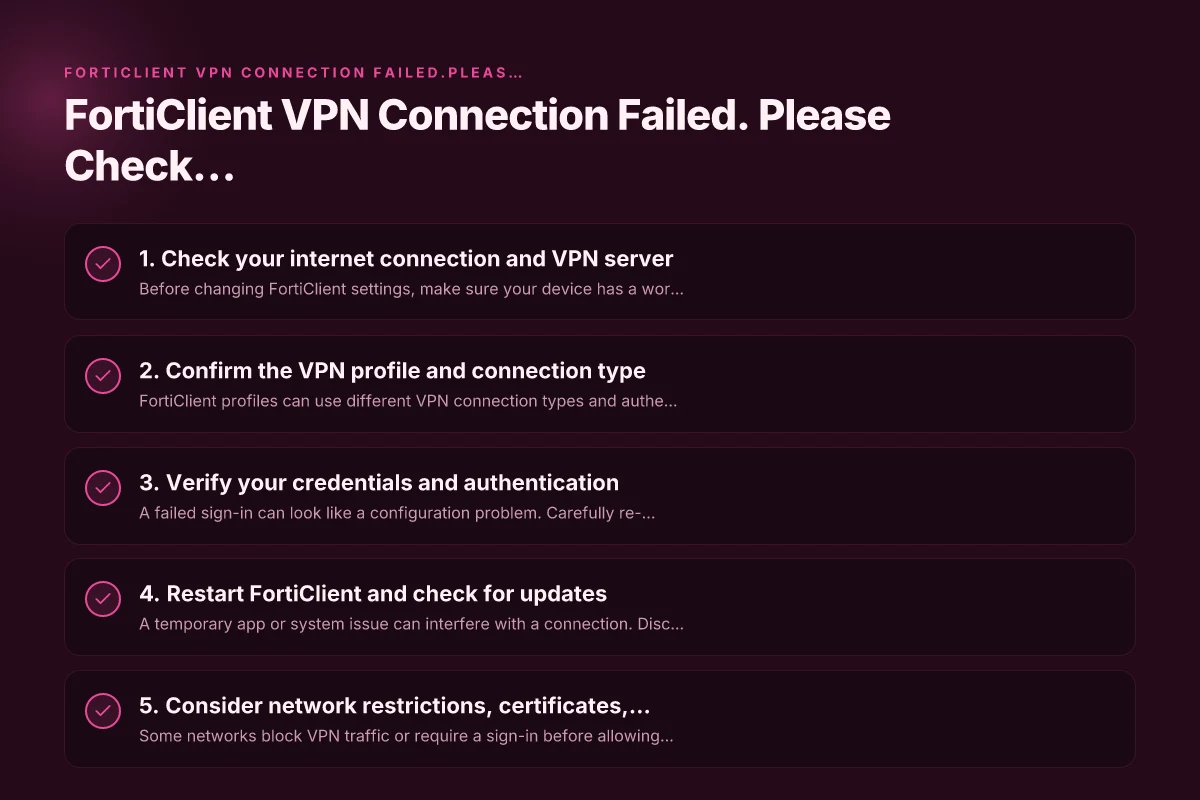
2. Confirm the VPN profile and connection type
FortiClient profiles can use different VPN connection types and authentication options. The profile must match the configuration on your organization’s gateway. A setting that works for one company or VPN service may not work for another. How to Connect VPN Without Downloading an App
Compare your profile with the setup instructions from your administrator. Check these details:
- VPN connection type, such as SSL VPN or IPsec VPN
- Gateway hostname or IP address
- Port, if your organization specifies one
- Required username format, such as a company email or domain account
- Authentication method, including multi-factor authentication
- Any organization-provided certificates or configuration files
Do not guess at advanced options or replace a managed profile with settings found online. If your organization uses a centrally managed FortiClient configuration, ask IT to confirm that your device has received the current profile.
| What to check | Possible problem | Recommended action |
|---|---|---|
| Gateway address | Typo or outdated server name | Confirm the current address with IT |
| VPN type | Profile does not match the gateway | Use the connection type specified by your organization |
| Port | Incorrect or missing port | Enter only the port provided by IT |
| Authentication | Wrong method or username format | Follow your organization’s sign-in instructions |
| Certificate | Missing, expired, or untrusted certificate | Ask IT to verify or reinstall the approved certificate |
Choose the next troubleshooting step
| Situation | First step | If it still fails | Contact or check |
|---|---|---|---|
| Internet is unavailable | Restore internet access | Retry the VPN connection | Network provider or local network support |
| Server address is uncertain | Confirm the VPN server details | Recheck the profile | VPN administrator |
| Profile seems wrong | Select the intended profile | Verify its connection type | VPN administrator |
| Login is rejected | Re-enter credentials | Confirm the authentication method | Account or VPN administrator |
| FortiClient appears stuck | Restart the app | Check for updates | FortiClient support or administrator |
| Failure occurs on one network | Check for network restrictions | Try another permitted network | Network administrator |
| Certificate warning appears | Check certificate requirements | Confirm the certificate is valid and trusted | VPN administrator |
| Device settings may interfere | Review relevant device settings | Retry after correcting them | Device or VPN administrator |
Compiled November 2026; check the provider's site for current details. Norton VPN APK for Firestick: How to Install It Safely
3. Verify your credentials and authentication
A failed sign-in can look like a configuration problem. Carefully re-enter your username and password, checking for typing errors, an incorrect keyboard layout, or an outdated saved password. If your organization requires a specific username format, use that exact format.
If multi-factor authentication is enabled, approve the correct request and make sure your phone or authentication device has connectivity. A timed-out approval, rejected prompt, or expired one-time code can stop the VPN session from being established.
If you recently changed your password, sign out of FortiClient if possible and enter the new password rather than relying on saved credentials. Do not repeatedly retry a password you suspect is wrong. Your organization may temporarily lock an account after too many failed attempts. Contact IT if your account may be locked or your password has expired.
4. Restart FortiClient and check for updates
A temporary app or system issue can interfere with a connection. Disconnect from the VPN, close FortiClient, and reopen it. If the app remains unresponsive, restart your device and try again. My IP ExpressVPN: How to Check Your IP Address and What It Means
Check that you are using the FortiClient version approved by your organization. Some VPN gateways require a particular version or configuration, and a very old client may not support the organization’s current setup. Install updates only through an official company portal, your IT department, or another trusted source.
If your device is managed, do not uninstall FortiClient or remove its configuration without permission. Reinstallation may erase a profile, certificate, or policy that your organization needs. Ask IT to provide the correct installation package and profile if a reinstall is necessary.
Match a possible cause with an appropriate response
| Possible cause | Clue to look for | Recommended response | Who can help |
|---|---|---|---|
| Internet connection problem | Other internet services also fail | Fix the connection before retrying VPN | Internet or network support |
| Incorrect server details | Server address is unknown or questionable | Verify the address | VPN administrator |
| Wrong VPN profile | Selected profile is not the intended one | Choose the correct profile | VPN administrator |
| Mismatched connection type | Profile type is uncertain | Confirm the required type | VPN administrator |
| Credential issue | Sign-in does not complete | Check credentials and retry | Account administrator |
| Authentication mismatch | Required authentication is unclear | Confirm the expected method | VPN administrator |
| App issue or outdated version | Restart or update may be needed | Restart FortiClient and check for updates | FortiClient support |
| Network restriction | VPN fails only on a particular network | Check whether VPN traffic is allowed | Network administrator |
| Certificate or device setting | Certificate warning or device-specific failure | Verify certificate and relevant settings | VPN administrator |
Compiled November 2026; check the provider's site for current details. Norton VPN App for Fire Stick: How to Set It Up and What to Know
5. Consider network restrictions, certificates, and device settings
Some networks block VPN traffic or require a sign-in before allowing internet access. If the connection fails on public Wi-Fi, first complete the network’s captive-portal sign-in. You can also test from another network that you are allowed to use, such as a personal hotspot, if your organization permits it.
Security software, firewalls, or device policies may affect VPN connectivity. Do not disable antivirus, firewall protection, or company-managed controls as a troubleshooting shortcut. Instead, ask IT whether a specific network rule or application permission needs attention.
Certificates can also cause connection failures, especially when they are expired, missing, or not trusted by the device. If your organization requires a certificate, confirm that it is installed and current through the approved process. Never accept an unfamiliar certificate warning without checking with your administrator.
When to contact IT
Contact your help desk if the error persists after the basic checks, if the profile appears incomplete, or if FortiClient reports a certificate, authentication, or gateway error. Include: NordVPN Activation Code: How to Activate Your Subscription
- The full error message and any error code
- Your operating system and FortiClient version
- Whether the issue affects one network or all networks
- When the problem started and whether anything changed recently
- A screenshot of the error, if your organization permits sharing one
Do not send your password, authentication code, or private certificate through email or chat. Use your organization’s approved support channel.
Recommendation
Start with your internet connection, then confirm the VPN profile and sign-in details against your organization’s instructions. Restart FortiClient and check for an approved update if needed. If the message remains, stop changing settings and contact IT with the exact error and troubleshooting steps you tried. The gateway or managed configuration may require an administrator to fix.