Tuxler VPN Chrome: How It Works, Setup, and Safety Tips
Learn how to use Tuxler VPN in Chrome, what it can and cannot protect, and how to assess its privacy and performance.
Tuxler VPN Chrome refers to using Tuxler through a Chrome browser extension or related service. If the extension is available in your region and compatible with your version of Chrome, you can install it from an official source, sign in if required, and choose an available location. It can help route browser traffic through another IP address, but it is not the same as a device-wide VPN: other apps and some browser connections may remain outside its coverage.
Tuxler VPN for Chrome vs. a full-device VPN
| Comparison point | Tuxler Chrome extension | Full-device VPN |
|---|---|---|
| Coverage | Chrome browser traffic | Traffic across the device |
| Setup | Install in Chrome | Install a desktop or mobile app |
| Browser-specific use | Yes | Usually, alongside device-wide protection |
| Other apps | Not covered by the extension | Covered |
| Device-wide settings | No | Yes |
| Best suited for | Changing Chrome’s apparent location | Protecting traffic from multiple apps |
| What to check | Extension permissions and privacy terms | App permissions, privacy terms, and supported devices |
Compiled November 2026; check the provider's site for current details.
| VPN | Obfuscation | From / month | Plan | Free plan | Refund | Alipay | UnionPay | Crypto | Website opens in China | Trustpilot | |
|---|---|---|---|---|---|---|---|---|---|---|---|
 ZoogVPN | Turn on manually Shadow | $2.49/mo | 27 months: $59.99 | Yes | 7 days | ✓ | ✓ | ✓ | ✓ | Official site blocked; our special link opens (4.4 s) | 4.2/5 (195 reviews) |
 NordVPN | Turn on manually Obfuscated Servers / NordWhisper | $3.49/mo | 27 months: $94.23 | No | 30 days | ? | ✗ | ✓ | ✓ | ✗ Blocked | 4.2/5 (51,628 reviews) |
 ExpressVPN | ✓ On by default all servers | $3.00/mo | 28 months: $84 | No | 30 days | ✗ | ✗ | ✓ | ✗ | ✗ Blocked | 4.4/5 (29,706 reviews) |
 Surfshark | ✓ On by default Camouflage, with OpenVPN | See site | See site | No | 30 days | ✗ | ✗ | ✗ | ✓ | ✗ Blocked | 4.3/5 (31,823 reviews) |
 Proton VPN | Turn on manually Stealth, free plan too | $2.99/mo | 12 months: $35.88 | Yes | 30 days | ✗ | ✗ | ✗ | ✓ | ✗ Blocked | 2.1/5 (1,040 reviews) |
 Astrill VPN | Turn on manually StealthVPN / OpenWeb | $12.50/mo | 24 months: $300 | No | See site | ✗ | ✗ | ✗ | ✓ | ✗ Blocked | 1.3/5 (110 reviews) |
 Private Internet Access | Turn on manually Shadowsocks, OpenVPN only | $2.03/mo | 40 months: $81.2 | No | 30 days | ✗ | ✗ | ✗ | ✗ | ✗ Blocked | 4.2/5 (11,033 reviews) |
 CyberGhost | Turn on manually selected servers | $2.19/mo | 28 months: $61.32 | No | 45 days | ✗ | ✗ | ✗ | ✓ | ✗ Blocked | 4.0/5 (24,178 reviews) |
 PureVPN | Turn on manually switch to OpenVPN | $1.69/mo | 60 months: $101.55 | No | 31 days | ? | ? | ✗ | ✓ | ✗ Blocked | 4.4/5 (17,994 reviews) |
 AdGuard VPN | ✓ On by default TrustTunnel | $2.99/mo | 24 months: $71.76 | Yes | 30 days | ✓ | ✗ | ✓ | ✓ | Official site blocked; our special link opens (3.7 s) | 4.3/5 (290 reviews) |
 Mullvad | Turn on manually QUIC / Shadowsocks / LWO | $5.61/mo | €5/mo | No | 14 days | ✗ | ✗ | ✗ | ✓ | ✗ Blocked | 3.2/5 (192 reviews) |
 Windscribe | Turn on manually Stealth / WStunnel | $5.75/mo | 12 months: $69 | Yes | See site | ✗ | ✗ | ✗ | ✓ | ✗ Blocked | 4.7/5 (13,355 reviews) |
 StrongVPN | Turn on manually Scramble, OpenVPN TCP | See site | See site | No | 30 days | ✓ | ✗ | ✗ | ✗ | ✗ Blocked | 4.4/5 (2,695 reviews) |
 LightXtreme 闪连 | Not listed | $7.08/mo | 12 months: $84.99 | Yes | 30 days | ✓ | ✓ | ✓ | ✓ | ✓ Yes (3.5 s) | No page |
Prices checked 2026-11-10 on each vendor's pricing page (cheapest long plan, USD). Check the vendor's checkout for the final price.
Obfuscation checked 2026-11-14 on each vendor's site and help center: "on by default" = nothing to set; "turn on manually" = switch protocol or mode in settings; "not listed" = the vendor describes no obfuscation.
Payment methods checked 2026-11-10 on each vendor's payment pages: all 14 take cards and PayPal; ✗ = not listed, ? = the vendor's own pages disagree.
China access: whether the official website opens from mainland China networks (tests the website only, not the VPN connection). Last checked 2026-11-18 01:02 Beijing time.
Trustpilot score and review count checked 2026-11-10.
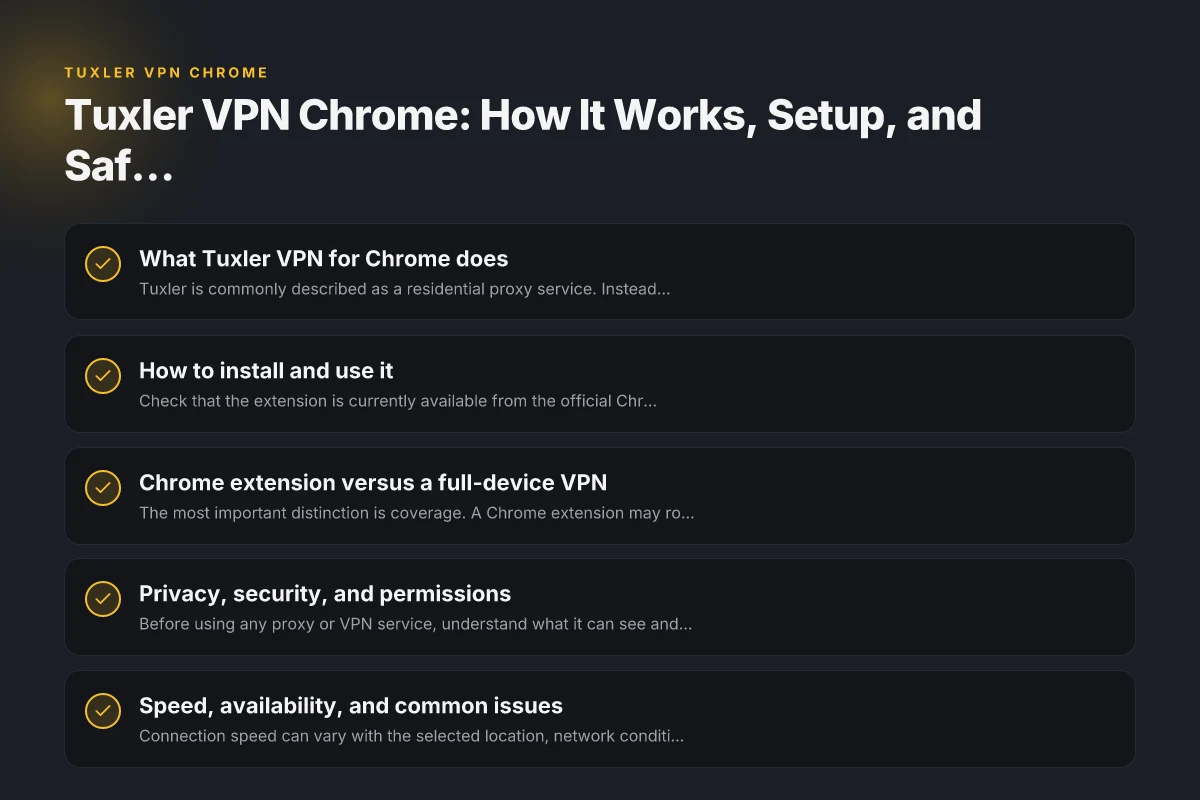
What Tuxler VPN for Chrome does
Tuxler is commonly described as a residential proxy service. Instead of relying only on data-center IP addresses, residential proxies route traffic through IP addresses associated with residential internet connections. Tuxler may offer location choices and other features through its product or extension, but the exact options can change over time.
A Chrome extension usually works within the browser rather than creating a full-device VPN tunnel. Depending on how it is designed, it may change Chrome’s proxy settings so that eligible browser requests pass through a selected proxy. This can make websites see the proxy’s IP address instead of your usual public IP address.
That does not mean every website will treat the connection as a different person or location. Sites can use cookies, account details, browser settings, device signals, and other information to recognize returning visitors. A proxy changes one part of the connection, not your entire online identity.
How to install and use it
Check that the extension is currently available from the official Chrome Web Store or from a link on Tuxler’s official website. Availability, listing names, features, and supported browsers can change, so confirm that the publisher is legitimate before installing anything. VPN Change Location Free: How to Switch Your Virtual Location Safely
A typical setup looks like this:
- Open the official Chrome Web Store listing or follow the installation link from Tuxler’s official site.
- Check the publisher name, user reviews, update history, and requested permissions.
- Select Add to Chrome and review the permissions prompt before confirming.
- Open the extension, create an account or sign in if needed, and review the service’s current plan options.
- Choose an available location and connect.
- Visit a reputable IP-checking website to see whether the browser is presenting a different IP address.
If the extension does not connect, first check your internet connection and whether Chrome or the extension needs an update. You can also sign out and back in, switch locations, or consult Tuxler’s official support information. Avoid installing unofficial copies or browser add-ons that imitate the service.
Tuxler VPN for Chrome setup and troubleshooting
| Step or issue | What to do | If it does not work |
|---|---|---|
| Find the extension | Open the Chrome Web Store and search for Tuxler VPN | Check that the listing is from the intended provider |
| Install | Select Add to Chrome and review the requested permissions | Do not proceed if the permissions concern you |
| Open | Select the extension icon in Chrome | Pin the icon for easier access |
| Connect | Follow the extension’s on-screen instructions | Check the extension’s status and settings |
| Location choice | Use the available location controls | Options may depend on current availability |
| Slow browsing | Test another location or disconnect to compare | Check whether other network services are also slow |
| Connection problems | Review Chrome and extension updates | Restart Chrome and try again |
Compiled November 2026; check the provider's site for current details. FortiClient VPN Download Windows 11: Safe Download and Setup Guide
Chrome extension versus a full-device VPN
The most important distinction is coverage. A Chrome extension may route only traffic from Chrome, while a full VPN app generally creates a tunnel for supported traffic across the device. The actual behavior depends on the product’s implementation and settings, so check Tuxler’s current documentation rather than assuming that all traffic is protected.
| Feature | Tuxler in Chrome | Full-device VPN app |
|---|---|---|
| Typical coverage | Browser traffic handled by the extension | Most supported traffic across the device |
| Setup | Install and configure a browser extension | Install an app and connect to a VPN server |
| Other apps | Usually not covered by a browser-only extension | Often covered, subject to app and system settings |
| IP address shown to websites | May change for eligible Chrome requests | Usually changes for traffic routed through the VPN |
| Best suited to | Browser-based location testing or proxy use | Broader protection on public Wi-Fi or across apps |
Neither option guarantees complete anonymity. Browser leaks, account logins, tracking technologies, and misconfiguration can all affect privacy. If you need protection beyond Chrome, use a reputable, properly configured full-device VPN and check that it includes features such as a kill switch if those are important to you.
Privacy, security, and permissions
Before using any proxy or VPN service, understand what it can see and what data it may collect. Traffic routed through a provider can expose connection information to that provider, so read Tuxler’s current privacy policy and terms. Look for clear explanations of logging, data retention, third-party sharing, account information, and how to contact the company.
Pay special attention to the extension’s requested permissions. Browser extensions may ask to read or change data on websites, manage proxy settings, or access other browser functions. Some permissions may be necessary for the service to work, but you should understand why they are requested and whether you are comfortable granting them. Proxy Server: What It Is, How It Works, and When to Use One
Practical safety checks include:
- Install only from an official listing or the provider’s verified website.
- Confirm the publisher and check when the extension was last updated.
- Avoid entering sensitive information on sites you do not trust.
- Do not assume a changed IP address makes you anonymous.
- Disconnect the extension when you no longer need it, and remove it if you stop using it.
- Avoid using a proxy to break a website’s rules or bypass restrictions unlawfully.
For sensitive activities such as banking or handling confidential work data, choose services and configurations that meet your security requirements. A browser proxy alone may not be suitable.
Decision checklist for using Tuxler VPN for Chrome
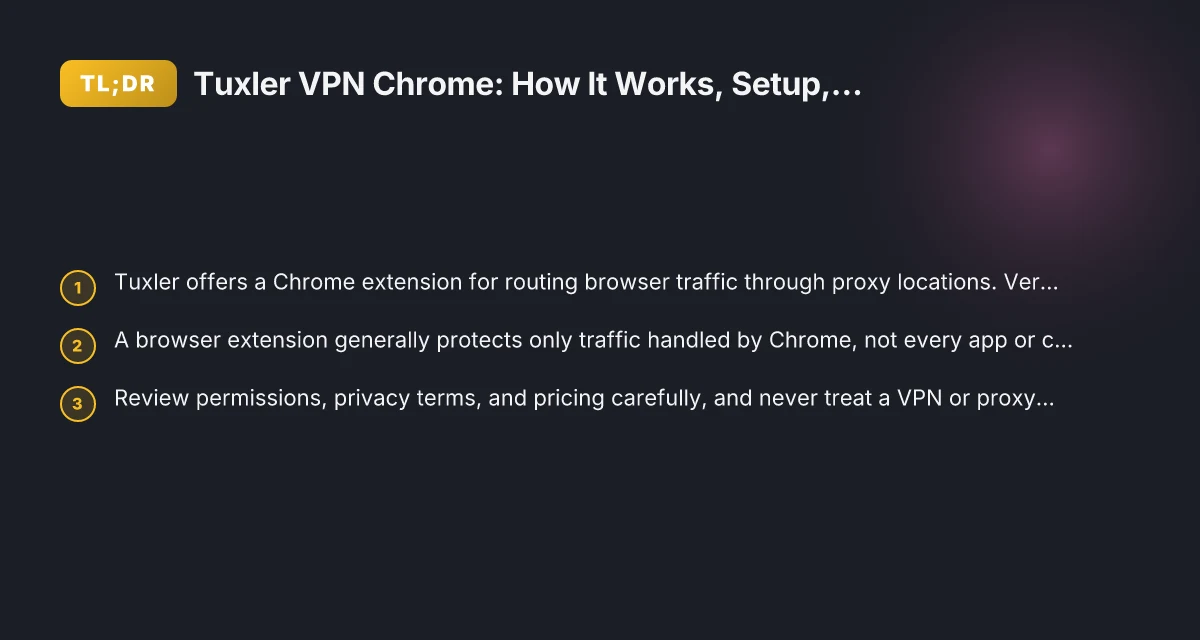
| Consideration | What to check | Why it matters | Decision cue |
|---|---|---|---|
| Coverage | Whether you need protection beyond Chrome | An extension may not cover other apps | Choose a full-device VPN for broader coverage |
| Privacy | Read the provider’s privacy policy | Practices vary by service | Use only if the terms meet your needs |
| Permissions | Review what Chrome asks the extension to access | Access can affect your browsing data | Avoid permissions you cannot accept |
| Security | Check what protections the extension describes | A location change alone does not establish security | Do not treat it as a guarantee of anonymity |
| Speed | Test performance on your connection | VPN use can affect browsing speed | Compare with and without the extension |
| Availability | Check which locations are currently offered | Available choices can change | Confirm your preferred location is available |
| Recommendation | Match the tool to your use case | Browser-only and device-wide needs differ | Consider alternatives if you need broader protection |
Compiled November 2026; check the provider's site for current details. CJ VPN Login: How to Sign In and Fix Common Problems
Speed, availability, and common issues
Connection speed can vary with the selected location, network conditions, the proxy route, and the service’s current capacity. A distant location may add noticeable delay. Residential IP availability can also differ by country or change over time.
Streaming platforms, payment services, and websites that block proxy traffic may not work as expected. A location selection does not guarantee access to region-specific content, and using a proxy to bypass a service’s terms can lead to account restrictions.
If a site stops loading after you connect, try changing locations or disconnecting the extension to see whether the proxy is causing the issue. Check whether another VPN, proxy, security tool, or Chrome extension is also controlling network settings, as conflicting tools can interrupt browsing.
Recommendation
Tuxler VPN Chrome may be worth considering if you specifically want a browser-based proxy and have verified the extension’s current availability, permissions, and privacy terms. For protection across your whole device, use a reputable full-device VPN instead. Before relying on either option, test what traffic it covers and make sure its privacy practices match your needs. Proton VPN Download: How to Get the Official App Safely