VPN Keeps Turning On iPhone: Causes and Fixes
Find out why a VPN keeps turning on your iPhone and how to stop automatic connections safely.
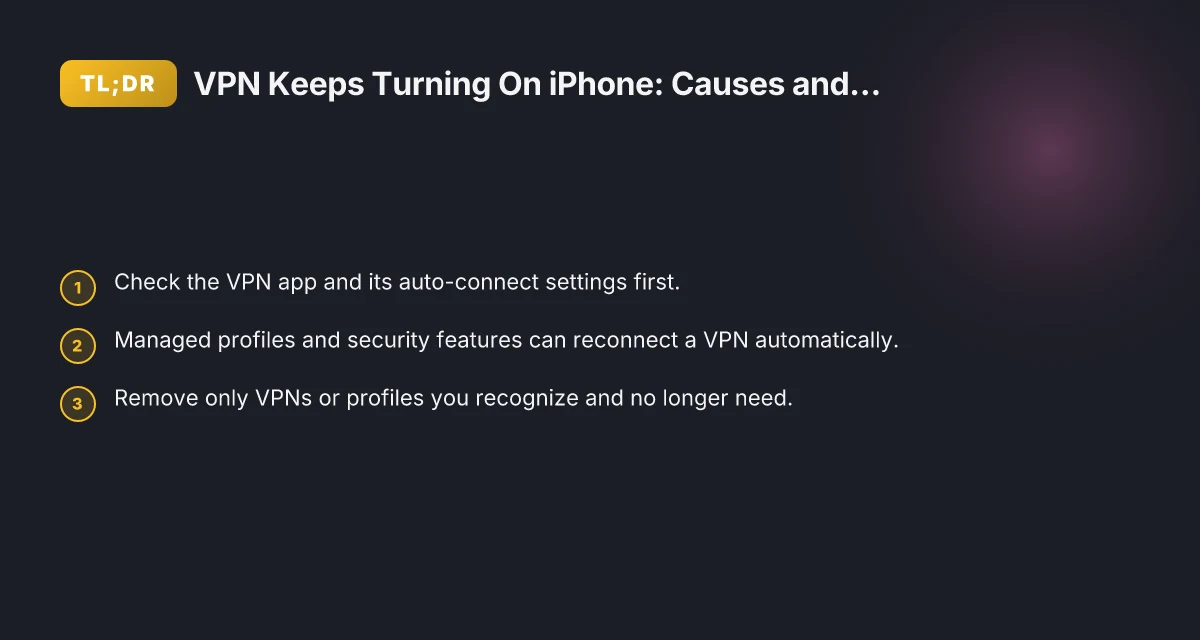
If a VPN keeps turning on your iPhone, an app, configuration profile, or device-management setting is probably reconnecting it automatically. Start by checking the VPN app’s connection settings, then review your iPhone’s VPN configurations and any installed profiles. Turning off the VPN switch alone may not stop a service that is set to reconnect on demand.
Common causes and where to check
| Cause | Where to check | Typical clue | First action |
|---|---|---|---|
| VPN app auto-connect | VPN app settings | Connects on Wi‑Fi or mobile data | Turn off auto-connect |
| On-demand VPN | iPhone VPN settings | Connects on specific networks | Review VPN options |
| Configuration profile | Settings app | VPN returns after settings change | Review installed profiles |
| Security app | Security or privacy app | VPN starts with protection features | Check app connection settings |
| Device management | Work or school settings | Profile is managed by an organization | Contact the administrator |
| Network change | Wi‑Fi or mobile data settings | Starts after switching networks | Check app network rules |
| App or iOS update | App Store or Settings | Behavior began after an update | Check for further updates |
Compiled November 2026; check the provider's site for current details.
| VPN | Obfuscation | From / month | Plan | Free plan | Refund | Alipay | UnionPay | Crypto | Website opens in China | Trustpilot | |
|---|---|---|---|---|---|---|---|---|---|---|---|
 ZoogVPN | Turn on manually Shadow | $2.49/mo | 27 months: $59.99 | Yes | 7 days | ✓ | ✓ | ✓ | ✓ | Official site blocked; our special link opens (4.4 s) | 4.2/5 (195 reviews) |
 NordVPN | Turn on manually Obfuscated Servers / NordWhisper | $3.49/mo | 27 months: $94.23 | No | 30 days | ? | ✗ | ✓ | ✓ | ✗ Blocked | 4.2/5 (51,628 reviews) |
 ExpressVPN | ✓ On by default all servers | $3.00/mo | 28 months: $84 | No | 30 days | ✗ | ✗ | ✓ | ✗ | ✗ Blocked | 4.4/5 (29,706 reviews) |
 Surfshark | ✓ On by default Camouflage, with OpenVPN | See site | See site | No | 30 days | ✗ | ✗ | ✗ | ✓ | ✗ Blocked | 4.3/5 (31,823 reviews) |
 Proton VPN | Turn on manually Stealth, free plan too | $2.99/mo | 12 months: $35.88 | Yes | 30 days | ✗ | ✗ | ✗ | ✓ | ✗ Blocked | 2.1/5 (1,040 reviews) |
 Astrill VPN | Turn on manually StealthVPN / OpenWeb | $12.50/mo | 24 months: $300 | No | See site | ✗ | ✗ | ✗ | ✓ | ✗ Blocked | 1.3/5 (110 reviews) |
 Private Internet Access | Turn on manually Shadowsocks, OpenVPN only | $2.03/mo | 40 months: $81.2 | No | 30 days | ✗ | ✗ | ✗ | ✗ | ✗ Blocked | 4.2/5 (11,033 reviews) |
 CyberGhost | Turn on manually selected servers | $2.19/mo | 28 months: $61.32 | No | 45 days | ✗ | ✗ | ✗ | ✓ | ✗ Blocked | 4.0/5 (24,178 reviews) |
 PureVPN | Turn on manually switch to OpenVPN | $1.69/mo | 60 months: $101.55 | No | 31 days | ? | ? | ✗ | ✓ | ✗ Blocked | 4.4/5 (17,994 reviews) |
 AdGuard VPN | ✓ On by default TrustTunnel | $2.99/mo | 24 months: $71.76 | Yes | 30 days | ✓ | ✗ | ✓ | ✓ | Official site blocked; our special link opens (3.7 s) | 4.3/5 (290 reviews) |
 Mullvad | Turn on manually QUIC / Shadowsocks / LWO | $5.61/mo | €5/mo | No | 14 days | ✗ | ✗ | ✗ | ✓ | ✗ Blocked | 3.2/5 (192 reviews) |
 Windscribe | Turn on manually Stealth / WStunnel | $5.75/mo | 12 months: $69 | Yes | See site | ✗ | ✗ | ✗ | ✓ | ✗ Blocked | 4.7/5 (13,355 reviews) |
 StrongVPN | Turn on manually Scramble, OpenVPN TCP | See site | See site | No | 30 days | ✓ | ✗ | ✗ | ✗ | ✗ Blocked | 4.4/5 (2,695 reviews) |
 LightXtreme 闪连 | Not listed | $7.08/mo | 12 months: $84.99 | Yes | 30 days | ✓ | ✓ | ✓ | ✓ | ✓ Yes (3.5 s) | No page |
Prices checked 2026-11-10 on each vendor's pricing page (cheapest long plan, USD). Check the vendor's checkout for the final price.
Obfuscation checked 2026-11-14 on each vendor's site and help center: "on by default" = nothing to set; "turn on manually" = switch protocol or mode in settings; "not listed" = the vendor describes no obfuscation.
Payment methods checked 2026-11-10 on each vendor's payment pages: all 14 take cards and PayPal; ✗ = not listed, ? = the vendor's own pages disagree.
China access: whether the official website opens from mainland China networks (tests the website only, not the VPN connection). Last checked 2026-11-18 01:02 Beijing time.
Trustpilot score and review count checked 2026-11-10.
Why a VPN turns on by itself
VPN apps often include features that reconnect whenever you use cellular data, join Wi-Fi, or access the internet. These settings help protect your traffic, but they can make it seem as if the VPN is ignoring your choice to turn it off.
Common causes include:
- Auto-connect or always-on settings in a VPN app.
- On-demand VPN rules in an iPhone configuration.
- Security, privacy, or filtering apps that use a VPN connection to manage network traffic.
- A work or school profile that requires a VPN.
- More than one VPN app or configuration competing to connect.
- A temporary iOS or app issue that restores a connection after a restart or network change.
A VPN icon can also appear briefly while an app reconnects after you switch between Wi-Fi and cellular service. If it stays on or repeatedly returns, check the settings below.
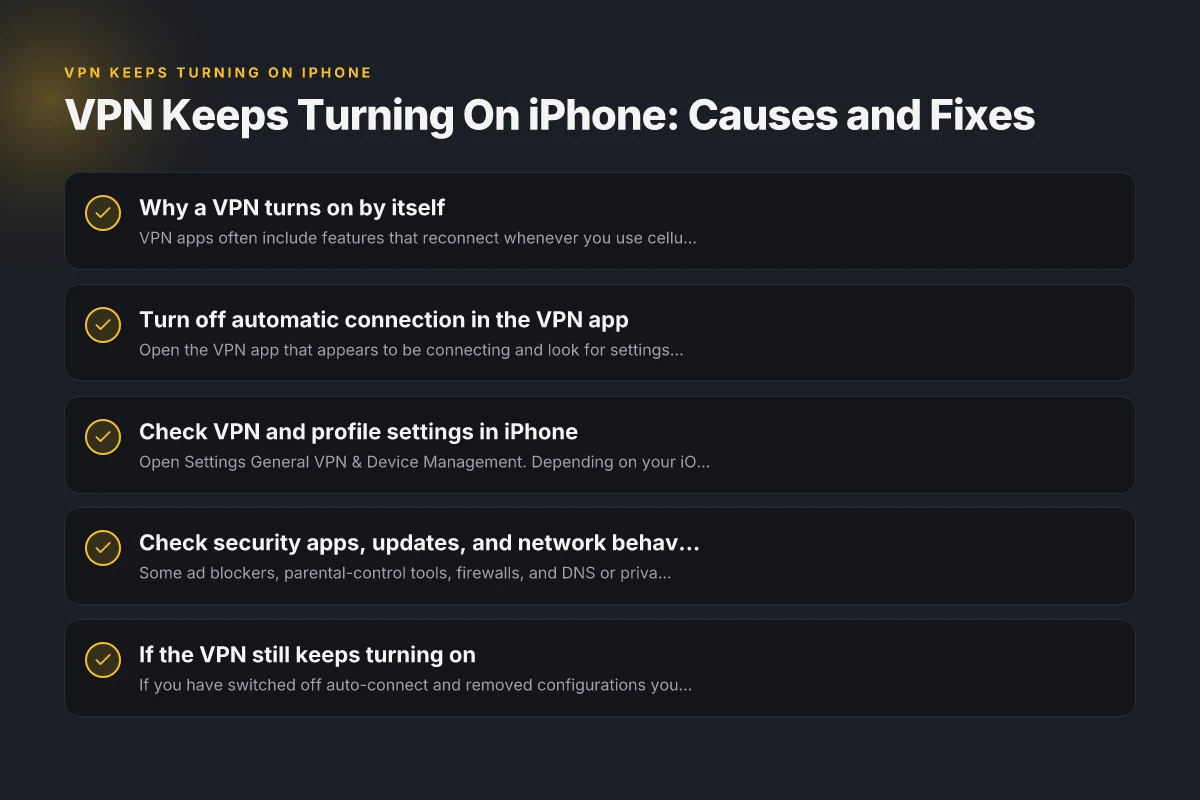
Turn off automatic connection in the VPN app
Open the VPN app that appears to be connecting and look for settings named Auto-connect, Connect on demand, Always-on VPN, Launch at startup, or Untrusted Wi-Fi protection. The exact wording depends on the app. iPhone V2Ray: How to Set It Up Safely and Choose a Client
Turn off automatic connection or adjust its rules. For example, you may be able to connect only on public Wi-Fi rather than on every network. If you do not recognize which app is responsible, check the VPN details in iPhone Settings before deleting anything.
Then disconnect using the app itself and test the phone:
- Turn off the VPN in the app.
- Close and reopen the app to see whether it reconnects.
- Switch between Wi-Fi and cellular data.
- Restart your iPhone and check again.
If the VPN returns, another app or a profile may be controlling the connection.
Check VPN and profile settings in iPhone
Open Settings > General > VPN & Device Management. Depending on your iOS version, the VPN section may also appear under Settings > VPN. Review the listed configurations and note the app, organization, or service associated with each one. Why Doesn’t My VPN Switch to Those Local TV Stations?
If there is a VPN configuration you recognize and no longer use, tap its information button and choose the option to delete or remove it. You may need to confirm with your passcode. Removing a configuration can stop its automatic connection, but it does not necessarily uninstall the VPN app.
Also review VPN & Device Management for configuration profiles or mobile device management (MDM). A profile from an employer, school, or service provider may automatically reconnect a VPN. Do not remove a work or school profile without checking with the organization’s IT administrator: doing so could block access to work resources or violate device requirements.
| What you find | Likely explanation | What to do |
|---|---|---|
| A VPN app with auto-connect enabled | The app reconnects according to its rules | Change auto-connect settings in the app |
| A VPN configuration you no longer use | An old setup may still be active | Remove it if you recognize it and no longer need it |
| A work or school management profile | An organization may require the VPN | Ask the organization’s IT administrator |
| A VPN-style security or filtering app | The app may route traffic through a local VPN connection | Check the app’s settings before uninstalling it |
Troubleshooting options by situation
| Situation | Check first | Action | What to expect |
|---|---|---|---|
| VPN starts after joining Wi‑Fi | VPN app settings | Disable Wi‑Fi auto-connect | App stops connecting automatically |
| VPN starts on mobile data | VPN app settings | Disable mobile-data auto-connect | App stops connecting on mobile data |
| VPN returns after being switched off | iPhone VPN settings | Review on-demand options | Connection rules may be identified |
| VPN settings are hard to change | Profiles in Settings | Review the configuration profile | Management restrictions may apply |
| Security app turns VPN on | Security app settings | Adjust its VPN or protection controls | App behavior may change |
| Problem began after an update | App and iOS versions | Check for available updates | A later update may address the issue |
| Behavior continues across networks | App and profile settings | Review all connection rules | The source may be a profile or another app |
Compiled November 2026; check the provider's site for current details. IPsec Port: Which Ports and Protocols Does IPsec Use?
Check security apps, updates, and network behavior
Some ad blockers, parental-control tools, firewalls, and DNS or privacy services use Apple’s VPN framework to filter traffic. They may show a VPN indicator even when you did not intentionally open a traditional VPN app. Check any network-protection apps you use and look for options to pause filtering or disable automatic protection.
If the problem began after installing or updating an app, update it again if a newer version is available. You can also restart your iPhone and install any available iOS update under Settings > General > Software Update. These steps may resolve a temporary connection issue, but they will not override a required management profile or an app’s auto-connect rule.
Avoid deleting unfamiliar profiles or apps simply to make the VPN icon disappear. First identify what created the connection and whether it protects access to accounts, work systems, or other services you rely on.
If the VPN still keeps turning on
If you have switched off auto-connect and removed configurations you no longer need, but the VPN continues to return, narrow down the cause: VPN Country Changer Free: How to Change Your Virtual Location Safely
- Temporarily disable one VPN or filtering app at a time, then test the connection.
- Contact the VPN provider if its app keeps reconnecting despite its settings.
- Ask your employer or school whether a managed profile requires the VPN.
- Contact Apple Support if the behavior continues with no recognizable VPN app or profile.
You can reset network settings as a later troubleshooting step, but be aware of the effect: Settings > General > Transfer or Reset iPhone > Reset > Reset Network Settings removes saved Wi-Fi networks and passwords, along with some network settings. It may not remove a VPN that an app or management profile automatically reinstalls.
Next steps if the VPN keeps turning on
| Step | What to review | When it helps | If it persists |
|---|---|---|---|
| 1 | VPN app auto-connect rules | VPN starts on its own | Check iPhone VPN settings |
| 2 | On-demand VPN settings | VPN reconnects after being turned off | Review profiles |
| 3 | Configuration profiles | Settings are managed or keep returning | Contact the organization if managed |
| 4 | Security apps | VPN starts alongside security features | Review the app’s controls |
| 5 | App and iOS updates | Issue began after an update | Continue checking settings |
| 6 | Wi‑Fi and mobile-data behavior | VPN starts only on certain networks | Review network-specific rules |
| 7 | All listed settings | The cause is unclear | Contact the VPN app’s support |
Compiled November 2026; check the provider's site for current details.
Recommendation
Start with the VPN app’s auto-connect settings, then check Settings > General > VPN & Device Management for configurations or profiles. Remove only setups you recognize and no longer need. If a work or school profile is involved, ask its administrator before changing it. Free VPN for PC to Change Location: What to Know Before You Connect