How to Use a Proxy: A Practical Guide to Benefits, Setup, and Safety

Learn how to use a proxy, choose the right type, configure it on your device, and protect your privacy and security.
To use a proxy, choose a trusted proxy service, get its server address and port, and enter those details in the settings for your browser, app, or operating system. The proxy then forwards supported requests to websites on your behalf. Some proxies require a username and password, and setup varies by proxy type and device.
A proxy can help route traffic through a different network location, manage access to online services, or connect applications through a company network. It is not a complete privacy or security solution: many proxies do not encrypt your connection, and the provider may be able to see information about your traffic. The right approach is to match the proxy to your purpose and configure it only for the traffic you intend to route.
Compare proxy types by purpose and trade-offs
| Proxy type | Best suited for | IP behavior | Typical advantage | Main trade-off |
|---|---|---|---|---|
| Datacenter | Speed-focused tasks | Uses a server IP | Often fast | Easier to identify as a proxy |
| Residential | Access that needs a household IP | Uses an ISP-assigned IP | Looks like regular home traffic | Can cost more |
| Mobile | Services designed for mobile users | Uses a mobile-network IP | Matches mobile traffic | Availability and cost vary |
| Rotating | Many requests or changing identities | Changes IPs automatically | Reduces repeated use of one IP | May disrupt sessions |
| Static | Long-running sessions | Keeps the same IP | More consistent access | Less privacy from IP rotation |
| Transparent | Basic network filtering or caching | May disclose proxy use | Simple to deploy | Little anonymity |
| Anonymous | Hiding the user’s IP from a destination | Masks the user’s IP | Adds a layer of privacy | Does not guarantee security |
| SOCKS | Apps and traffic beyond web browsing | Relays varied traffic | Broad app compatibility | Setup can be less straightforward |
Compiled November 2026; check the provider's site for current details.
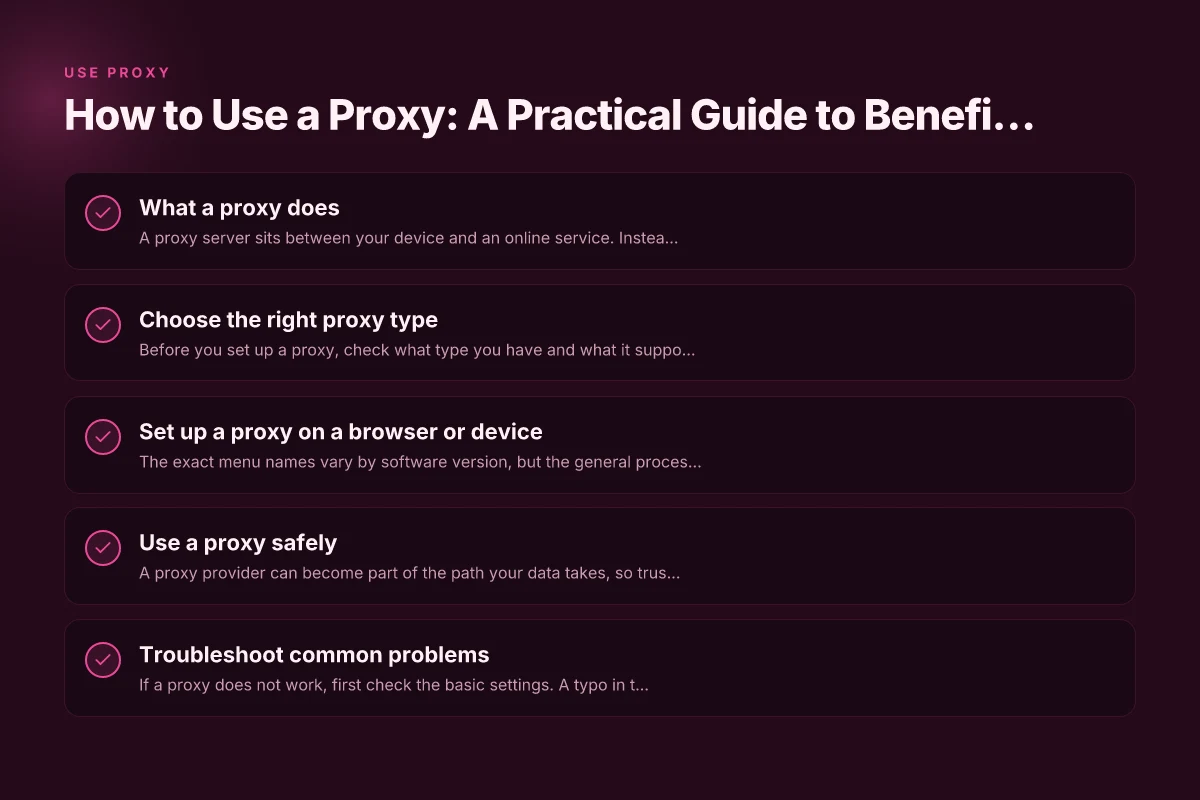
What a proxy does
A proxy server sits between your device and an online service. Instead of connecting directly, your app sends a request to the proxy, which forwards it to the destination and returns the response. The destination may see the proxy’s IP address rather than your device’s public IP address.
Proxies are used for several legitimate purposes, including:
- Routing work traffic through an organization’s network.
- Testing how a website or service behaves from different locations.
- Applying network rules, filtering, or logging in a managed environment.
- Directing a particular application’s requests through a specified server.
A proxy does not necessarily cover all activity on your device. A browser proxy may affect only that browser, while a system-wide configuration may apply to more apps. Some applications ignore system proxy settings and use their own connection methods.
Also, changing the IP address visible to a website does not make you fully anonymous. Websites may still identify you through account sign-ins, cookies, browser fingerprinting, or other data. VPN Location Changer Free: How to Change Your Location Safely
Choose the right proxy type
Before you set up a proxy, check what type you have and what it supports. The service should provide the connection details and instructions. Common types include HTTP, HTTPS, and SOCKS proxies.
| Type | Common use | Important consideration |
|---|---|---|
| HTTP | Web traffic in compatible browsers or apps | Does not inherently encrypt the connection |
| HTTPS | Web traffic through a proxy connection protected by TLS | Check that the provider and setup are trustworthy |
| SOCKS5 | A range of application traffic, if the app supports it | Encryption depends on the app or other security layers |
The labels can be confusing. An HTTPS proxy may protect the connection between your device and the proxy, but this does not automatically guarantee end-to-end encryption for every connection. For websites, look for HTTPS in the browser’s address bar and avoid entering sensitive information if you cannot verify the connection is secure.
A proxy is also different from a VPN. A VPN generally creates an encrypted tunnel for traffic routed through the VPN, while a proxy may only forward traffic and may cover just one application. Neither option guarantees anonymity, and each provider may have different privacy practices.
Choose a setup method for your device or browser AXGATE VPN: How It Works, Which Client to Use, and What to Check
| Setup method | Where it applies | Setup location | Best for | Key consideration |
|---|---|---|---|---|
| Browser settings | One browser | Browser network settings | Browser-only use | Other apps may bypass it |
| Operating-system settings | Most device apps | Network or proxy settings | Device-wide routing | Some apps may use their own settings |
| Manual proxy configuration | Browser or device | Enter proxy details | Specific proxy endpoints | Requires accurate server details |
| Automatic configuration URL | Compatible browsers or devices | PAC or configuration URL field | Rules-based routing | Requires a valid configuration file |
| Proxy extension | A supported browser | Extension settings | Quick browser switching | Check the provider and permissions |
| App-specific settings | One app | App network preferences | Routing selected app traffic | Availability varies by app |
| Mobile-device settings | Phone or tablet | Wi-Fi or network settings | Configuring a mobile device | Settings may apply only to one network |
| Provider app | Supported devices | Provider’s app | Guided setup | Review what traffic the app routes |
Compiled November 2026; check the provider's site for current details.
Set up a proxy on a browser or device
The exact menu names vary by software version, but the general process is straightforward.
- Get the connection details. You will usually need a hostname or IP address, a port, and possibly a proxy type and login credentials. Use details supplied by a provider or network administrator.
- Choose where to apply it. Configure the proxy in a specific browser or application if you only need that app to use it. Use operating-system settings only when you want supported apps to follow the system configuration.
- Enter the settings. Select the appropriate proxy type, then enter the server address and port. Add the username and password only in the requested authentication fields.
- Save and test. Visit a reputable IP-checking service or a site relevant to your task. Confirm that the connection works and that the displayed location or address is consistent with the proxy you selected.
- Check for leaks or exclusions. Some apps may bypass the proxy, and certain traffic may still connect directly. Review the app’s documentation and provider instructions if consistent routing matters.
On desktop systems, proxy controls are typically found in the network or internet settings. Browsers may use system settings or offer separate configuration options. On phones and tablets, proxy settings are often available for an individual Wi-Fi network rather than all mobile data. Follow current instructions for your specific operating system and app.
If the proxy requires authentication, use credentials provided securely by the service. Avoid saving passwords on shared devices, and do not paste proxy details into unfamiliar configuration tools. Fortin VPN: What It Is and How to Use FortiClient VPN
Use a proxy safely
A proxy provider can become part of the path your data takes, so trust matters. Free services may have unclear ownership, limited security, intrusive advertising, or unreliable performance. Before using any provider, look for a clear privacy policy, transparent pricing, support information, and an explanation of what data is collected and retained.
Follow these precautions:
- Use a reputable provider. Do not assume a proxy is safe just because it is free or easy to access.
- Protect sensitive accounts. Use HTTPS websites and multi-factor authentication. Avoid sending payment details or confidential information through a proxy you do not trust.
- Understand logging. Check whether the provider records connection details, usage data, or browsing-related information, and how long it keeps those records.
- Avoid unknown configuration files. A proxy setup file can change where traffic goes. Use only configurations from a source you trust.
- Respect rules and laws. Follow the terms of service for the proxy, the websites you visit, and any workplace or school network.
- Turn it off when finished. If you no longer need the proxy, remove or disable the setting so traffic does not continue through an unwanted server.
For work or school, use the proxy details and policies provided by the organization. Trying to bypass network controls may violate policy and can interrupt access to approved services.
Troubleshoot common proxy problems Windows VPN: How to Set It Up and Choose a Provider
| Symptom | Likely cause | What to check | Practical next step | Safety check |
|---|---|---|---|---|
| No internet access | Wrong server or port | Proxy address and port | Re-enter verified details | Use provider documentation |
| Proxy authentication fails | Incorrect credentials | Username and password | Confirm account status | Never share credentials publicly |
| Some sites do not load | Site blocks the proxy | Whether other sites work | Try a permitted endpoint | Follow site rules |
| Slow browsing | Busy server or long route | Connection speed without proxy | Try a nearby server | Avoid unknown free proxies |
| IP address does not change | Proxy is not active | Browser or device settings | Reconnect and verify the IP | Do not assume you are anonymous |
| Only one app is affected | App has separate network settings | App proxy configuration | Configure that app directly | Check for unintended traffic leaks |
| Connection drops repeatedly | Unstable endpoint or network | Connection stability | Switch to a reliable endpoint | Avoid sensitive activity while disconnected |
| Location appears incorrect | IP geolocation mismatch | Reported IP location | Choose a suitable server region | Do not use a proxy to bypass rules |
Compiled November 2026; check the provider's site for current details.
Troubleshoot common problems
If a proxy does not work, first check the basic settings. A typo in the hostname, port, or password is a common cause. Confirm that the proxy is online and that your subscription or access permission is current.
If pages load slowly, the server may be distant, busy, or unsuitable for the type of traffic you are using. Try a provider-approved alternative server, but do not switch to an unknown proxy simply because it appears faster.
If only some apps connect, those apps may not use the browser or operating system’s proxy settings. Check each app’s network options and documentation. If you lose internet access after changing settings, disable the proxy and test the connection directly. Then re-enter the details carefully. FortiGate VPN PFS: What It Is and How to Configure It
A website may also block proxy traffic or require additional verification. Do not assume that repeatedly changing servers is an appropriate way to get around a service’s access restrictions.
Recommendation
Use a proxy when you have a clear need, such as routing a supported app through a trusted network or testing a service in a controlled way. Choose a provider with transparent privacy practices, configure the proxy only where needed, and verify that the connection behaves as expected. For sensitive browsing or traffic that needs broad coverage and encryption, compare a reputable VPN or another approved secure connection method instead of assuming a proxy provides those protections.