NordVPN exception list
A practical guide to understanding and using NordVPN exception lists, including trusted networks, split tunneling, and real-world tips.
NordVPN offers several ways to manage exceptions so you can control when and where a VPN connection applies. An exception list lets you bypass or tailor protections for trusted networks, apps, or websites. This is especially useful if you run security software, access services that require a local IP, or use certain streaming or banking sites that block VPNs. Below is a practical guide to understanding and using NordVPN’s exception-related features, plus how to set them up effectively.
NordVPN exceptions types comparison
| Type | Purpose | Typical use case | When to use | Pros | Cons |
|---|---|---|---|---|---|
| Trusted Network | Excludes trusted networks from VPN | Home office network | When you trust network security | Faster local access; avoids double VPN | Not suitable for public networks |
| Split Tunneling | Choose apps to VPN | Selective app routing | When only some apps need protection | Apps run natively; saves bandwidth | Configuration overhead |
| URL/Browser Exclusions | Bypass VPN for specific sites | Access internal sites or streaming | When certain sites must stay outside VPN | Direct access to excluded sites | Potential leaks if not managed |
| Antivirus/Security Software compatibility | Ensure no conflicts | Avoid CID or firewall blocks | When security tools block VPN | Smooth operation; fewer blocks | May require exceptions in apps |
Compiled November 2026; check the provider's site for current details.
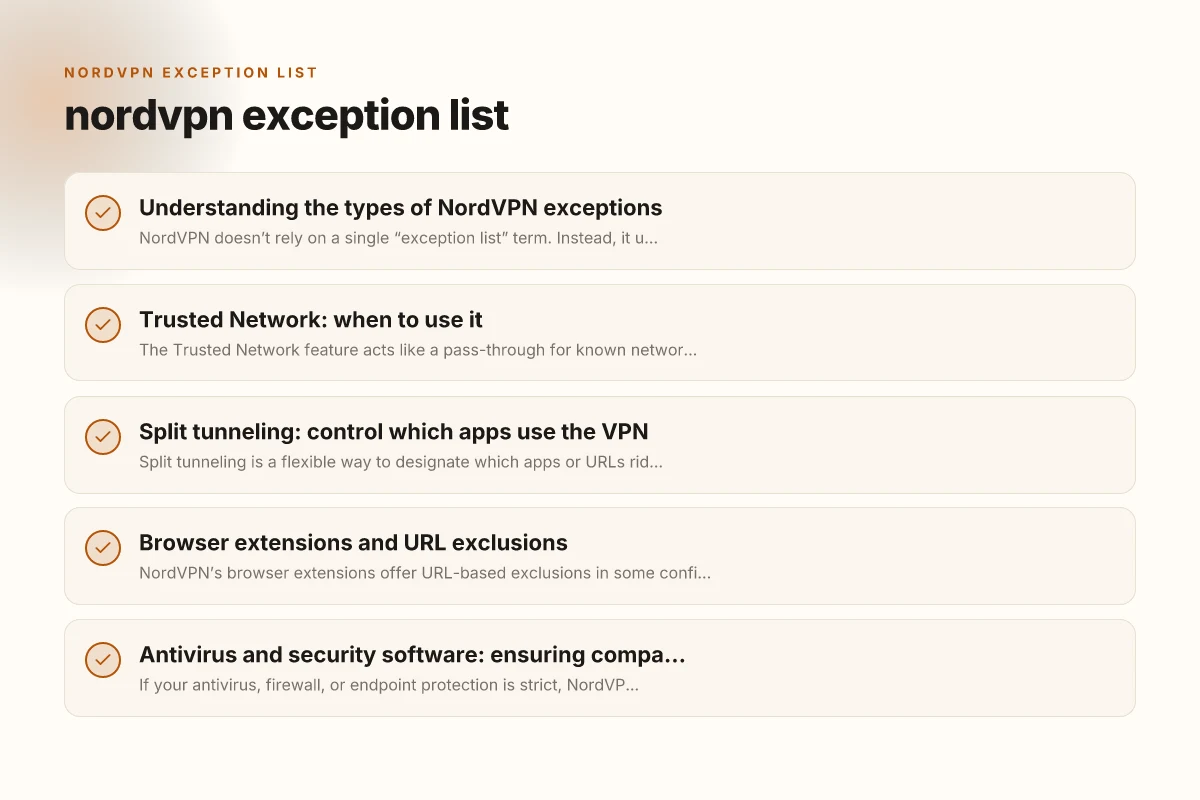
Understanding the types of NordVPN exceptions
NordVPN doesn’t rely on a single “exception list” term. Instead, it uses a mix of features that serve similar purposes:
- Trusted Network Feature: Adds networks that won’t trigger a VPN connection when you’re on them.
- Split Tunneling: Lets you choose which apps or URLs go through the VPN and which do not.
- Browser-extension exclusions: In some browser-related features, you can exclude certain sites or URLs from VPN protection.
- Exclusions within security software: If you have antivirus or firewall software, you may need to add NordVPN as an allowed app or exception to avoid conflicts.
- URL-based exclusions (via browser extensions): Allows you to specify sites that should bypass the VPN when using the browser extension.
These features work together to give you an “exception list” experience, even if NordVPN doesn’t label all of them with the same word.
Trusted Network: when to use it
The Trusted Network feature acts like a pass-through for known networks. When you connect to a trusted network, NordVPN will stop routing traffic through the VPN on that network, letting you use local resources without the VPN overhead.
- When to enable:
- Home networks where you don’t need VPN protection for local devices.
- Workplace networks that you know are secure and require access to internal resources.
- Public places where privacy is less of a concern and you want faster speeds on trusted networks.
- How it behaves:
- You remain connected to the VPN for other networks.
- The app automatically detects when you’re on a trusted network and adjusts the tunnel state accordingly.
- Pros and cons:
- Pros: Faster local network access, reduced VPN load on trusted networks.
- Cons: Requires careful management to avoid leaking traffic on untrusted networks if misconfigured.
Split tunneling: control which apps use the VPN
Split tunneling is a flexible way to designate which apps or URLs ride the VPN tunnel and which do not. This is particularly helpful for: NordVPN disable auto connect
- Banking and payment apps that you want to run without VPN to avoid friction with regional banks.
- Streaming apps or services that may block VPN traffic.
- Local network tools that require direct access to your home router or local devices.
There are two common modes:
- App-based split tunneling: Pick specific apps that should go through the VPN. All other apps use the regular connection.
- URL-based split tunneling (browser or extension): Select websites or domains that should bypass the VPN when using the browser extension.
How to configure:
- Open NordVPN > Split Tunneling.
- Choose App or URL-based mode.
- Add apps or sites to the exclusion list (the ones you want to bypass the VPN).
Table: Split tunneling vs. Trusted Network
| Feature | What it controls | Typical use case |
|---|---|---|
| Split tunneling (apps) | Which apps use VPN; others bypass | Banking app through VPN? No. Local file sharing through VPN? Yes. |
| Split tunneling (URL) | Which websites bypass the VPN when using a browser extension | Accessing banking sites through VPN is blocked; allowlist for specific sites |
| Trusted Network | Whole-network behavior on known networks | Use local network resources without VPN on home/work networks |
Browser extensions and URL exclusions
NordVPN’s browser extensions offer URL-based exclusions in some configurations. This lets you bypass VPN protection for specific sites while still protecting other browsing traffic. NordVPN dedicated IP price: what you need to know about cost and value
- How to set:
- Open the NordVPN browser extension settings.
- Navigate to the section for exclusions or trusted sites.
- Add the domains you want to exclude from VPN routing.
- Things to consider:
- Exclusions apply only to the browser extension’s traffic, not all apps on the device.
- Some sites (like streaming platforms) may detect VPNs even with exclusions. You may need to adjust strategy (e.g., use the VPN in another mode or route through a different path).
Antivirus and security software: ensuring compatibility
If your antivirus, firewall, or endpoint protection is strict, NordVPN can be flagged as interfering software. To avoid connection problems:
- Add NordVPN to your exclusions list in the antivirus/firewall software.
- Ensure the VPN application, drivers, and auxiliary services are allowed to run.
- If you experience site access issues, temporarily disable extensions or security modules to identify the faulty component.
- Some antivirus suites may block VPN traffic on certain networks. Checking the exclusions and network policies can resolve most issues.
Practical setup tips and best practices
- Start with a minimal configuration: Enable the VPN for all traffic, then gradually add trusted networks and split tunneling rules.
- Use trusted networks for known, safe environments, but monitor for changes (e.g., new routers, guest networks) that might require updates.
- Regularly review your exception lists: Over time, some rules become unnecessary or conflict with new sites or apps.
- Test after changes: After adjusting an exception, connect to the network or open the app to verify the behavior is what you expect.
- Document your rules: Maintain a quick reference for why a site or app is excluded, so you don’t forget the rationale over time.
When to use each NordVPN exception type
| Scenario | Use Trusted Network | Use Split Tunneling | Use URL Exclusions | Use Antivirus compatibility | Recommended practice |
|---|---|---|---|---|---|
| Public Wi-Fi | no | yes | no | yes | Enable split tunneling for apps needing VPN |
| Access internal intranet | yes | yes (for some apps) | yes (for sites) | yes | Combine split tunneling with URL exclusions if needed |
| Streaming outside VPN | yes (for local) | yes (for only select apps) | yes (for sites) | yes | Exclude streaming site via URL or keep VPN on for others |
| Gaming with VPN | yes (for protection) | yes (only game/app) | no | yes | Use split tunneling to exclude game if latency is key |
| Tech testing / labs | yes | yes | yes (for lab portals) | yes | Layered approach with multiple exclusions |
Compiled November 2026; check the provider's site for current details.
Common questions and quick answers
- Q: Can FBI track NordVPN?
- A: NordVPN is designed to route traffic through its servers. It does not provide direct information that would allow the FBI to see private data beyond standard legal processes. However, no VPN can guarantee absolute immunity from law enforcement requests, and country-level policies vary.
- Q: What is the whitelist on NordVPN?
- A: A whitelist-ish concept in NordVPN terms is the set of trusted networks, apps, or sites that are excluded from VPN routing, essentially, your “allowlisted” items.
- Q: Is Netflix blocking NordVPN?
- A: Netflix, and some other streaming services, frequently updates its detection methods. Using split tunneling, trusted networks, or browser extensions can help in some cases, but success is not guaranteed and depends on service policies at any given time.
- Q: How does the Trusted Network feature relate to an exception list?
- A: The Trusted Network feature is a built-in way to implement an exception-like behavior for specific networks, letting traffic on those networks bypass the VPN.
Real-world scenarios and step-by-step guides
Scenario A: You want to access local banking apps without VPN NordVPN coupon code 3 year
Use split tunneling (apps) and exclude the banking app from the VPN.
If the app is not behaving, try URL-based exclusions or temporarily disable the VPN for that app.
Scenario B: You’re on a home network and want fast access to local devices
Add your home network to Trusted Network, so traffic on that network bypasses VPN NordVPN charged: understanding and resolving billing issues
Keep VPN on for other networks to maintain privacy when outside the home.
Scenario C: You need VPN protection for most browsing but trust a few sites
Use URL-based exclusions in the browser extension for those trusted sites.
Keep the VPN on for other sites to maintain privacy and access to geo-restricted content. NordVPN basic plan: what it is, what's included, and is it worth it
Practical setup steps and checks
| Step | Action | Tool/setting | Notes | Common pitfalls | Success indicator |
|---|---|---|---|---|---|
| 1 | Identify apps/sites needing VPN | App list; browser sites | Distinguish critical vs. optional | Missed app leads to leaks | All required apps shown as protected |
| 2 | Enable split tunneling | VPN app -> Split Tunneling | Pick by app or URL | Incorrect app chosen | No traffic leakage to VPN-excluded apps |
| 3 | Add URL exclusions | VPN app -> URL/Browsing exclusions | Include internal sites | Overbroad exclusions | Targeted sites bypass VPN |
| 4 | Check antivirus/firewall | Security software settings | Add VPN as exception | Conflicts with VPN client | VPN connects without blocks |
| 5 | Test connectivity | Ping, site access, app function | Use real scenarios | Rushing tests | All tests pass without leaks |
Compiled November 2026; check the provider's site for current details.
Summary and recommendation
NordVPN’s approach to exceptions centers on flexible controls rather than a single “exception list” term. By using the Trusted Network feature, split tunneling (app-based and URL-based), and browser-extension exclusions, you can tailor VPN behavior to your exact needs. Keep your exception lists lean and current, test changes promptly, and ensure compatibility with security software to minimize conflicts.
Recommendation: NordVPN autoconnect
- Start by enabling split tunneling in app mode for sensitive or incompatible apps.
- Add known trusted networks to Trusted Network to improve speed on those connections.
- Use URL-based exclusions for sites that don’t work well behind a VPN, especially in browsers, and keep a separate list for sites that should always bypass.
- Regularly audit your exception lists to prevent accidental leaks or over-exposure and document any significant changes for future reference.
If you want, I can tailor a step-by-step setup guide for your specific devices (Windows, macOS, Android, iOS) and give you a ready-to-use template for your trusted networks and apps.
| VPN | Obfuscation | From / month | Plan | Free plan | Refund | Alipay | UnionPay | Crypto | Website opens in China | Trustpilot | |
|---|---|---|---|---|---|---|---|---|---|---|---|
 NordVPN | Turn on manually Obfuscated Servers / NordWhisper | $3.49/mo | 27 months: $94.23 | No | 30 days | ? | ✗ | ✓ | ✓ | ✗ Blocked | 4.2/5 (51,628 reviews) |
 ZoogVPN | Turn on manually Shadow | $2.49/mo | 27 months: $59.99 | Yes | 7 days | ✓ | ✓ | ✓ | ✓ | ✓ Yes (2.5 s) | 4.2/5 (195 reviews) |
 ExpressVPN | ✓ On by default all servers | $3.00/mo | 28 months: $84 | No | 30 days | ✗ | ✗ | ✓ | ✗ | ✗ Blocked | 4.4/5 (29,706 reviews) |
 Surfshark | ✓ On by default Camouflage, with OpenVPN | See site | See site | No | 30 days | ✗ | ✗ | ✗ | ✓ | ✗ Blocked | 4.3/5 (31,823 reviews) |
 Proton VPN | Turn on manually Stealth, free plan too | $2.99/mo | 12 months: $35.88 | Yes | 30 days | ✗ | ✗ | ✗ | ✓ | ✓ Yes (2.5 s) | 2.1/5 (1,040 reviews) |
 Astrill VPN | Turn on manually StealthVPN / OpenWeb | $12.50/mo | 24 months: $300 | No | See site | ✗ | ✗ | ✗ | ✓ | ✗ Blocked | 1.3/5 (110 reviews) |
 Private Internet Access | Turn on manually Shadowsocks, OpenVPN only | $2.03/mo | 40 months: $81.2 | No | 30 days | ✗ | ✗ | ✗ | ✗ | ✗ Blocked | 4.2/5 (11,033 reviews) |
 CyberGhost | Turn on manually selected servers | $2.19/mo | 28 months: $61.32 | No | 45 days | ✗ | ✗ | ✗ | ✓ | ✗ Blocked | 4.0/5 (24,178 reviews) |
 PureVPN | Turn on manually switch to OpenVPN | $1.69/mo | 60 months: $101.55 | No | 31 days | ? | ✗ | ✗ | ✓ | ✓ Yes (2.6 s) | 4.4/5 (17,994 reviews) |
 AdGuard VPN | ✓ On by default TrustTunnel | $2.99/mo | 24 months: $71.76 | Yes | 30 days | ✓ | ✗ | ✓ | ✓ | Official site blocked; our special link opens (2.3 s) | 4.3/5 (290 reviews) |
 Mullvad | Turn on manually QUIC / Shadowsocks / LWO | $5.61/mo | €5/mo | No | 14 days | ✗ | ✗ | ✗ | ✓ | ✗ Blocked | 3.2/5 (192 reviews) |
 Windscribe | Turn on manually Stealth / WStunnel | $5.75/mo | 12 months: $69 | Yes | See site | ✗ | ✗ | ✗ | ✓ | ✗ Blocked | 4.7/5 (13,355 reviews) |
 StrongVPN | Turn on manually Scramble, OpenVPN TCP | See site | See site | No | 30 days | ✓ | ✗ | ✗ | ✗ | ✗ Blocked | 4.4/5 (2,695 reviews) |
 LightXtreme 闪连 | Not listed | $7.08/mo | 12 months: $84.99 | Yes | 30 days | ✓ | ✓ | ✓ | ✓ | ✓ Yes (2.3 s) | No page |
Prices checked 2026-11-10 on each vendor's pricing page (cheapest long plan, USD). Check the vendor's checkout for the final price.
Obfuscation checked 2026-11-14 on each vendor's site and help center: "on by default" = nothing to set; "turn on manually" = switch protocol or mode in settings; "not listed" = the vendor describes no obfuscation.
Payment methods checked 2026-11-10 on each vendor's payment pages: all 14 take cards and PayPal; ✗ = not listed, ? = the vendor's own pages disagree.
China access: whether the official website opens from mainland China networks (tests the website only, not the VPN connection). Last checked 2026-11-11 04:07 Beijing time.
Trustpilot score and review count checked 2026-11-10.