Microsoft Edge Menu > Settings > Show Advanced Settings > Change Proxy Settings > LAN Settings: A Complete Guide

Learn what this classic Edge path means, how to open LAN settings today, and how to safely configure or troubleshoot a proxy.
The path “Microsoft Edge menu > Settings > Show advanced settings > Change proxy settings > LAN settings” describes how users reached local network proxy controls in the legacy version of Microsoft Edge. In current Microsoft Edge, the old “Show advanced settings” link is gone. To manage a proxy, open Windows Settings, go to Network & internet > Proxy, and review the available options. Edge generally uses the proxy configuration provided by Windows.
Compare the routes to proxy settings in Edge and Windows
| Route | Where it leads | Best for | Scope | Available in current Edge? |
|---|---|---|---|---|
| Edge menu > Settings | Edge’s settings page | Finding current browser settings | Edge settings | Yes |
| Edge Settings > System and performance | System-related Edge options | Locating the Windows proxy link | Edge settings | Usually |
| Open your computer’s proxy settings | Windows proxy settings | Changing proxy configuration | Windows | Yes |
| Windows Settings > Network & internet > Proxy | Proxy controls | Managing a LAN proxy | Windows | Yes |
| Windows Control Panel > Internet Options | Internet properties | Opening classic LAN settings | Windows | Supported |
| Internet Options > Connections > LAN settings | LAN proxy controls | Setting a LAN proxy or automatic configuration | Windows | Supported |
| Old Edge menu > Show advanced settings | Legacy settings area | Following older instructions | Legacy Edge | No |
Compiled November 2026; check the provider's site for current details.
What this Edge menu path means
The menu path refers to an older Edge interface that was included with earlier Windows versions. From Edge’s settings, users could select Change proxy settings, which opened Windows’ Internet Properties window. The LAN settings button in that window led to controls for local area network (LAN) proxy configuration.
Those controls could be used to:
- Detect proxy settings automatically.
- Use an automatic configuration script.
- Route internet traffic through a specified proxy server.
- Set exceptions for addresses that should connect directly.
A proxy server sits between a device and the websites or online services it accesses. Businesses and schools may use proxies to manage traffic, apply security policies, or connect users to internal resources. A home user may not need to configure one.
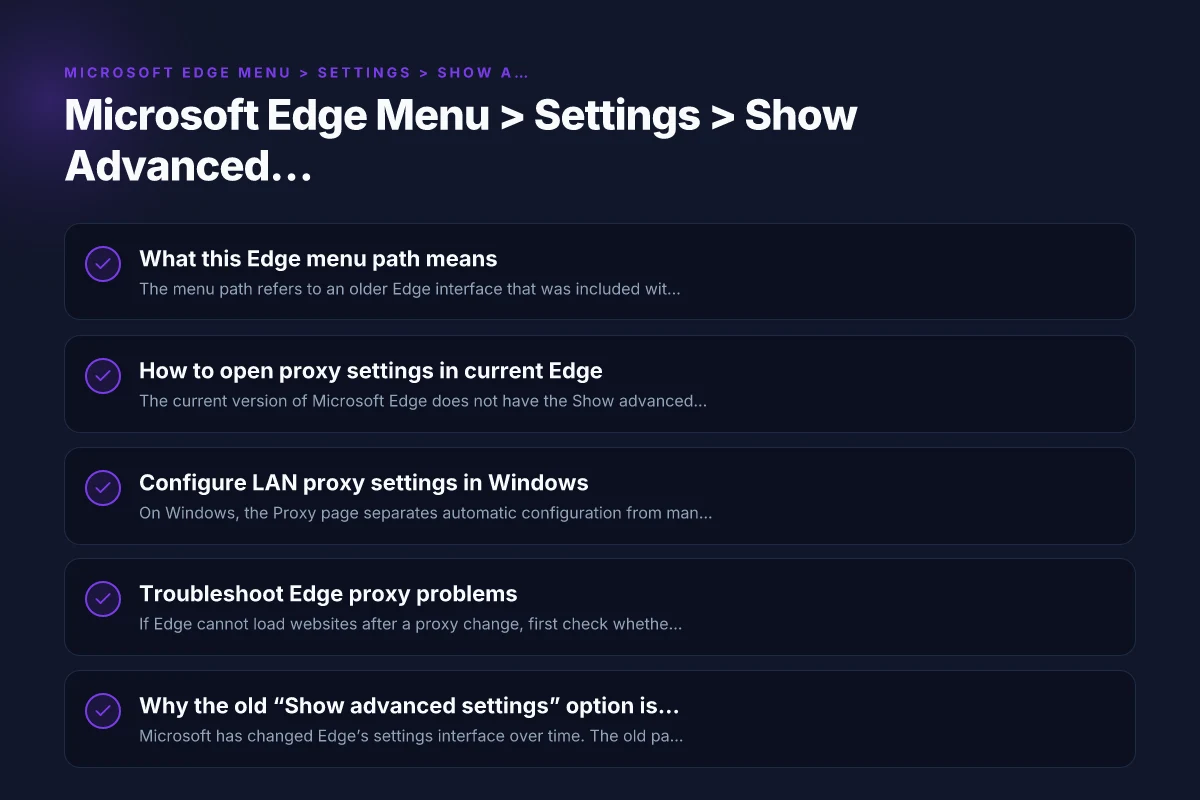
How to open proxy settings in current Edge
The current version of Microsoft Edge does not have the Show advanced settings menu or the old Change proxy settings link. Instead, use Windows: Free VPN That Changes Location: What Works and What to Check
- Open Start and select Settings.
- Select Network & internet.
- Select Proxy.
- Choose the option that matches the configuration provided by your network administrator or internet service.
You can also type proxy settings in the Windows search box and open the matching settings page. In Edge, entering edge://settings/system in the address bar may provide a shortcut to system-related settings, including a link to open your computer’s proxy settings. The exact wording can vary by Windows version.
| Configuration | What it does | When it is commonly used |
|---|---|---|
| Automatically detect settings | Lets Windows try to find proxy settings on the network | Some managed workplace or school networks |
| Use setup script | Applies settings from a configuration script URL | Organizations that provide a proxy setup address |
| Use a proxy server | Sends traffic through a manually specified server and port | Networks that supply a specific proxy address |
| No proxy configured | Connects without a manually configured proxy | Many home networks and direct connections |
Choose a LAN proxy configuration
| Configuration | What it does | Use when | Where to set it | Main consideration |
|---|---|---|---|---|
| Automatically detect settings | Lets Windows detect proxy settings | Your network provides automatic detection | Windows Proxy settings | Detection depends on network setup |
| Use setup script | Applies settings from a script address | Your organization provides a script | Windows Proxy settings | Use the address supplied by your administrator |
| Use a proxy server | Sends traffic through a specified proxy | You have proxy details to enter | Windows Proxy settings | Requires the correct address and port |
| Bypass proxy for local addresses | Avoids the proxy for local network addresses | Local resources should connect directly | Proxy configuration | Does not replace the proxy itself |
| No proxy configuration | Does not specify a proxy in these settings | Your network does not require one | Windows Proxy settings | Organization policies may still apply |
Compiled November 2026; check the provider's site for current details.
Configure LAN proxy settings in Windows
On Windows, the Proxy page separates automatic configuration from manual proxy configuration. The available controls and labels can differ slightly depending on the Windows release. Clash iPhone: How to Play Clash Games on Your iPhone
Automatic configuration
If your network administrator tells you to enable automatic detection, turn on Automatically detect settings. Windows will attempt to identify the appropriate configuration on the network.
If you are given a setup script address, enable the option to use a setup script and enter the URL exactly as provided. Do not guess the address: an incorrect script can prevent the connection from working or apply settings that were not intended for your device.
Manual proxy configuration
If you are given a proxy server address and port, enable the manual proxy option and enter those values. Some Windows versions also provide a list of addresses that bypass the proxy. Add exceptions only when you have a clear reason or specific instructions.
Before saving, check for common entry errors: Free VPN Choose Country: How to Pick a Safe Service
- A missing digit or extra space in the server address.
- An incorrect port number.
- A setup script entered in the manual server field, or vice versa.
- A bypass list that excludes too much or too little traffic.
A proxy does not necessarily encrypt your connection. Use only a proxy you trust, and follow your organization’s security requirements.
Troubleshoot Edge proxy problems
If Edge cannot load websites after a proxy change, first check whether the device is supposed to use a proxy. A work or school computer may receive its configuration automatically, while a personal computer may normally connect directly.
Try these steps:
- Confirm the settings. Compare the proxy address, port, script URL, and exceptions with the instructions you were given.
- Check the network. Connect to the required workplace, school, or VPN network if the proxy is only available there.
- Review automatic detection. If the network requires automatic configuration, confirm that the relevant option is enabled.
- Test another browser or app. If several applications have the same problem, the issue may be with Windows or the network rather than Edge.
- Undo an unneeded change. If you enabled a proxy by mistake, return to Settings > Network & internet > Proxy and restore the previous configuration.
On a managed device, do not disable a proxy just to get around a connection error. Your organization may require it, and some settings may be controlled by policy. Contact the administrator if a setting is unavailable, keeps changing back, or requires credentials you do not have. Nord VPN Account Generator: What It Is and Safer Alternatives
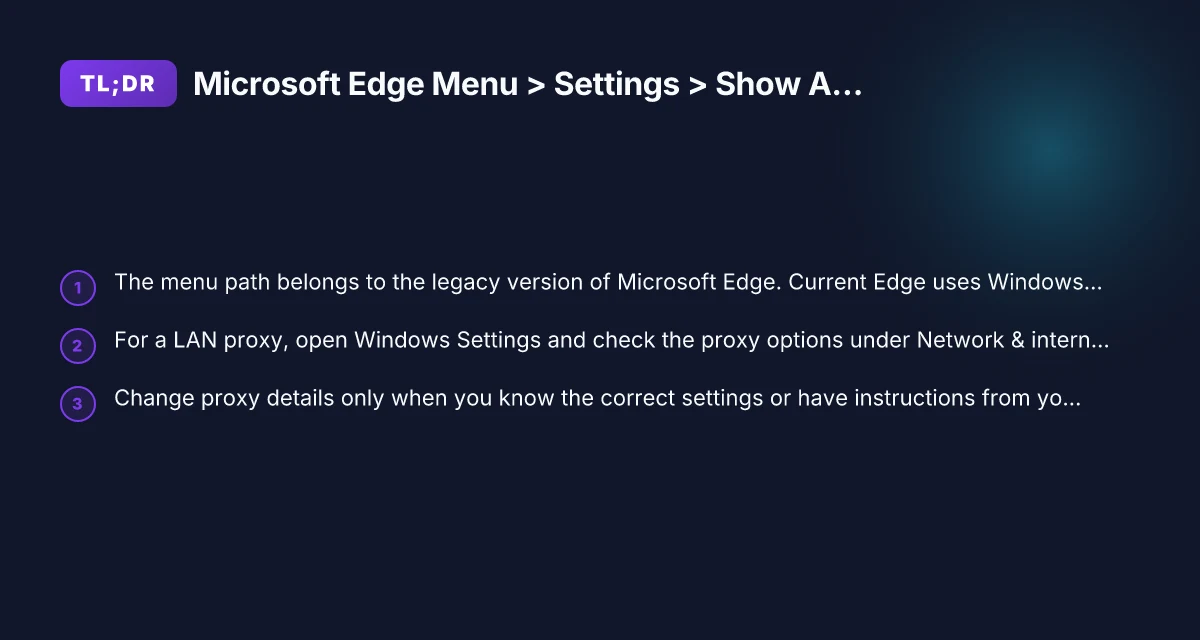
Troubleshoot Edge proxy problems
| Symptom | Check first | Possible next step | Who may need to help? | Avoid |
|---|---|---|---|---|
| Edge cannot reach websites | Windows proxy settings | Confirm the configured proxy details | Network administrator | Guessing proxy values |
| Proxy server is unreachable | Network connection and proxy address | Check whether the proxy is available | Network administrator | Repeatedly changing unrelated settings |
| Only some sites fail | Proxy rules and bypass list | Check whether the site should use the proxy | Network administrator | Disabling a required work proxy |
| Settings keep changing | Organization management or policy | Ask whether settings are centrally managed | IT support | Assuming Edge controls every proxy setting |
| Old instructions do not match | Edge version and menu labels | Open Windows Proxy settings from Edge | No help may be needed | Looking for “Show advanced settings” |
| LAN Settings is hard to find | Windows Internet Options | Open Connections, then LAN settings | No help may be needed | Searching for the legacy Edge menu path |
Compiled November 2026; check the provider's site for current details.
Why the old “Show advanced settings” option is missing
Microsoft has changed Edge’s settings interface over time. The old path was specific to the legacy Edge browser and is not a current set of menu instructions. Today, proxy configuration is handled through Windows, although Edge may provide a shortcut to the operating system’s proxy page.
This distinction matters when following older tutorials. If instructions tell you to open Show advanced settings, look for the equivalent proxy controls in Windows instead. The same general network configuration may still be available, but its location and labels have changed. Forticlientvpnsetup_7.4.3.4726_x64.exe: Download and Installation Guide
Recommendation
Use Windows Settings > Network & internet > Proxy to manage the settings that the old Edge path called LAN settings. Follow exact instructions from your network administrator or provider, and avoid entering an unfamiliar proxy or script address. If you do not know whether your connection requires a proxy, check with the network owner before changing anything.