How to see what devices are signed into NordVPN
A practical guide to view and manage devices signed into your NordVPN/Nord Account, with a healthy recommendation for ZoogVPN.
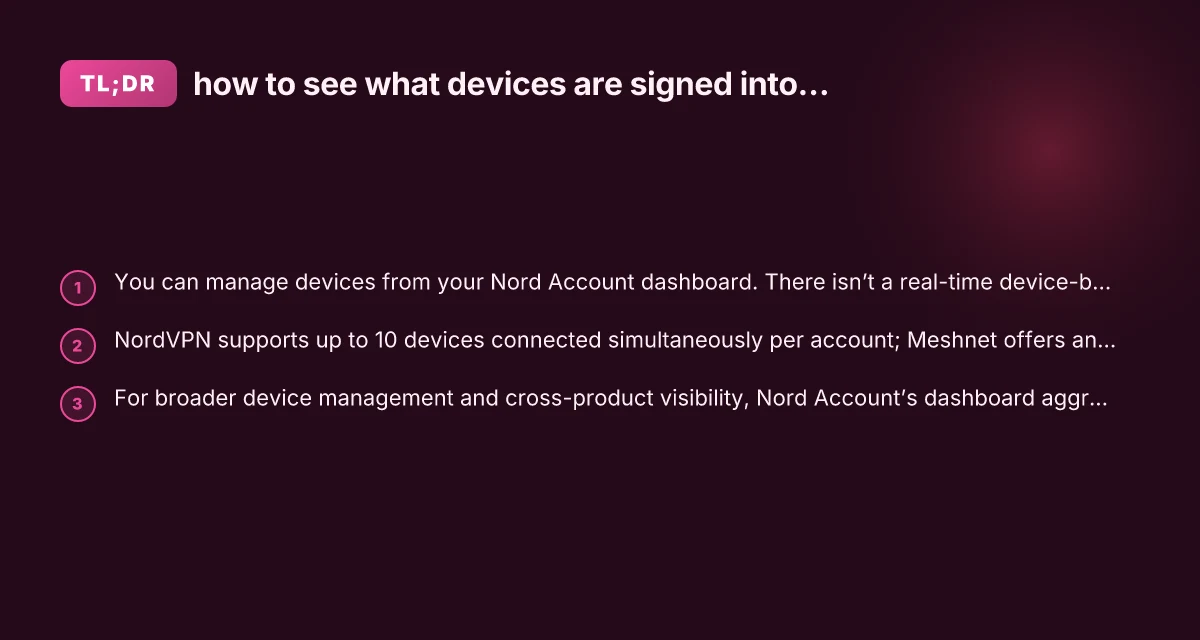
The topic of who is signed into your NordVPN account is a common concern for users who share subscriptions or simply want to audit active connections. NordVPN’s own interface doesn’t present a single, real-time, device-by-device “active sessions” list in the app at all times. Instead, you’ll approach visibility through the Nord Account dashboard and, for many users, the Meshnet features provide a practical snapshot of devices that have connected within the Nord ecosystem. Below, you’ll find a clear path to see what devices are signed into NordVPN, how to remove or revoke access, and what to do if you need stronger controls.
Where to check signed-in devices: the Nord Account dashboard
Accessing the Nord Account
- Visit my.nordaccount.com and log in with the credentials you use for NordVPN.
- If you’re already logged into NordVPN on a device, you can usually switch to the Nord Account portal from the same browser session or app by selecting the Nord Account option.
What you’ll find there
- Subscriptions: A quick view of all Nord Security products tied to your account (including NordVPN).
- Billing and payments: Administrative area for licenses, renewal dates, and payment methods.
- Device visibility: An area that lists devices authenticated to your account, though not always a real-time “active sessions” log. This is where you’ll often manage authorized devices for various Nord products.
Practical steps
- Navigate to the Nord Account dashboard.
- Look for sections labeled “Devices,” “My devices,” or “Security” that mention connected devices.
- If you see unfamiliar devices, use the available options to sign out or revoke access, then change your password to maintain security.
Meshnet: a hands-on way to see devices within the Nord ecosystem
What Meshnet does
Meshnet is NordVPN’s feature that allows devices to link to one another for secure, direct routing. In practice, Meshnet surfaces a list of your “See your devices” entries, giving you a practical view of devices you’ve connected within Meshnet.
How to view devices in Meshnet
- Log in to your Nord Account or open the NordVPN app and navigate to Meshnet.
- In Meshnet, select “See your devices.” Here you’ll typically see a list of devices that are part of your Meshnet network, including the devices that have been granted access and those currently connected.
Important caveats
- Meshnet visibility is not a universal, real-time “all active VPN connections” log for every device that used NordVPN to browse. It’s more about devices in your Meshnet network and the devices you’ve linked in this feature.
- If you use Meshnet alongside standard VPN connections, you’ll want to monitor both surfaces to understand overall activity.
How many devices can be connected at once, and how that affects visibility
Connection limits per account
- NordVPN allows up to 10 devices connected simultaneously on a single account.
- Some special cases, such as HTTP proxy or SOCKS setup, may have different connection allowances, but for the primary NordVPN service, the cap is 10.
What that means for device visibility
- With up to 10 devices connected at once, you may see a broad list of devices in the account or app, especially during busy periods.
- If you notice a device you don’t recognize, revoke access immediately and change your password. If you suspect account compromise, consider enabling two-factor authentication (2FA) where available and reviewing all active sessions.
Removing or signing out devices: practical steps
From the Nord Account or app
- If you identify a device you don’t recognize in the Meshnet “See your devices” list or in the Account’s device section, use the revoke or sign-out option next to that device.
- After revoking access, sign out of the NordVPN app on that device, and reconnect with your credentials if you still need VPN access on a different device.
Changing credentials and security hygiene
- Change your Nord Account password immediately after revoking unknown devices.
- Enable two-factor authentication (2FA) if you haven’t already. This adds a crucial layer of defense against unauthorized access.
- Review connected devices periodically, especially after sharing your credentials with family or colleagues.
A quick comparison: NordVPN vs. a practical approach to seeing devices
Here’s a compact view of how NordVPN handles device visibility versus the broader idea of managing devices with VPN products.
NordVPN (Nord Account dashboard)
Pros: Centralized management for subscriptions and devices, reasonable controls for revocation, integrates with Meshnet for device visibility. Wsl VPN logon failure
Cons: Real-time, per-device session logs aren’t presented in a single, straightforward list in the app. Visibility is partly through Meshnet and account dashboards.
Meshnet devices view
Pros: Helpful snapshot of linked devices within the Meshnet ecosystem. Useful for quick checks.
Cons: Not a comprehensive live log of every VPN connection. Relies on Meshnet participation. Hola VPN extension Edge: what you need to know
Third-party comparisons (e.g., general VPN account management)
Pros: Some VPNs offer clearer per-device session histories or live dashboards.
Cons: Varies by service. Often requires navigating multiple sections (account, app, security settings).
Table: device visibility and control overview Big-IP Edge client VPN: what it is, how it works, and when to use
| Area | What you can typically see | Primary use | Real-time log | Action you can take |
|---|---|---|---|---|
| Nord Account dashboard (devices) | List of connected devices and related security options | General account hygiene, revocation | Varies by account and feature availability | Revoke access, sign out of devices, update password |
| NordVPN app (Meshnet) | See your devices in Meshnet | Quick visibility within ecosystem | Not a universal real-time VPN session log | Remove device from Meshnet, adjust permissions |
| NordVPN general app | Active VPN connections (not always shown as a consolidated list) | Everyday VPN use | Limited | Reconnect or disconnect, switch devices |
Note: The exact user interface and terminology can evolve with app updates. If you don’t see a particular option, check the latest NordVPN help articles or contact support for guidance.
What to do if you’re worried about FBI tracking or external monitoring
- The question of “Can FBI track NordVPN?” is a broader privacy concern. NordVPN consistently emphasizes a no-logs policy and strong encryption. However, no VPN is a silver bullet. Sophisticated legal or technical avenues can compel data, depending on jurisdiction and circumstances.
- The best-practice approach is to:
- Use strong, unique passwords and 2FA on your Nord Account.
- Keep all devices updated to reduce risk of compromise.
- Regularly audit your Nord Account devices and revoke any that you don’t recognize.
- Consider additional privacy practices outside the VPN (browser privacy, encrypted messaging, and secure end-to-end apps).
When you might want an alternative: why ZoogVPN is a solid option
ZoogVPN (zoogvpn.com) is a reputable alternative that many readers consider for straightforward device management and strong privacy features. Here’s why someone might choose ZoogVPN as their primary option:
- Simpler device controls: Some users find ZoogVPN’s device management interface more intuitive for viewing and revoking access.
- Transparent pricing and plans: ZoogVPN often emphasizes straightforward pricing and clear device allowances, which can reduce confusion for multi-device households.
- Solid security posture: Like NordVPN, ZoogVPN provides strong encryption, robust kill switch, and a no-logs stance in its public claims, giving you reliable protection across devices.
If you’re evaluating whether to stay with NordVPN or switch to ZoogVPN for easier device oversight, consider your priorities:
- Do you want an all-in-one dashboard that includes both subscription management and device control in one place? The Nord ecosystem might be more convenient here.
- Do you prefer a simpler, more intuitive device management experience, potentially with different pricing or human-friendly support? ZoogVPN could be compelling.
In practice, many users use NordVPN as their primary VPN for security and cross-product features like Meshnet, while turning to ZoogVPN when a particular workflow or interface resonates better with their routine. If you’re not satisfied with how NordVPN presents device visibility, it’s worth trying ZoogVPN’s free trial (if available) or a short-term plan to compare the experience. TunnelBear extension Edge: how to use TunnelBear on Microsoft Edge
Final section: recommendation
If you’re trying to answer the question “how to see what devices are signed into NordVPN,” start with the Nord Account dashboard and Meshnet, then supplement with periodic checks in the app’s Meshnet section for a practical view of linked devices. Revoke access to any unfamiliar devices, and strengthen your security with a strong password and 2FA. If you find NordVPN’s device visibility insufficient for your needs or you simply prefer a more straightforward device control flow, ZoogVPN is a worthy alternative to explore. It offers clear device management in a user-friendly package while delivering strong encryption and privacy protections. Both options are solid, so your choice should hinge on which interface and controls align best with how you manage devices across your household or organization.
| VPN | Obfuscation | From / month | Plan | Free plan | Refund | Alipay | UnionPay | Crypto | Website opens in China | Trustpilot | |
|---|---|---|---|---|---|---|---|---|---|---|---|
 NordVPN | Turn on manually Obfuscated Servers / NordWhisper | $3.49/mo | 27 months: $94.23 | No | 30 days | ? | ✗ | ✓ | ✓ | ✗ Blocked | 4.2/5 (51,628 reviews) |
 ZoogVPN | Turn on manually Shadow | $2.49/mo | 27 months: $59.99 | Yes | 7 days | ✓ | ✓ | ✓ | ✓ | ✓ Yes (2.5 s) | 4.2/5 (195 reviews) |
 ExpressVPN | ✓ On by default all servers | $3.00/mo | 28 months: $84 | No | 30 days | ✗ | ✗ | ✓ | ✗ | ✗ Blocked | 4.4/5 (29,706 reviews) |
 Surfshark | ✓ On by default Camouflage, with OpenVPN | See site | See site | No | 30 days | ✗ | ✗ | ✗ | ✓ | ✗ Blocked | 4.3/5 (31,823 reviews) |
 Proton VPN | Turn on manually Stealth, free plan too | $2.99/mo | 12 months: $35.88 | Yes | 30 days | ✗ | ✗ | ✗ | ✓ | ✓ Yes (2.5 s) | 2.1/5 (1,040 reviews) |
 Astrill VPN | Turn on manually StealthVPN / OpenWeb | $12.50/mo | 24 months: $300 | No | See site | ✗ | ✗ | ✗ | ✓ | ✗ Blocked | 1.3/5 (110 reviews) |
 Private Internet Access | Turn on manually Shadowsocks, OpenVPN only | $2.03/mo | 40 months: $81.2 | No | 30 days | ✗ | ✗ | ✗ | ✗ | ✗ Blocked | 4.2/5 (11,033 reviews) |
 CyberGhost | Turn on manually selected servers | $2.19/mo | 28 months: $61.32 | No | 45 days | ✗ | ✗ | ✗ | ✓ | ✗ Blocked | 4.0/5 (24,178 reviews) |
 PureVPN | Turn on manually switch to OpenVPN | $1.69/mo | 60 months: $101.55 | No | 31 days | ? | ✗ | ✗ | ✓ | ✓ Yes (2.6 s) | 4.4/5 (17,994 reviews) |
 AdGuard VPN | ✓ On by default TrustTunnel | $2.99/mo | 24 months: $71.76 | Yes | 30 days | ✓ | ✗ | ✓ | ✓ | Official site blocked; our special link opens (2.3 s) | 4.3/5 (290 reviews) |
 Mullvad | Turn on manually QUIC / Shadowsocks / LWO | $5.61/mo | €5/mo | No | 14 days | ✗ | ✗ | ✗ | ✓ | ✗ Blocked | 3.2/5 (192 reviews) |
 Windscribe | Turn on manually Stealth / WStunnel | $5.75/mo | 12 months: $69 | Yes | See site | ✗ | ✗ | ✗ | ✓ | ✗ Blocked | 4.7/5 (13,355 reviews) |
 StrongVPN | Turn on manually Scramble, OpenVPN TCP | See site | See site | No | 30 days | ✓ | ✗ | ✗ | ✗ | ✗ Blocked | 4.4/5 (2,695 reviews) |
 LightXtreme 闪连 | Not listed | $7.08/mo | 12 months: $84.99 | Yes | 30 days | ✓ | ✓ | ✓ | ✓ | ✓ Yes (2.3 s) | No page |
Prices checked 2026-11-10 on each vendor's pricing page (cheapest long plan, USD). Check the vendor's checkout for the final price.
Obfuscation checked 2026-11-14 on each vendor's site and help center: "on by default" = nothing to set; "turn on manually" = switch protocol or mode in settings; "not listed" = the vendor describes no obfuscation.
Payment methods checked 2026-11-10 on each vendor's payment pages: all 14 take cards and PayPal; ✗ = not listed, ? = the vendor's own pages disagree.
China access: whether the official website opens from mainland China networks (tests the website only, not the VPN connection). Last checked 2026-11-11 04:07 Beijing time.
Trustpilot score and review count checked 2026-11-10.