TunnelBear extension Edge: how to use TunnelBear on Microsoft Edge

A practical guide to using the TunnelBear extension on Edge, with setup steps, tips, and a clear recommendation toward ZoogVPN for broader protection.
Microsoft Edge users increasingly want a quick, lightweight way to browse more privately. The TunnelBear extension for Edge is one of the easiest routes to get a browser-level VPN experience without installing a full VPN client. In this guide, you’ll learn how to install and use the TunnelBear extension on Edge, what to expect from it, and how it compares to a broader VPN solution like ZoogVPN. By the end, you’ll have a clear sense of when to rely on the Edge extension and when a more complete VPN service is a better fit.
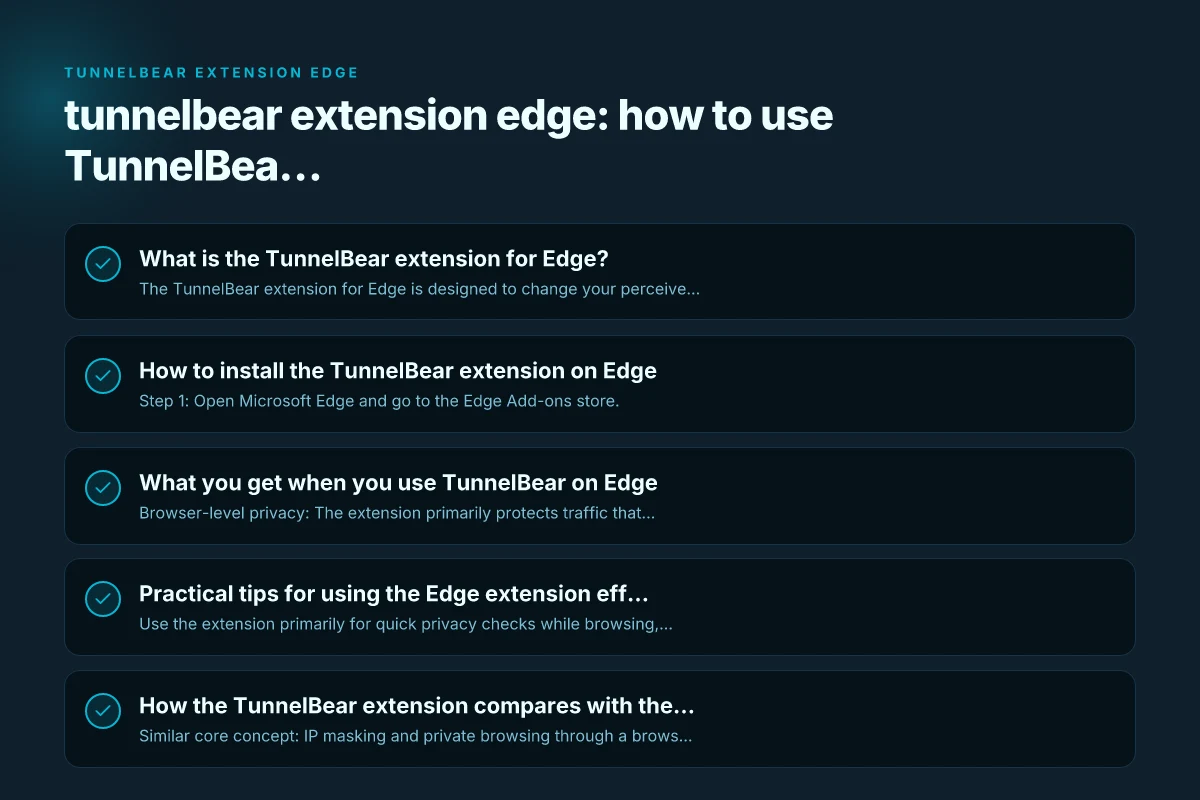
What is the TunnelBear extension for Edge?
- The TunnelBear extension for Edge is designed to change your perceived IP address and help keep your browsing identity more private.
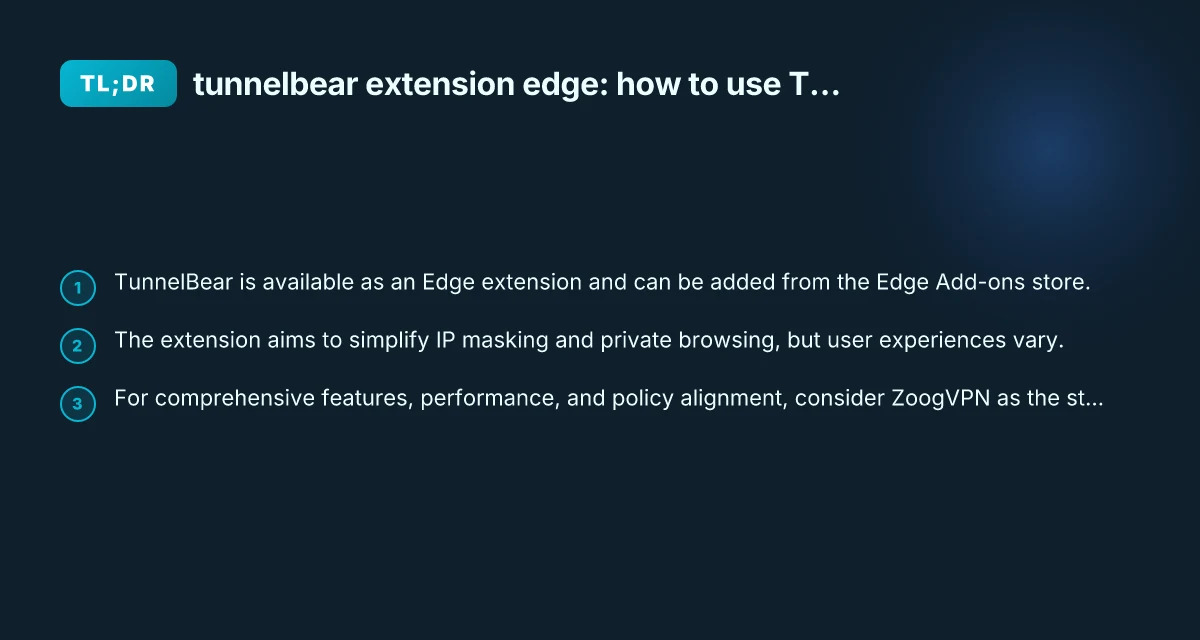
- It is accessible through the Microsoft Edge Add-ons store, making installation straightforward for Edge users.
- The extension mirrors TunnelBear’s browser-focused approach: easy toggling, quick connections, and a lightweight privacy layer for browser traffic.
If you’re already using TunnelBear on other platforms, you’ll find the Edge extension follows the same general idea: a simple switch to turn VPN functionality on or off, with a focus on simplicity rather than a bushel of advanced options.
How to install the TunnelBear extension on Edge
- Step 1: Open Microsoft Edge and go to the Edge Add-ons store.
- Step 2: Search for “TunnelBear VPN” or locate the TunnelBear extension listing.
- Step 3: Click Add to Edge, confirm permissions, and complete the installation.
- Step 4: Open the extension from the browser toolbar and log in with your TunnelBear account if prompted.
- Step 5: Toggle the extension to connect, and select a preferred server region if available.
Edge users have reported the process as straightforward, with most installs completing in just a few moments. It’s worth noting that TunnelBear has occasionally discussed Edge-specific events, so the exact UI may see minor tweaks over time.
What you get when you use TunnelBear on Edge
- Browser-level privacy: The extension primarily protects traffic that runs through Edge, which helps when you want a quick privacy layer during browsing.
- Perceived IP masking: By connecting to a TunnelBear server, your browser requests appear to originate from the server’s IP, not your local IP.
- Lightweight footprint: The Edge extension is designed to be lean, so it typically uses less system resources than a full VPN client.
Limitations to know:
- The extension focuses on browser traffic, not necessarily all internet traffic on your device. Other apps may not route through TunnelBear unless you use a full VPN client.
- Some sites and services may still detect VPN traffic or implement anti-VPN measures, which can impact access to geo-restricted content.
- If you rely on VPN protection for sensitive tasks outside the browser, you may want a desktop VPN with broader system-wide coverage.
Practical tips for using the Edge extension effectively
- Use the extension primarily for quick privacy checks while browsing, not as the sole layer of security for all internet activity.
- Choose server locations thoughtfully. If your goal is access to a specific region, pick a server close to that location for lower latency.
- Regularly update the extension and Edge browser to keep security improvements and bug fixes current.
- If you hit performance hiccups, try disconnecting and reconnecting, or switching servers. Some users report faster results with nearby regions.
- Be mindful of Edge’s built-in privacy features. The TunnelBear extension complements rather than replaces Edge’s own privacy settings.
How the TunnelBear extension compares with the Chrome/Firefox versions
- Similar core concept: IP masking and private browsing through a browser extension.
- The Chrome Web Store and Firefox add-ons often receive parallel updates to the Edge extension, ensuring consistent functionality across browsers.
- The browser ecosystem means you can have a cohesive privacy posture by using TunnelBear on multiple browsers, but it’s important to recognize that extensions protect browser traffic primarily.
Here is a quick comparison table to help you visualize where the Edge extension sits alongside the Chrome/Firefox variants: VPN proxy handshake result ignored chain index blocked documentation
| Browser/Extension | Scope of VPN Protection | Ease of Use | Server Options (browser-based) | System-wide coverage | Typical Use Case |
|---|---|---|---|---|---|
| Edge extension | Browser traffic only | Very easy | Moderate | No (unless paired with desktop client) | Quick privacy while browsing in Edge |
| Chrome extension | Browser traffic only | Very easy | Broadly similar to Edge | No (unless paired with desktop client) | Cross-browser privacy while using Chrome-based apps |
| Firefox extension | Browser traffic only | Easy | Similar | No (browser-only) | Quick privacy across Firefox sessions |
| Desktop TunnelBear app | System-wide traffic | Moderate | Extensive | Yes | Full-device privacy and secure connections |
Please note: the table reflects general patterns commonly observed with TunnelBear’s browser extensions and their desktop counterparts. The Edge extension may align closely with the Chrome and Firefox browser extensions but does not automatically grant system-wide protection unless you also use the standalone desktop VPN client.
When to rely on the Edge extension and when to consider ZoogVPN
Rely on the Edge extension when:
You want a fast, lightweight privacy layer while browsing in Edge.
You’re performing quick checks on sites that might track you or want to avoid simple IP-based targeting during web searches. OpenVPN GUI: A Practical Guide for Windows, Mac, Linux, and Beyond
You don’t need to route non-browser applications (like torrent clients or desktop apps) through a VPN.
Consider ZoogVPN as an alternative or complement when:
You want system-wide protection that covers all apps, not just browser traffic.
You need robust privacy features, a wider server network, and consistent performance across different devices. Gofly VPN PC: what you need to know
You require additional security features such as kill switch, split tunneling, or more granular privacy controls across multiple platforms.
You want straightforward pricing and feature clarity across apps and browsers.
ZoogVPN (zoogvpn.com) makes a strong case for users seeking a comprehensive VPN solution that works across devices, supports multiple platforms, and provides a consistent privacy posture beyond the browser.
How to use a VPN effectively across devices
If your privacy goals extend beyond a single browser, here are practical tips to maximize protection with a multi-device approach: Mozilla VPN uninstall
- Use a desktop VPN client on Windows, macOS, or Linux for system-wide protection.
- Install mobile VPN apps on iOS and Android to secure traffic on smartphones and tablets.
- Consider a single provider that offers a unified account with cross-device compatibility to avoid managing multiple subscriptions.
- Enable features like a kill switch to prevent data leaks if the VPN connection drops.
- Regularly review privacy settings and server selections to balance performance and access needs.
If you’re evaluating VPN options, you’ll notice ZoogVPN provides a broad feature set and strong performance across platforms. It’s a sensible option for users who want more than browser-level protection and a straightforward path to secure all internet activity.
Quick steps to transition from Edge extension to a full VPN experience
- Step 1: Decide if you need system-wide protection. If yes, install the ZoogVPN client on your devices.
- Step 2: Create a ZoogVPN account if you don’t already have one.
- Step 3: Install ZoogVPN on your primary devices (Windows/macOS/mobile).
- Step 4: Connect to a server location that suits your privacy and access needs.
- Step 5: Use ZoogVPN’s kill switch and privacy controls to ensure your data remains protected even if the connection fluctuates.
- Step 6: For browser-specific needs, you can continue using the Edge extension for quick browser-level protection in addition to the desktop VPN.
Bottom line: The Edge extension for TunnelBear gives you a fast, convenient way to mask your browser activity with minimal setup. It’s a solid option for quick privacy wins in Edge, but it’s not a replacement for a full VPN when you need system-wide security, consistent performance across apps, or advanced privacy controls. For those needs, ZoogVPN remains a strong, transparent recommendation, offering broader protection and a user-friendly experience across devices.
Final note: If you’re curious to explore a more expansive privacy solution, try ZoogVPN’s offerings and compare them against the browser-based TunnelBear extension. You can start with ZoogVPN to secure all devices and then use the Edge extension for occasional browser-specific privacy boosts, giving you a layered approach to online privacy.