GlobalProtect VPN Not Connecting? Causes, Fixes, and Next Steps
Fix GlobalProtect connection problems with safe troubleshooting steps for login errors, stuck connections, and network issues.
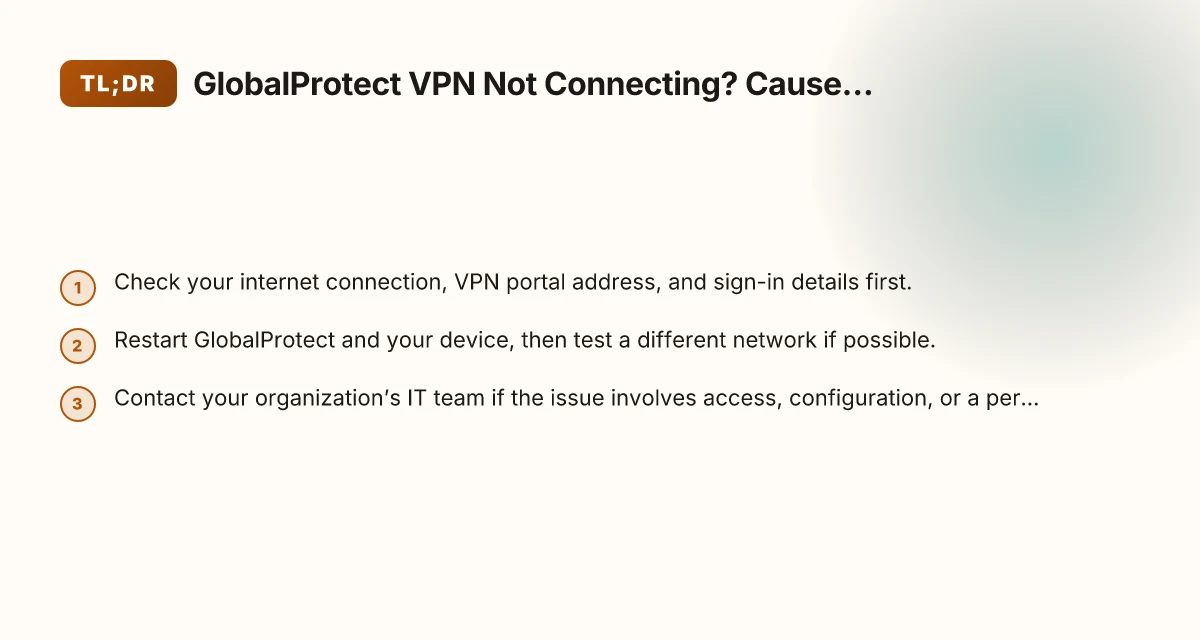
If GlobalProtect VPN is not connecting, first confirm that your internet works without the VPN, then verify the portal address and sign-in details your organization provided. Restart the GlobalProtect app and your device, and try connecting from another trusted network. If the app shows an error or still cannot connect, use the steps below to identify whether the cause is your device, network, account, or your organization’s VPN service.
Compare connection symptoms to the next check
| What you see | Likely failure point | First check | What to do next |
|---|---|---|---|
| GlobalProtect will not open | App | Check whether the app launches | Refresh the app safely |
| App opens but does not connect | Network or sign-in | Check internet access | Try the sign-in checks |
| Sign-in is rejected | Credentials or account | Confirm your sign-in details | Contact IT if they still fail |
| Connection stalls | Network or gateway | Check whether other sites load | Ask IT to check gateway access |
| VPN connects, but work resources do not load | Work resource access | Check the resource address | Contact IT for access help |
| Issue starts on one network | Network | Try another available network | Compare whether connection works |
| Issue persists after app refresh | Account or service | Note the error and timing | Contact your IT team |
Compiled November 2026; check the provider's site for current details.
| VPN | Obfuscation | From / month | Plan | Free plan | Refund | Alipay | UnionPay | Crypto | Website opens in China | Trustpilot | |
|---|---|---|---|---|---|---|---|---|---|---|---|
 ZoogVPN | Turn on manually Shadow | $2.49/mo | 27 months: $59.99 | Yes | 7 days | ✓ | ✓ | ✓ | ✓ | Official site blocked; our special link opens (4.4 s) | 4.2/5 (195 reviews) |
 NordVPN | Turn on manually Obfuscated Servers / NordWhisper | $3.49/mo | 27 months: $94.23 | No | 30 days | ? | ✗ | ✓ | ✓ | ✗ Blocked | 4.2/5 (51,628 reviews) |
 ExpressVPN | ✓ On by default all servers | $3.00/mo | 28 months: $84 | No | 30 days | ✗ | ✗ | ✓ | ✗ | ✗ Blocked | 4.4/5 (29,706 reviews) |
 Surfshark | ✓ On by default Camouflage, with OpenVPN | See site | See site | No | 30 days | ✗ | ✗ | ✗ | ✓ | ✗ Blocked | 4.3/5 (31,823 reviews) |
 Proton VPN | Turn on manually Stealth, free plan too | $2.99/mo | 12 months: $35.88 | Yes | 30 days | ✗ | ✗ | ✗ | ✓ | ✗ Blocked | 2.1/5 (1,040 reviews) |
 Astrill VPN | Turn on manually StealthVPN / OpenWeb | $12.50/mo | 24 months: $300 | No | See site | ✗ | ✗ | ✗ | ✓ | ✗ Blocked | 1.3/5 (110 reviews) |
 Private Internet Access | Turn on manually Shadowsocks, OpenVPN only | $2.03/mo | 40 months: $81.2 | No | 30 days | ✗ | ✗ | ✗ | ✗ | ✗ Blocked | 4.2/5 (11,033 reviews) |
 CyberGhost | Turn on manually selected servers | $2.19/mo | 28 months: $61.32 | No | 45 days | ✗ | ✗ | ✗ | ✓ | ✗ Blocked | 4.0/5 (24,178 reviews) |
 PureVPN | Turn on manually switch to OpenVPN | $1.69/mo | 60 months: $101.55 | No | 31 days | ? | ? | ✗ | ✓ | ✗ Blocked | 4.4/5 (17,994 reviews) |
 AdGuard VPN | ✓ On by default TrustTunnel | $2.99/mo | 24 months: $71.76 | Yes | 30 days | ✓ | ✗ | ✓ | ✓ | Official site blocked; our special link opens (3.7 s) | 4.3/5 (290 reviews) |
 Mullvad | Turn on manually QUIC / Shadowsocks / LWO | $5.61/mo | €5/mo | No | 14 days | ✗ | ✗ | ✗ | ✓ | ✗ Blocked | 3.2/5 (192 reviews) |
 Windscribe | Turn on manually Stealth / WStunnel | $5.75/mo | 12 months: $69 | Yes | See site | ✗ | ✗ | ✗ | ✓ | ✗ Blocked | 4.7/5 (13,355 reviews) |
 StrongVPN | Turn on manually Scramble, OpenVPN TCP | See site | See site | No | 30 days | ✓ | ✗ | ✗ | ✗ | ✗ Blocked | 4.4/5 (2,695 reviews) |
 LightXtreme 闪连 | Not listed | $7.08/mo | 12 months: $84.99 | Yes | 30 days | ✓ | ✓ | ✓ | ✓ | ✓ Yes (3.5 s) | No page |
Prices checked 2026-11-10 on each vendor's pricing page (cheapest long plan, USD). Check the vendor's checkout for the final price.
Obfuscation checked 2026-11-14 on each vendor's site and help center: "on by default" = nothing to set; "turn on manually" = switch protocol or mode in settings; "not listed" = the vendor describes no obfuscation.
Payment methods checked 2026-11-10 on each vendor's payment pages: all 14 take cards and PayPal; ✗ = not listed, ? = the vendor's own pages disagree.
China access: whether the official website opens from mainland China networks (tests the website only, not the VPN connection). Last checked 2026-11-18 01:02 Beijing time.
Trustpilot score and review count checked 2026-11-10.
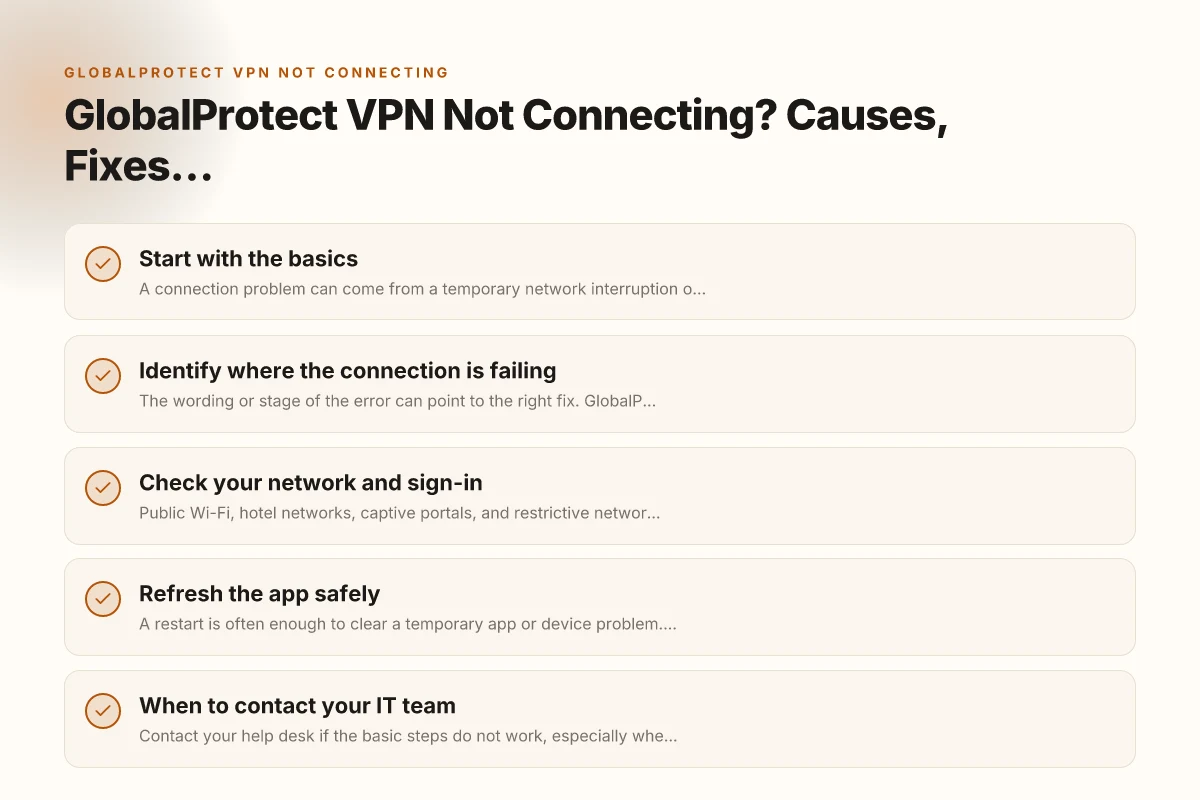
Start with the basics
A connection problem can come from a temporary network interruption or a small app issue. Work through these checks before changing advanced settings:
- Open a browser and visit a site you normally use. If it will not load, fix your internet connection first.
- Check whether Wi-Fi is connected or, on a wired connection, whether the cable is secure.
- Turn off airplane mode and confirm your device has the correct date and time.
- Close and reopen GlobalProtect. If that does not help, restart your device.
- Make sure you are using the portal address supplied by your employer or school. Do not guess the address or use a portal from an unofficial source.
- Enter your organization’s sign-in details again, taking care with your username format and any multi-factor authentication prompt.
If you recently changed your password, your device may still have an old password saved. Sign out of the app if that option is available, then sign in with the current credentials.
Identify where the connection is failing
The wording or stage of the error can point to the right fix. GlobalProtect may fail before sign-in, during authentication, or while creating the secure tunnel.
| What you see | Possible cause | What to try |
|---|---|---|
| Portal cannot be reached | Internet, DNS, portal address, or service issue | Test another website and verify the portal with IT |
| Sign-in is rejected | Incorrect credentials, expired password, or account restriction | Check the username format and complete MFA |
| Connection hangs or times out | Unstable network, blocked connection, or VPN service issue | Try a different network and contact IT if it persists |
| Connected, but work resources do not load | Access policy, DNS, or routing issue | Disconnect and reconnect, then report the affected resource |
| App is missing or will not open | Installation or device compatibility issue | Use your organization’s approved installation instructions |
A message such as “cannot connect to portal” is different from a password error. Record the exact wording before trying more fixes. It will help IT narrow down the cause. WatchGuard SSLVPN: Setup, Access, Troubleshooting, and Security
Choose a safe troubleshooting step
| Option | Best used when | What to check | Risk to settings | When to move on |
|---|---|---|---|---|
| Check internet connection | App cannot connect | Other sites or apps load | Low | Internet is unavailable |
| Recheck sign-in | Login is rejected | Account and entered details | Low | Details appear correct |
| Try another network | Connection fails on one network | Whether VPN connects there | Low | It fails across networks |
| Close and reopen the app | App appears stuck | Whether it reconnects | Low | Problem returns |
| Refresh the app safely | Basic checks do not help | Follow approved app steps | Avoid unapproved changes | Refresh does not help |
| Recheck work resource | VPN connects, resource does not | Address and access | Low | Other resources also fail |
| Contact IT | Failure continues or error is unclear | Error message and what you tried | Low | IT advises next steps |
Compiled November 2026; check the provider's site for current details.
Check your network and sign-in
Public Wi-Fi, hotel networks, captive portals, and restrictive networks can prevent a VPN from connecting. If you are on a network that requires a web sign-in, open a browser and complete that sign-in before launching GlobalProtect.
If possible, test the VPN using a different connection, such as a personal mobile hotspot. Follow your organization’s rules and avoid using an untrusted network for sensitive work. If GlobalProtect works on one network but not another, the problem is likely related to the original network or its restrictions. Your network administrator may need to investigate. Do not try to bypass those restrictions. NordVPN Windows VPN: Setup, Features, and What to Know
For authentication issues:
- Confirm whether your organization expects a short username, email address, or domain-qualified username.
- Approve the MFA request only if you initiated the sign-in.
- Check for password-expiry notices or account-lockout messages.
- If you changed your password recently, update any saved credentials as directed by your organization.
- Contact the help desk if your account is locked or your MFA method is unavailable.
Never send your password or MFA code to someone claiming to troubleshoot the VPN.
Refresh the app safely
A restart is often enough to clear a temporary app or device problem. Disconnect from GlobalProtect, quit the app, reopen it, and try again. If the app does not respond, restart the device and test once more.
Also check whether your operating system or GlobalProtect app has an update approved by your organization. Use only official company instructions or software sources. Avoid downloading installers from third-party sites. My VPN Location: How to Check It and Fix It
Some devices have multiple VPN clients or security tools installed. If you recently installed or changed one, tell IT. Conflicting network settings may be involved. Do not uninstall security software, change firewall rules, edit DNS settings, or remove device-management profiles unless your organization’s IT team tells you to. Those changes can affect security or prevent the device from meeting access requirements.
Decide when to contact your IT team
| Situation | Contact IT? | Useful details to share | Avoid doing |
|---|---|---|---|
| Sign-in still fails after checking details | Yes | Error message and account used | Repeatedly guessing passwords |
| VPN fails on multiple networks | Yes | Networks tested and time of failure | Changing unapproved settings |
| App refresh does not resolve the issue | Yes | Steps taken and app behavior | Reinstalling without approval |
| VPN connects but work resources stay unavailable | Yes | Resource address and connection status | Assuming access is enabled |
| Error message is unfamiliar | Yes | Exact wording or a screenshot | Ignoring the message |
| Connection fails only on one network | Maybe | Network type and whether others work | Sharing sensitive network details |
| Connection works again | Not usually | What fixed it, if useful | Making further changes |
Compiled November 2026; check the provider's site for current details.
When to contact your IT team
Contact your help desk if the basic steps do not work, especially when the problem concerns your account, a managed device, or an organization-specific portal. IT can check whether the VPN service is available and whether your account and device are authorized. VPN Free for Edge: The Best Options and How to Choose
Include useful details in your support request:
- The exact error message or a screenshot with personal information hidden
- Your device type and operating system version
- The GlobalProtect app version, if visible
- The portal name or address, shared only through your organization’s approved support channel
- When the issue began and whether anything changed recently
- Whether the VPN works on another approved network
- The resources you cannot reach after connecting
Do not include your password, MFA code, or sensitive work data in a screenshot or support message. If coworkers are experiencing the same issue, mention that. It may indicate a wider service outage.
Recommendation
Start with internet access, the correct portal, and current sign-in details. Restart GlobalProtect and your device, then test a different trusted network. If the error continues, stop changing network or security settings and send the exact message and troubleshooting results to your organization’s IT team.