How to Change Proxy Settings in Edge

Change proxy settings in Edge through Windows or macOS, configure a proxy manually, and troubleshoot common connection problems.
To change proxy settings in Edge, open the browser’s settings and go to the system proxy controls for your device. Edge typically relies on Windows or macOS network settings, so you change the proxy there rather than entering it in a separate Edge-only menu. The exact steps depend on your operating system and whether you need an automatic configuration script or a manually specified proxy server.
Choose where to change Edge’s proxy settings
| Option | Windows | macOS | Best for | Opens from Edge |
|---|---|---|---|---|
| Open system proxy settings | Windows Settings | macOS System Settings | Changing the device’s proxy | Yes |
| Configure a manual proxy | Set address and port | Set proxy details in Network settings | Using a specific proxy server | Via system settings |
| Use automatic configuration | Enter a setup script address | Configure automatic proxy settings | Applying a managed setup | Via system settings |
| Use a setup script | Supported | Supported | Networks that provide a script | Via system settings |
| Use a proxy server | Supported | Supported | Routing traffic through a proxy | Via system settings |
| Change settings in Edge itself | No separate proxy panel | No separate proxy panel | Finding the system controls | Edge opens system settings |
Compiled November 2026; check the provider's site for current details.
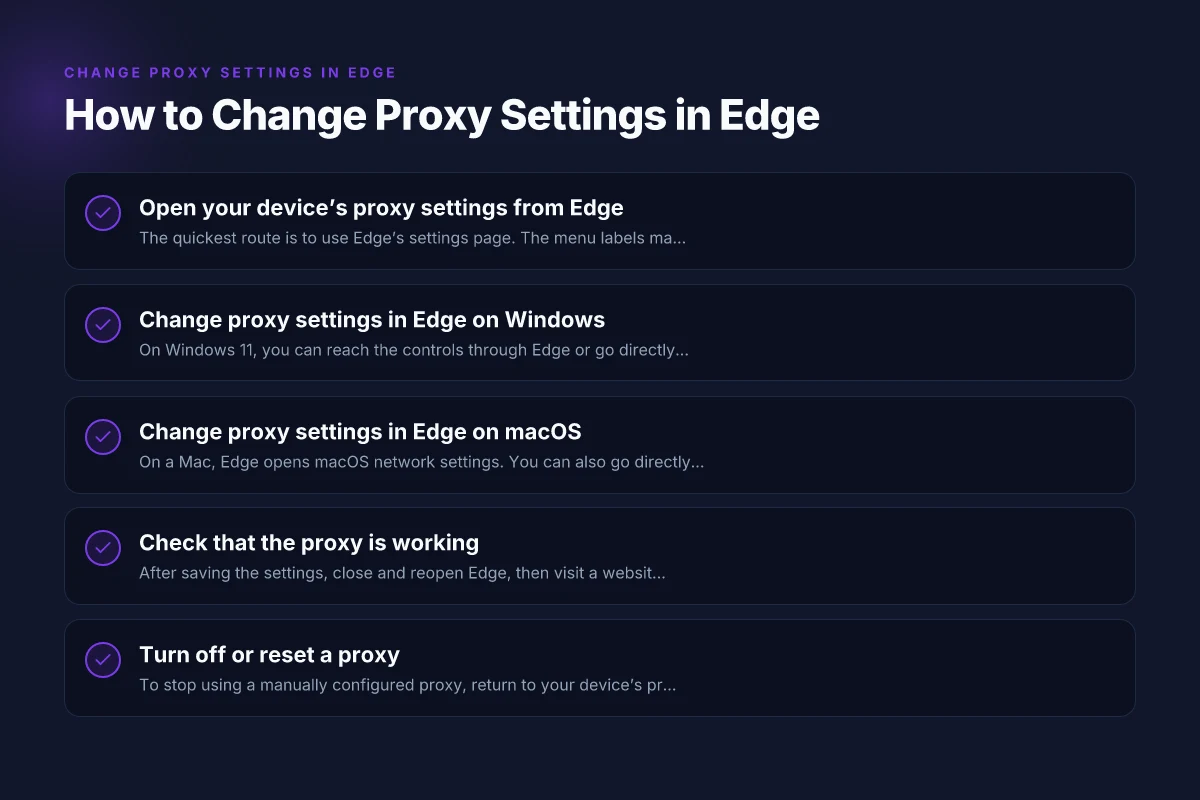
Open your device’s proxy settings from Edge
The quickest route is to use Edge’s settings page. The menu labels may vary slightly by operating system or software version.
- Open Microsoft Edge.
- Select the three-dot menu in the upper-right corner, then choose Settings.
- Select System and performance. If you do not see it, use the Settings search box and search for “proxy.”
- Choose Open your computer’s proxy settings or a similarly named option.
This opens your operating system’s network controls. Any proxy you set there may affect other apps on your device, not just Edge. If your computer is managed by an employer or school, some options may be controlled by an administrator.
Change proxy settings in Edge on Windows
On Windows 11, you can reach the controls through Edge or go directly to Settings > Network & internet > Proxy. On Windows 10, open Settings > Network & Internet > Proxy.
Windows provides automatic and manual configuration options. Use the instructions supplied by your workplace, school, proxy provider, or network administrator. Mac VPN: How to Choose and Set Up the Right VPN on Your Mac
Set up automatic proxy detection or a setup script
If your network detects proxy settings automatically, turn on Automatically detect settings. This allows Windows to look for the configuration used by the network.
If you were given a proxy configuration URL, use a setup script:
- Under Automatic proxy setup, turn on Use setup script.
- Enter the script address in the Script address field.
- Select Save.
A setup script, sometimes called a PAC file, tells compatible apps which proxy to use for different destinations. Enter the full URL exactly as provided. Do not use a script from an unknown source.
Enter a proxy server manually
If you have a server address and port number: IPsec MTU: How to Choose the Right Size and Troubleshoot Issues
- Under Manual proxy setup, select Set up or turn on Use a proxy server, depending on your Windows version.
- Turn on the option to use a proxy server.
- Enter the proxy’s address and port.
- If necessary, enable the option to bypass the proxy for local addresses.
- Save the settings.
Some versions of Windows also let you add addresses that should bypass the proxy. Follow your administrator’s or provider’s instructions for this list. A wrong address, port, or bypass rule can prevent sites from loading or expose traffic outside the intended route.
Change proxy settings in Edge on macOS
On a Mac, Edge opens macOS network settings. You can also go directly to Apple menu > System Settings > Network. Select the active network connection, such as Wi-Fi or Ethernet, then choose Details and open Proxies. The labels and layout can differ between macOS versions.
macOS lists several proxy types, including automatic proxy configuration and individual web or secure web proxies. Choose only the type specified by your network administrator or service. For a manual proxy, enable the relevant proxy option, enter the server address and port, then select OK or Apply to save the change.
If you have a proxy configuration URL, select the automatic proxy configuration option and enter the URL. When authentication is required, macOS or a prompt may ask for a username and password. Only enter credentials provided by a trusted source. BIG-IP F5 VPN Download: How to Get and Install the Official Client
| Configuration type | What you need | Typical use |
|---|---|---|
| Automatic detection | No address, if supported by the network | Networks that publish proxy settings automatically |
| Setup script | A PAC file URL | Organizations that route different websites through different proxies |
| Manual proxy | Server address and port | A specific proxy supplied by an administrator or provider |
Compare proxy setup methods
| Setup method | What you enter | Where to configure | Useful when | Main consideration |
|---|---|---|---|---|
| Manual proxy | Server address and port | Device network settings | You have proxy details | Enter details accurately |
| Automatic configuration | Configuration script address | Device network settings | Your organization provides a script | Requires the correct script address |
| No proxy | Nothing | Device network settings | You connect directly | Proxy routing is disabled |
| Managed proxy | Details supplied by an administrator | Device or organization settings | Using a work or school network | Settings may be controlled |
| Edge system-settings shortcut | No proxy details | Edge settings | You need to reach device controls | Changes apply at the system level |
Compiled November 2026; check the provider's site for current details.
Check that the proxy is working
After saving the settings, close and reopen Edge, then visit a website you are authorized to access. If the proxy requires authentication, complete the sign-in prompt using the credentials provided to you.
If a page does not load, check the following: Microsoft Edge Browser Extensions VPN: What They Do and How to Choose
- Confirm the details. Recheck the server name, port, and script URL for typing errors.
- Check your connection. Make sure the device is connected to the correct Wi-Fi or wired network.
- Verify authentication. Confirm that your proxy account is active and that you are using the correct credentials.
- Check the bypass list. A rule may send a particular address around the proxy or prevent the expected connection.
- Ask about network restrictions. A firewall, VPN, security app, or managed-device policy may affect proxy access.
- Test without changing more settings. If the proxy was supplied by your organization, ask its support team before disabling it or trying alternative servers.
A proxy and a VPN are different tools. Changing a proxy setting does not automatically configure a VPN, and a proxy may not route every app or type of traffic through the same server.
Turn off or reset a proxy
To stop using a manually configured proxy, return to your device’s proxy settings and turn off the manual proxy option. To remove an automatic setup script, turn off Use setup script or clear its address. On macOS, disable the proxy option you enabled.
If you previously used automatic detection, restore it only if that matches your network’s requirements. On a work or school device, do not remove settings that your administrator manages. If you are unsure what was changed, contact the person who supplied the proxy details.
Check or reset a proxy Cisco VPN AnyConnect: How It Works and How to Connect
| Action | Windows | macOS | What to check | Expected result |
|---|---|---|---|---|
| Open proxy controls | Edge opens Windows Settings | Edge opens Network settings | You reached the device’s proxy page | Settings are visible |
| Review manual setup | Check address and port | Check server details | Values match those provided | Correct server is configured |
| Review automatic setup | Check script address | Check automatic configuration | Script address is correct | Configuration can be applied |
| Test browsing | Open a website in Edge | Open a website in Edge | Page loads as expected | Proxy connection appears usable |
| Turn off proxy | Disable the configured option | Disable the configured option | Proxy settings are no longer active | Traffic uses the available direct connection |
| Reset settings | Restore the appropriate system settings | Restore the appropriate system settings | Remove unwanted or incorrect details | Proxy behavior returns to the intended setup |
Compiled November 2026; check the provider's site for current details.
Recommendation
Use Edge’s Open your computer’s proxy settings shortcut, then select the configuration method and enter only the details supplied by a trusted administrator or provider. Save your original settings before making changes, and contact your network support team if Edge still cannot connect.