Certificate Validation Failure Cisco VPN: Causes and Fixes
Fix a Cisco VPN certificate validation failure by checking the certificate, device clock, trust chain, and VPN configuration.
A certificate validation failure in Cisco VPN usually means the client cannot confirm that the VPN server’s certificate is valid and trustworthy. The cause may be an expired certificate, an incorrect device clock, a missing certificate authority (CA), or a mismatch between the certificate and the server name. Check these items before changing VPN settings, and contact your IT administrator if the connection is managed by your organization.
Common certificate validation causes and quick checks
| Cause | Typical clue | Quick check | Safe first action |
|---|---|---|---|
| Expired certificate | Warning says expired | Check certificate dates | Contact the VPN administrator |
| Wrong system clock | Certificate appears not yet valid | Check date, time, and time zone | Correct the device clock |
| Untrusted issuer | Issuer is not recognized | Compare issuer with IT guidance | Ask IT to verify the certificate chain |
| Hostname mismatch | Certificate name differs from VPN address | Check the VPN server address | Confirm the correct server with IT |
| Missing intermediate certificate | Chain is incomplete | Review chain details or logs | Have the administrator fix the server chain |
| Captive portal or proxy | Warning appears on public Wi-Fi | Check for a sign-in page or proxy | Complete trusted network sign-in, then retry |
| Outdated VPN client | Validation fails after an update | Check client version and vendor notices | Update through an approved channel |
Compiled November 2026; check the provider's site for current details.
| VPN | Obfuscation | From / month | Plan | Free plan | Refund | Alipay | UnionPay | Crypto | Website opens in China | Trustpilot | |
|---|---|---|---|---|---|---|---|---|---|---|---|
 ZoogVPN | Turn on manually Shadow | $2.49/mo | 27 months: $59.99 | Yes | 7 days | ✓ | ✓ | ✓ | ✓ | Official site blocked; our special link opens (4.4 s) | 4.2/5 (195 reviews) |
 NordVPN | Turn on manually Obfuscated Servers / NordWhisper | $3.49/mo | 27 months: $94.23 | No | 30 days | ? | ✗ | ✓ | ✓ | ✗ Blocked | 4.2/5 (51,628 reviews) |
 ExpressVPN | ✓ On by default all servers | $3.00/mo | 28 months: $84 | No | 30 days | ✗ | ✗ | ✓ | ✗ | ✗ Blocked | 4.4/5 (29,706 reviews) |
 Surfshark | ✓ On by default Camouflage, with OpenVPN | See site | See site | No | 30 days | ✗ | ✗ | ✗ | ✓ | ✗ Blocked | 4.3/5 (31,823 reviews) |
 Proton VPN | Turn on manually Stealth, free plan too | $2.99/mo | 12 months: $35.88 | Yes | 30 days | ✗ | ✗ | ✗ | ✓ | ✗ Blocked | 2.1/5 (1,040 reviews) |
 Astrill VPN | Turn on manually StealthVPN / OpenWeb | $12.50/mo | 24 months: $300 | No | See site | ✗ | ✗ | ✗ | ✓ | ✗ Blocked | 1.3/5 (110 reviews) |
 Private Internet Access | Turn on manually Shadowsocks, OpenVPN only | $2.03/mo | 40 months: $81.2 | No | 30 days | ✗ | ✗ | ✗ | ✗ | ✗ Blocked | 4.2/5 (11,033 reviews) |
 CyberGhost | Turn on manually selected servers | $2.19/mo | 28 months: $61.32 | No | 45 days | ✗ | ✗ | ✗ | ✓ | ✗ Blocked | 4.0/5 (24,178 reviews) |
 PureVPN | Turn on manually switch to OpenVPN | $1.69/mo | 60 months: $101.55 | No | 31 days | ? | ? | ✗ | ✓ | ✗ Blocked | 4.4/5 (17,994 reviews) |
 AdGuard VPN | ✓ On by default TrustTunnel | $2.99/mo | 24 months: $71.76 | Yes | 30 days | ✓ | ✗ | ✓ | ✓ | Official site blocked; our special link opens (3.7 s) | 4.3/5 (290 reviews) |
 Mullvad | Turn on manually QUIC / Shadowsocks / LWO | $5.61/mo | €5/mo | No | 14 days | ✗ | ✗ | ✗ | ✓ | ✗ Blocked | 3.2/5 (192 reviews) |
 Windscribe | Turn on manually Stealth / WStunnel | $5.75/mo | 12 months: $69 | Yes | See site | ✗ | ✗ | ✗ | ✓ | ✗ Blocked | 4.7/5 (13,355 reviews) |
 StrongVPN | Turn on manually Scramble, OpenVPN TCP | See site | See site | No | 30 days | ✓ | ✗ | ✗ | ✗ | ✗ Blocked | 4.4/5 (2,695 reviews) |
 LightXtreme 闪连 | Not listed | $7.08/mo | 12 months: $84.99 | Yes | 30 days | ✓ | ✓ | ✓ | ✓ | ✓ Yes (3.5 s) | No page |
Prices checked 2026-11-10 on each vendor's pricing page (cheapest long plan, USD). Check the vendor's checkout for the final price.
Obfuscation checked 2026-11-14 on each vendor's site and help center: "on by default" = nothing to set; "turn on manually" = switch protocol or mode in settings; "not listed" = the vendor describes no obfuscation.
Payment methods checked 2026-11-10 on each vendor's payment pages: all 14 take cards and PayPal; ✗ = not listed, ? = the vendor's own pages disagree.
China access: whether the official website opens from mainland China networks (tests the website only, not the VPN connection). Last checked 2026-11-18 01:02 Beijing time.
Trustpilot score and review count checked 2026-11-10.
What the error means
Cisco Secure Client, formerly known as AnyConnect, checks the VPN server’s digital certificate before establishing a secure connection. Certificate validation helps confirm that you are connecting to the intended server rather than an untrusted or impersonated host.
Validation can fail if the client cannot build a trusted chain from the server certificate to a CA it recognizes. It can also fail when the certificate is outside its valid date range, has been revoked, or identifies a different server name from the one entered in the VPN client.
The exact wording varies by Cisco Secure Client version and VPN configuration. Treat the message as a security warning, not just a routine connection glitch.
Common causes and quick checks
Start with these checks: FortiClientVPNOnlineInstaller: How to Download and Install FortiClient VPN
- Incorrect date or time: If your computer’s clock is significantly off, a valid certificate may appear expired or not yet valid. Enable automatic time and time-zone settings, then reconnect.
- Expired or replaced certificate: The VPN administrator may need to renew or install the server certificate.
- Untrusted CA: The certificate may be issued by an internal CA that is not trusted by your device, or the certificate chain may be incomplete.
- Server-name mismatch: The VPN address you entered may not match a name listed on the certificate.
- Revocation-check problem: The client may be unable to reach a service used to check whether the certificate has been revoked. Network restrictions or a service outage can interfere.
- Outdated software or configuration: An old client, operating system, or VPN profile may not support the organization’s current setup.
If the issue occurs on a work-managed device, avoid importing certificates or changing trust settings without guidance from IT. Those changes can affect other secure connections.
Troubleshooting steps
1. Check the device clock
Confirm the date, time, and time zone. Turn on automatic time synchronization if available, and restart the VPN client before trying again. This simple check can resolve errors caused by an inaccurate system clock.
2. Confirm the VPN address
Use the VPN server address provided by your organization. Avoid relying on an old bookmark, saved profile, or address copied from an unofficial source. A valid certificate can still fail validation if you connect using a hostname that does not match the certificate.
If your organization recently changed its VPN address, ask IT whether your profile needs to be updated. Best Free VPN Extension for Microsoft Edge: What to Know
3. Update the client and device
Install updates approved by your organization for Cisco Secure Client and your operating system. If your employer manages the device, follow its software update process rather than downloading a client from an unfamiliar website.
An outdated client may have trouble with newer certificate chains or organizational security settings. Updating alone will not fix an expired server certificate, but it can rule out client compatibility issues.
4. Try a different network
If your organization permits it, test the connection on another trusted network. Public Wi-Fi portals, network filters, or restrictive firewalls can sometimes prevent certificate revocation checks from completing.
Do not use an untrusted network as a reason to dismiss a certificate warning. If validation still fails, record the message and contact your administrator. NordVPN in China: Does It Work and What Should You Know?
5. Gather useful details for IT
If the basic checks do not resolve the issue, provide your support team with:
- The full error message or a screenshot
- The time the failure occurred
- Your operating system and Cisco Secure Client version
- The VPN address or profile name you used
- Whether the issue occurs on another network
- Whether other users are experiencing the same problem
These details help IT determine whether the problem is specific to your device or affects the VPN server or its certificate configuration.
Troubleshooting options compared by risk and use
| Option | Best used when | Risk level | Recommended action |
|---|---|---|---|
| Verify device date and time | Certificate dates look invalid | Low | Correct settings, then reconnect |
| Confirm VPN server address | Name mismatch is reported | Low | Use the address supplied by IT |
| Try a trusted network | Public Wi-Fi or portal may interfere | Low | Reconnect on a known network |
| Update VPN client | Client is outdated or recently changed | Low | Use the official or approved source |
| Inspect certificate details | Issuer or name is unfamiliar | Low | Share details with IT for verification |
| Contact VPN administrator | Cause is unclear or persists | Low | Provide the exact warning and timing |
| Accept the warning temporarily | Only if IT independently confirms it is safe | High | Follow explicit IT instructions only |
| Ignore or bypass validation | Certificate remains unverified | High | Do not proceed; stop and report it |
Compiled November 2026; check the provider's site for current details. IPsec VPN Connection Is Down FortiClient: Causes and Fixes
What different symptoms may indicate
| Symptom | Possible cause | Best next step |
|---|---|---|
| Certificate appears expired or not yet valid | Incorrect device clock or an out-of-date server certificate | Check automatic date and time; ask IT to verify the certificate dates |
| Certificate name does not match | Wrong VPN address, outdated profile, or server configuration issue | Confirm the approved VPN address with IT |
| Certificate authority is not trusted | Missing CA certificate or incomplete certificate chain | Ask IT to verify the organization’s certificate deployment |
| Revocation status cannot be checked | Network access or revocation service issue | Try an approved alternate network and contact IT |
| Error began after a VPN update | Client or profile compatibility issue | Install organization-approved updates or request a refreshed profile |
These clues are not a diagnosis by themselves. The administrator can inspect the server certificate and VPN logs to identify the specific failure.
Should you accept or ignore the certificate warning?
In general, do not proceed by accepting an untrusted certificate, disabling validation, or turning off security checks. Doing so can expose your connection to interception or impersonation, especially if you cannot confirm why the warning appeared.
Some organizations use private CAs or specific certificate deployment procedures. If a certificate needs to be installed, obtain it through your organization’s official support channel and follow its instructions. Do not install a certificate supplied through an unsolicited email, pop-up, or unverified download.
What symptoms may indicate and how to respond FortiClient IPsec: Setup, Configuration, and Troubleshooting
| Symptom | Possible indication | What to check | Recommended response |
|---|---|---|---|
| “Expired” warning | Certificate validity period ended | Certificate dates | Contact IT; do not bypass |
| “Not yet valid” warning | Incorrect device clock or date | Date, time, and time zone | Correct the clock and retry |
| Server name mismatch | Wrong VPN address or server configuration | Address and certificate name | Verify the address with IT |
| Unknown issuer | Untrusted or unexpected certificate authority | Issuer and certificate chain | Ask IT to validate the chain |
| Failure only on public Wi-Fi | Captive portal or network interception | Portal sign-in and network | Complete portal sign-in or switch networks |
| Failure after client update | Client or configuration compatibility issue | Client version and recent changes | Check approved updates and contact IT |
| Warning appears unexpectedly | Possible server change or interception | Whether the warning is new and persistent | Stop and verify with IT |
| VPN connects only after bypass | Validation is being skipped | Certificate identity and trust | Disconnect and report the issue to IT |
Compiled November 2026; check the provider's site for current details.
Recommendation
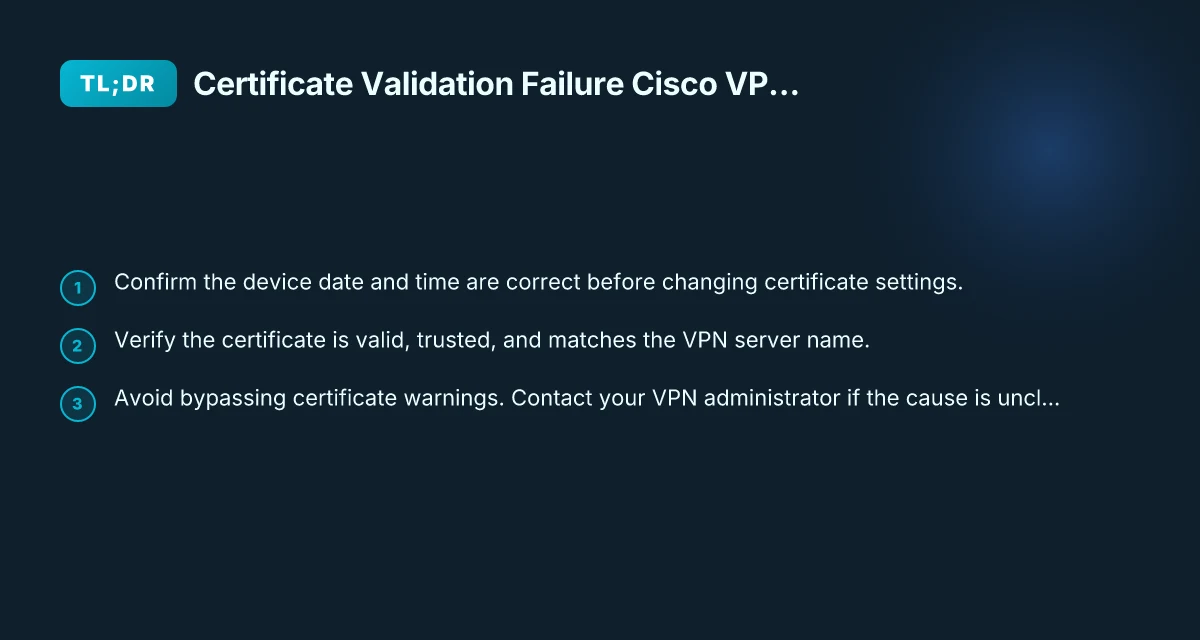
First check your device’s date and time, verify that you are using the correct VPN address, and install any organization-approved client updates. If the certificate validation failure persists, stop retrying with security checks disabled and contact your VPN administrator with the error details.