VPN speed test tools: how to measure and compare your VPN performance

A practical guide to choosing and using VPN speed test tools to gauge download, upload, and latency.
VPN speed test tools: how to measure and compare your VPN performance
If you’re using a VPN, you want to know how it affects your connection. VPN speed test tools help you quantify this impact so you can choose the best server, protocol, and settings for your needs. This guide explains what to test, how to test, and how to interpret the results, plus a quick tool comparison to get you started.
VPN speed test tools - Quick comparison of features
| Tool | Platform | Measures VPN speed | Measures latency | Measures jitter | Notes |
|---|---|---|---|---|---|
| Speedtest by Ookla | Windows/macOS/iOS/Android | Yes | Yes | Yes | Broad coverage |
| nPerf | Web/iOS/Android | Yes | Yes | Yes | Web-based test suite |
| GlassWire | Windows | Limited | Limited | Limited | Focused on traffic, not pure speed |
| Fast.com | Web | Yes | Yes | No | Simple latency proxy |
| speed.cloudflare.com | Web | Yes | Yes | No | Lightspeed tests |
Compiled November 2026; check the provider's site for current details.
What you should measure with VPN speed tests
When you test a VPN, you want a complete picture of performance and reliability. Focus on these metrics:
- Download speed: The rate at which data is transferred from the internet to your device. This matters for streaming, browsing, and file downloads.
- Upload speed: The rate at which you can send data to the internet. Important for video calls, cloud backups, and hosting services.
- Latency (ping): The time it takes for a signal to travel to a server and back. Lower is better for responsive browsing and real-time communication.
- Jitter: The variation in latency over time. Consistent latency reduces buffering and uneven performance.
- Connection stability: How often the VPN connection drops or experiences spikes in latency.
- Server and protocol variance: How speeds differ across VPN servers and with different protocols (e.g., OpenVPN, WireGuard, or proprietary options).

How to run a VPN speed test: a practical workflow
A repeatable testing process helps you compare apples to apples. Here’s a straightforward workflow:
- Establish a baseline
- Disconnect the VPN and run a standard speed test using your normal ISP connection.
- Record download, upload, and ping.
- Test with the VPN on a single server
- Connect to a VPN server in a location of interest.
- Close background apps that might consume bandwidth.
- Run a speed test and log the results.
- Test across multiple servers
- Repeat the test with several VPN servers in different regions.
- Note how geography affects latency and throughput.
- Test with different protocols
- If your VPN supports multiple protocols, run tests with each one.
- Compare results to see if a faster protocol exists for your location.
- Test at different times
- Run tests during peak and off-peak hours to understand real-world variability.
- Document environmental factors
- Note local network conditions, device performance, and concurrent network use.
Tools you can use: a mix of dedicated VPN testers and general speed tests
There are two broad categories of tools you’ll encounter:
- VPN-specific speed test tools
- These are designed to show how a VPN affects your connection, often including server selection and protocol options.
- General internet speed tests
- Tools that measure baseline speeds or VPN-affected speeds. They’re useful for benchmarking and comparisons.
Key considerations when choosing a tool: VPN speed test comparison 2026
- Does it measure download, upload, latency, and jitter?
- Can you test multiple servers and protocols?
- Is it browser-based or requires a downloadable app?
- Does it provide clear, shareable results and historical data?
VPN deployment scenario comparison
| Scenario | Ideal tool | Latency focus | Bandwidth focus | Multi-server support | Ease of use |
|---|---|---|---|---|---|
| Home streaming | Speedtest by Ookla | Yes | Yes | Yes | Easy UI |
| Mobile hotspot | Fast.com | Yes | Limited | No | Very simple |
| Corporate VPN | iPerf/JPerf | Yes | Yes | Yes | Requires setup |
| Remote work Americas/EMEA | nPerf | Yes | Yes | Yes | Web / app setup |
| Peak load testing | iPerf3 | Yes | Yes | Yes | More technical |
Compiled November 2026; check the provider's site for current details.
A look at common VPN speed test scenarios
Understanding typical use cases helps you pick the right tool and interpret results.
- Streaming and media consumption
- You want highest consistent download speed with low jitter. Testing should focus on sustained throughput on a nearby server and various VPN protocols.
- Online gaming and real-time communication
- Latency and jitter matter more than raw download speed. Tests should measure ping and stability across several servers.
- Remote work and file transfers
- Balanced performance across download and upload with reliable uptime. Test both directions and consider larger file transfers.
Interpreting the numbers: what the results mean for you
- Look for the ratio between your baseline speed (no VPN) and VPN speed. A VPN typically reduces raw speed to some extent, but the goal is to minimize that loss.
- Compare across servers. A nearby server might yield better latency, while a distant server could offer faster throughput if it has a less congested network path.
- Consider protocol trade-offs. A lighter protocol like WireGuard often offers better speed with strong security; OpenVPN might be more stable in some networks but slower.
- Watch for variability. A single test is not enough. Use multiple tests over time to gauge consistency.
A simple comparison table to start your evaluation
| Criterion | VPN Speed Test Tool A | VPN Speed Test Tool B | VPN Speed Test Tool C |
|---|---|---|---|
| Measures | Download, Upload, Latency, Jitter | Download, Latency, Jitter | Download, Upload, Latency |
| Protocols supported | WireGuard, OpenVPN, L2TP | OpenVPN only | WireGuard only |
| Server options | Multiple global servers | Limited server list | Global server list, auto-optimizing |
| Browser-based | Yes | No (app required) | Yes |
| Historical data | Yes (graphs) | No | Yes (exports) |
| Ease of use | Beginner-friendly | Intermediate | Advanced |
Notes: VPN speed test app
- The right tool depends on your priorities: breadth of servers, protocol options, or quick, one-click results.
- For a deeper analysis, combine a VPN-specific tester with a general speed test to see both VPN impact and baseline network performance.
Interpretation guide - results to action
| Result range | Meaning | Action suggestion | Confidence note | Tool example |
|---|---|---|---|---|
| Latency < 20 ms | Excellent | No change needed | Typical for local server | Speedtest by Ookla |
| Latency 20–60 ms | Good | Try closer server | Moderate variation | Fast.com |
| Latency > 100 ms | Poor | Change server or VPN route | May vary by network | nPerf |
| Bandwidth high (> 200 Mbps) | Great | No upgrade needed | Depends on plan | Ookla / Cloudflare test |
| Bandwidth mid (50–200 Mbps) | Okay | Optimize server location | Check contention | iPerf3 |
| Bandwidth low (< 50 Mbps) | Low | Upgrade plan or switch provider | May be throttling | GlassWire (traffic) |
Compiled November 2026; check the provider's site for current details.
Practical tips to get the most accurate results
- Run tests on a wired connection when possible. Wireless can add variability.
- Ensure no other devices are using bandwidth during testing.
- Retry tests several times and use average values to smooth out fluctuations.
- Test at different times and on different days to account for network congestion.
- Use the same server/location for repeated tests to compare changes over time.
Quick-start recommendations for beginners
- Start with a browser-based VPN speed test tool that supports multiple servers and at least two protocols.
- Run baseline speed tests (no VPN) to have a reference.
- Test 3–5 VPN servers in different regions for a simple snapshot.
- Compare two protocols (e.g., WireGuard vs OpenVPN) on the same server to see which performs better.
- Record your results in a small table or spreadsheet to track improvements after changing VPN settings or upgrading plans.
When to upgrade or switch tools
- If you notice inconsistent results or a lack of server variety, a more feature-rich tool can provide better diagnostics.
- If you need to test on mobile devices, choose tools with mobile app support and control of server picks.
- If you’re evaluating a VPN service for business use, prioritize tools offering historical data, exportable reports, and more granular metrics (like packet loss and TLS handshake times).
Conclusion and recommendation
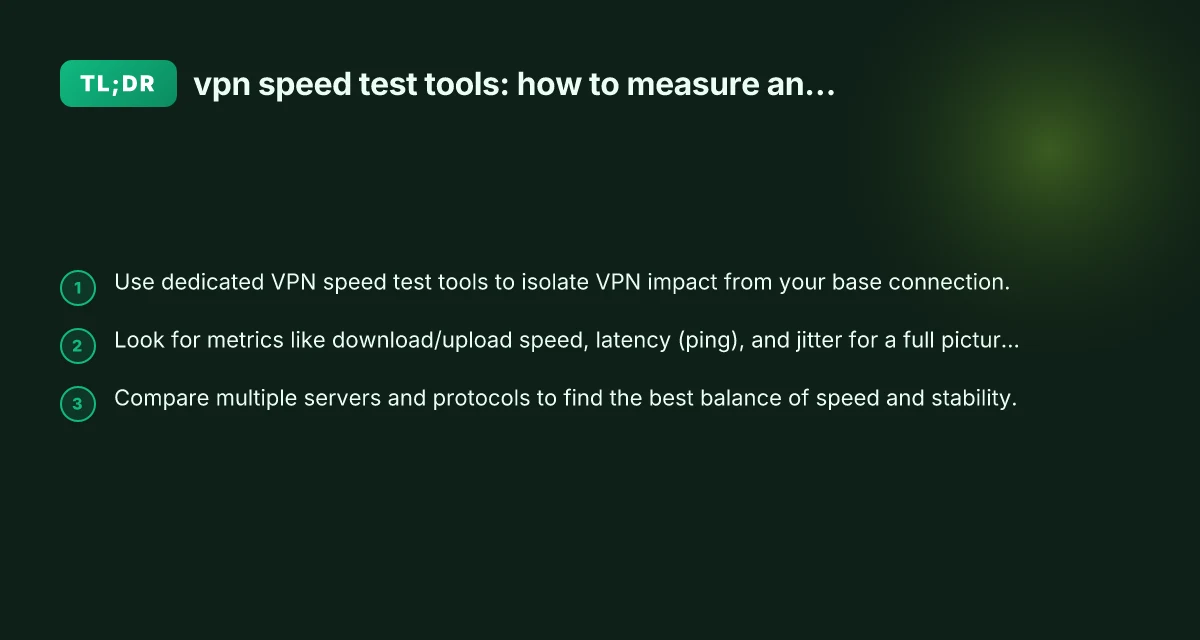
VPN speed test tools are essential for diagnosing how a VPN affects your online experience. Start with a reputable browser-based tester that offers multiple servers and at least download, upload, latency, and jitter metrics. Use a baseline speed test without the VPN to anchor your comparisons, then test several servers and protocols to find the sweet spot where you get the best balance of speed and stability for your needs. Maintain a simple testing routine: baseline, VPN-on tests across multiple servers, protocol comparisons, and repeated checks over time. With a little consistent testing, you’ll be able to optimize your VPN setup for the activities you care about most.
| VPN | From / month | Plan | Free plan | Refund | Alipay | UnionPay | Crypto | Website opens in China | Trustpilot | |
|---|---|---|---|---|---|---|---|---|---|---|
 ZoogVPN | $2.49/mo | 27 months: $59.99 | Yes | 7 days | ✓ | ✓ | ✓ | ✓ | ✓ Yes (2.5 s) | 4.2/5 (195 reviews) |
 NordVPN | $3.49/mo | 27 months: $94.23 | No | 30 days | ? | ✗ | ✓ | ✓ | ✗ Blocked | 4.2/5 (51,628 reviews) |
 ExpressVPN | $3.00/mo | 28 months: $84 | No | 30 days | ✗ | ✗ | ✓ | ✗ | ✗ Blocked | 4.4/5 (29,706 reviews) |
 Surfshark | See site | See site | No | 30 days | ✗ | ✗ | ✗ | ✓ | ✗ Blocked | 4.3/5 (31,823 reviews) |
 Proton VPN | $2.99/mo | 12 months: $35.88 | Yes | 30 days | ✗ | ✗ | ✗ | ✓ | ✓ Yes (2.5 s) | 2.1/5 (1,040 reviews) |
 Astrill VPN | $12.50/mo | 24 months: $300 | No | See site | ✗ | ✗ | ✗ | ✓ | ✗ Blocked | 1.3/5 (110 reviews) |
 Private Internet Access | $2.03/mo | 40 months: $81.2 | No | 30 days | ✗ | ✗ | ✗ | ✗ | ✗ Blocked | 4.2/5 (11,033 reviews) |
 CyberGhost | $2.19/mo | 28 months: $61.32 | No | 45 days | ✗ | ✗ | ✗ | ✓ | ✗ Blocked | 4.0/5 (24,178 reviews) |
 PureVPN | $1.69/mo | 60 months: $101.55 | No | 31 days | ? | ✗ | ✗ | ✓ | ✓ Yes (2.6 s) | 4.4/5 (17,994 reviews) |
 AdGuard VPN | $2.99/mo | 24 months: $71.76 | Yes | 30 days | ✓ | ✗ | ✓ | ✓ | Official site blocked; our special link opens (2.3 s) | 4.3/5 (290 reviews) |
 Mullvad | $5.61/mo | €5/mo | No | 14 days | ✗ | ✗ | ✗ | ✓ | ✗ Blocked | 3.2/5 (192 reviews) |
 Windscribe | $5.75/mo | 12 months: $69 | Yes | See site | ✗ | ✗ | ✗ | ✓ | ✗ Blocked | 4.7/5 (13,355 reviews) |
 StrongVPN | See site | See site | No | 30 days | ✓ | ✗ | ✗ | ✗ | ✗ Blocked | 4.4/5 (2,695 reviews) |
 LightXtreme 闪连 | $7.08/mo | 12 months: $84.99 | Yes | 30 days | ✓ | ✓ | ✓ | ✓ | ✓ Yes (2.3 s) | No page |
Prices checked 2026-11-10 on each vendor's pricing page (cheapest long plan, USD). Check the vendor's checkout for the final price.
Payment methods checked 2026-11-10 on each vendor's payment pages: all 14 take cards and PayPal; ✗ = not listed, ? = the vendor's own pages disagree.
China access: whether the official website opens from mainland China networks (tests the website only, not the VPN connection). Last checked 2026-11-11 04:07 Beijing time.
Trustpilot score and review count checked 2026-11-10.