VPN for Edge Extension Free: What to Choose and How to Use It
Find a free VPN extension for Microsoft Edge, understand its limits, and choose a safer way to protect your browsing.
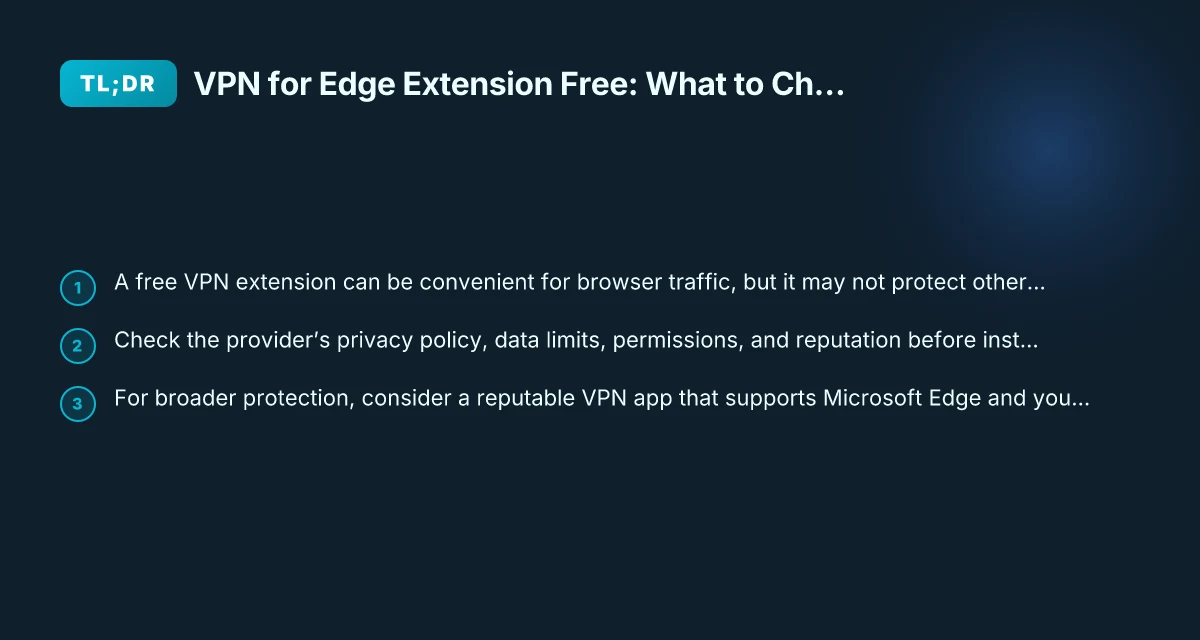
If you’re looking for a free VPN for an Edge extension, start with a reputable provider that clearly explains what it protects, what data it collects, and whether it imposes usage limits. A browser extension is easy to install, but it may route only traffic from Microsoft Edge rather than all internet activity on your device. Check the provider’s details before relying on it for privacy, public Wi-Fi, or access to region-restricted content.
Compare how each option works and what it protects
| Option | Runs in Edge | Protects browser traffic | Protects other apps | Typical use |
|---|---|---|---|---|
| VPN extension | Yes | Usually | No | Browser-only protection |
| VPN app | Yes, through the app | Yes | Yes | Whole-device protection |
| Free proxy | Sometimes | May reroute traffic | No | Basic location changes |
| Private browsing | Yes | No | No | Local browsing privacy |
| HTTPS connection | Yes | Encrypts site connection | No | Safer site connections |
| Built-in browser features | Yes | Not a VPN | No | Tracking and security controls |
Compiled November 2026; check the provider's site for current details.
| VPN | Obfuscation | From / month | Plan | Free plan | Refund | Alipay | UnionPay | Crypto | Website opens in China | Trustpilot | |
|---|---|---|---|---|---|---|---|---|---|---|---|
 ZoogVPN | Turn on manually Shadow | $2.49/mo | 27 months: $59.99 | Yes | 7 days | ✓ | ✓ | ✓ | ✓ | Official site blocked; our special link opens (4.4 s) | 4.2/5 (195 reviews) |
 NordVPN | Turn on manually Obfuscated Servers / NordWhisper | $3.49/mo | 27 months: $94.23 | No | 30 days | ? | ✗ | ✓ | ✓ | ✗ Blocked | 4.2/5 (51,628 reviews) |
 ExpressVPN | ✓ On by default all servers | $3.00/mo | 28 months: $84 | No | 30 days | ✗ | ✗ | ✓ | ✗ | ✗ Blocked | 4.4/5 (29,706 reviews) |
 Surfshark | ✓ On by default Camouflage, with OpenVPN | See site | See site | No | 30 days | ✗ | ✗ | ✗ | ✓ | ✗ Blocked | 4.3/5 (31,823 reviews) |
 Proton VPN | Turn on manually Stealth, free plan too | $2.99/mo | 12 months: $35.88 | Yes | 30 days | ✗ | ✗ | ✗ | ✓ | ✗ Blocked | 2.1/5 (1,040 reviews) |
 Astrill VPN | Turn on manually StealthVPN / OpenWeb | $12.50/mo | 24 months: $300 | No | See site | ✗ | ✗ | ✗ | ✓ | ✗ Blocked | 1.3/5 (110 reviews) |
 Private Internet Access | Turn on manually Shadowsocks, OpenVPN only | $2.03/mo | 40 months: $81.2 | No | 30 days | ✗ | ✗ | ✗ | ✗ | ✗ Blocked | 4.2/5 (11,033 reviews) |
 CyberGhost | Turn on manually selected servers | $2.19/mo | 28 months: $61.32 | No | 45 days | ✗ | ✗ | ✗ | ✓ | ✗ Blocked | 4.0/5 (24,178 reviews) |
 PureVPN | Turn on manually switch to OpenVPN | $1.69/mo | 60 months: $101.55 | No | 31 days | ? | ? | ✗ | ✓ | ✗ Blocked | 4.4/5 (17,994 reviews) |
 AdGuard VPN | ✓ On by default TrustTunnel | $2.99/mo | 24 months: $71.76 | Yes | 30 days | ✓ | ✗ | ✓ | ✓ | Official site blocked; our special link opens (3.7 s) | 4.3/5 (290 reviews) |
 Mullvad | Turn on manually QUIC / Shadowsocks / LWO | $5.61/mo | €5/mo | No | 14 days | ✗ | ✗ | ✗ | ✓ | ✗ Blocked | 3.2/5 (192 reviews) |
 Windscribe | Turn on manually Stealth / WStunnel | $5.75/mo | 12 months: $69 | Yes | See site | ✗ | ✗ | ✗ | ✓ | ✗ Blocked | 4.7/5 (13,355 reviews) |
 StrongVPN | Turn on manually Scramble, OpenVPN TCP | See site | See site | No | 30 days | ✓ | ✗ | ✗ | ✗ | ✗ Blocked | 4.4/5 (2,695 reviews) |
 LightXtreme 闪连 | Not listed | $7.08/mo | 12 months: $84.99 | Yes | 30 days | ✓ | ✓ | ✓ | ✓ | ✓ Yes (3.5 s) | No page |
Prices checked 2026-11-10 on each vendor's pricing page (cheapest long plan, USD). Check the vendor's checkout for the final price.
Obfuscation checked 2026-11-14 on each vendor's site and help center: "on by default" = nothing to set; "turn on manually" = switch protocol or mode in settings; "not listed" = the vendor describes no obfuscation.
Payment methods checked 2026-11-10 on each vendor's payment pages: all 14 take cards and PayPal; ✗ = not listed, ? = the vendor's own pages disagree.
China access: whether the official website opens from mainland China networks (tests the website only, not the VPN connection). Last checked 2026-11-18 01:02 Beijing time.
Trustpilot score and review count checked 2026-11-10.
What a free VPN extension does
A VPN extension for Edge adds a control to your browser for connecting through a VPN service. Depending on how the provider builds it, the extension may function as a browser proxy or as a control interface for a full VPN app. Those options are not identical: a proxy may handle browser traffic only, while a device-wide VPN can cover other apps as well.
An extension can be useful when you want a quick way to change your browser’s apparent location or add a layer of protection to browsing on an unfamiliar network. But it does not make you anonymous. Websites may still identify you through account logins, cookies, browser fingerprinting, or other tracking methods.
Before installing, confirm whether the extension encrypts traffic, which types of traffic it covers, and whether it requires a companion desktop app.
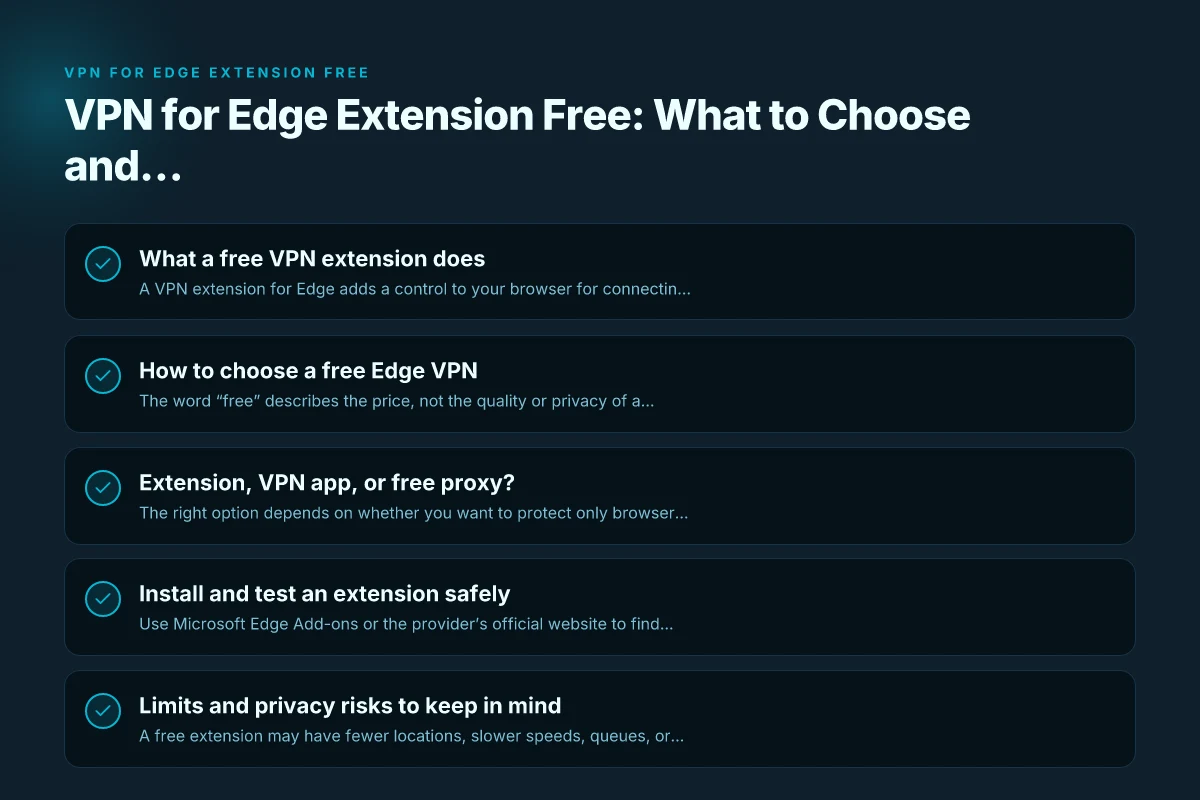
How to choose a free Edge VPN
The word “free” describes the price, not the quality or privacy of a service. Use this checklist to compare options: VPN Free Extension Microsoft Edge: What to Choose and How to Use It
- Clear privacy policy: Look for specific information about connection logs, browsing activity, data sharing, and retention periods.
- Transparent limits: Check for monthly data caps, speed limits, fewer server locations, or restrictions on streaming and downloads.
- Known provider: Prefer an established VPN company with a consistent product history and accessible support.
- Reasonable permissions: Review what the extension can access. Be cautious if its requested permissions seem unrelated to VPN functionality.
- Recent maintenance: Check when the extension was last updated and whether the provider still supports it.
- No misleading promises: Treat claims of complete anonymity, unlimited free access, or guaranteed streaming access with skepticism.
An extension store listing can help you assess a product, but it is not a substitute for reading the provider’s policy. A large number of installs or positive ratings alone does not prove that a service handles data responsibly.
Extension, VPN app, or free proxy?
The right option depends on whether you want to protect only browser activity or your whole device. Compare the basics before choosing:
| Option | Typical coverage | Common trade-off | Best suited to |
|---|---|---|---|
| Free Edge VPN extension | Often Microsoft Edge traffic | May have data, speed, or location limits | Occasional browser use |
| VPN app with Edge support | Potentially all device traffic | May require installing software or a paid plan | Broader device protection |
| Free web proxy | Usually a specific website or browser session | Limited features and less control | Simple, low-risk browsing tasks |
These descriptions are general. Providers differ, so verify how a particular extension works. If you need to cover email apps, games, or other browsers as well as Edge, a browser-only extension may not be enough.
Free plans are also commonly designed as introductions to a paid service. That can be a reasonable arrangement if the provider is transparent about its business model and limitations. Be more cautious when an unknown service offers unlimited use without explaining how it operates. VPN Free for Edge Extension: Best Options and How to Choose
Choose a free Edge VPN extension by checking these factors
| Factor | What to look for | Warning sign | Why it matters |
|---|---|---|---|
| Publisher | Recognizable, verifiable provider | Unclear ownership | Helps assess trust |
| Permissions | Only what the feature needs | Broad access without explanation | Limits exposure |
| Privacy policy | Clear data collection and retention | Vague logging terms | Reveals how data is handled |
| Free-plan limits | Clearly stated restrictions | Limits hidden until install | Sets expectations |
| Connection behavior | Easy connect and disconnect | Unclear protection status | Helps avoid accidental exposure |
| Updates | Recent maintenance | Long gaps or abandoned listing | Supports ongoing compatibility |
| Reviews | Consistent, credible feedback | Repeated reports of problems | Offers a useful signal |
| Support | Help and contact details | No way to report issues | Helps resolve problems |
Compiled November 2026; check the provider's site for current details.
Install and test an extension safely
Use Microsoft Edge Add-ons or the provider’s official website to find the extension. Avoid download links from pop-ups, unofficial software sites, or messages promising premium features for free.
A cautious setup looks like this: Forticlent VPN: A Practical Guide to FortiClient VPN
- Confirm the developer name matches the provider’s official site.
- Read the store description, permissions, update history, and privacy information.
- Install the extension and review its settings before connecting.
- Choose a server location and connect.
- Check the provider’s instructions for verifying your connection and testing for DNS or IP leaks.
- Disconnect when you no longer need the VPN, particularly if the free plan limits data.
If the extension asks you to create an account, use a strong, unique password. Do not enter sensitive information into the VPN provider’s website unless you have confirmed that you are on its legitimate domain.
Limits and privacy risks to keep in mind
A free extension may have fewer locations, slower speeds, queues, or a data allowance that runs out quickly. Some services reserve streaming access, advanced security features, or support for paid customers. Availability and terms can change, so check the current plan rather than relying on an old review.
Privacy also depends on the provider, not just on the VPN connection. A VPN shifts some visibility from your internet provider or local network to the VPN operator. That makes the provider’s policies and security practices important. A VPN does not replace HTTPS, antivirus protection, strong passwords, or careful handling of personal information.
For work, banking, or other sensitive activity, choose a service with clear security documentation and a trustworthy reputation. If a free extension has vague ownership, unclear data practices, or excessive permissions, uninstall it and look for another option. Fortinet Client VPN: How to Choose, Set Up, and Troubleshoot a Secure Connection
Install and test an extension safely
| Step | Action | Check before continuing | If it fails |
|---|---|---|---|
| 1. Find | Open the official Edge add-ons store | Confirm the publisher | Avoid lookalike listings |
| 2. Review | Read permissions and privacy policy | Make sure terms are clear | Choose another option |
| 3. Install | Add the extension to Edge | Grant only requested permissions | Remove it if access seems excessive |
| 4. Connect | Use the extension’s connect control | Confirm it shows an active connection | Disconnect and troubleshoot |
| 5. Test | Check the changed location or IP | Do not assume the icon means protection | Try the provider’s help guide |
| 6. Browse | Visit sites that use HTTPS | Watch for connection warnings | Stop sensitive activity |
| 7. Disconnect | Turn off the extension when finished | Confirm the status changes | Restart Edge if status is stuck |
| 8. Remove | Uninstall if you no longer trust or need it | Check Edge’s extension list | Review browser settings afterward |
Compiled November 2026; check the provider's site for current details.
Recommendation
For occasional browser use, a free VPN for Edge can be a practical choice if it comes from a reputable provider and clearly states its limits. Check whether it protects Edge traffic only or relies on a full VPN app, and review the privacy policy before connecting. If you need consistent speeds, more locations, or protection for every app on your device, compare a reputable VPN app or paid plan instead of assuming a free extension covers everything.