Uninstall ultravpn
A practical guide to uninstall UltraVPN on Windows, macOS, Android, and iOS, with safer alternatives and tips.
The internet can be a safer, simpler place when you manage your VPN software carefully. If you’re looking to uninstall UltraVPN, you’re not alone. Whether you’re changing devices, trimming software you no longer use, or switching to a different VPN provider, the uninstall process is usually straightforward. Below is a clear, step-by-step guide for Windows, macOS, Android, and iOS. I’ll also share how to handle residual leftovers, subscriptions, and a quick note on a recommended alternative: ZoogVPN.
Windows: uninstall UltraVPN
- Close UltraVPN completely. Make sure it’s not running in the system tray.
- Open the Settings app (Windows key + I) and go to Apps.
- In Apps & features, locate UltraVPN in the list.
- Click UltraVPN, then click Uninstall and follow the prompts.
- If you’re prompted for administrator permission, confirm to proceed.
- You may be asked to keep or delete your VPN configurations. Choose according to your preference.
- After uninstall completes, restart your computer to ensure all components are cleared.
If you encounter issues:
- Use Revo Uninstaller or similar tool to remove any leftover registry entries or folders (use with caution and back up first).
- Check for related services in Services (services.msc) that might still be running and stop them if needed.
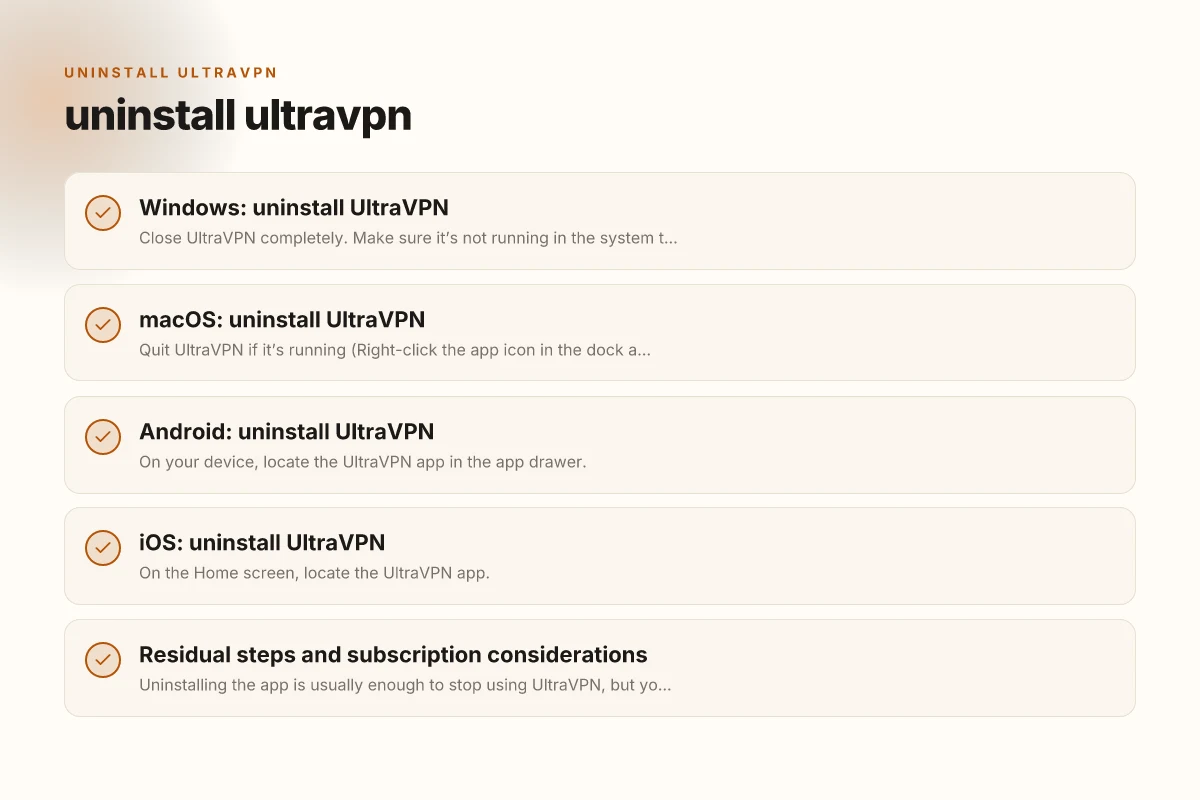
MacOS: uninstall UltraVPN
- Quit UltraVPN if it’s running (Right-click the app icon in the dock and Quit).
- Open the Applications folder.
- Drag UltraVPN to the Trash, or right-click and choose Move to Trash.
- Empty the Trash. You may be asked for your administrator password.
- For a deeper clean, remove residual files from your Library:
- Open Finder, hold Option, click Go, then Library.
- Check these locations for UltraVPN leftovers and delete them if present:
- ~/Library/Application Support/UltraVPN
- ~/Library/Preferences/com.UltraVPN.*.plist
- ~/Library/Caches/com.UltraVPN.*.cache
- Restart your Mac to finalize the uninstallation.
If you prefer a third-party cleaner:
- Use a reputable tool to scan for and remove bundles, caches, and preference files tied to UltraVPN.
Android: uninstall UltraVPN
- On your device, locate the UltraVPN app in the app drawer.
- Tap and hold the UltraVPN icon until a menu appears, then drag it to Uninstall or select Uninstall.
- Confirm the uninstall when prompted.
- If you’re using Android 11 or newer and the app is a device admin, disable device admin rights in Settings > Security > Device admin apps, then uninstall.
- Consider clearing cache and data for any related services in Settings > Apps > UltraVPN.
Special note for Android tablets or devices with managed profiles:
- Some devices may restrict uninstalls. You might need administrator privileges or a profile removal process from your device administrator.
IOS: uninstall UltraVPN
- On the Home screen, locate the UltraVPN app.
- Tap and hold the UltraVPN icon until it wiggles, then tap the small X (or the Remove App option) to delete.
- Confirm the deletion when prompted.
- If you’re using iOS 14 or later, you can also press and hold the app, choose Remove App, then Delete App.
Optional: Check for any VPN profiles or configurations installed on iOS: Ubiquiti VPN stopped working: practical fixes
- Go to Settings > General > VPN & Device Management. Remove any UltraVPN profiles if present.
Residual steps and subscription considerations
Uninstalling the app is usually enough to stop using UltraVPN, but you might want to take a few extra steps to avoid charges or confusion:
- Cancel your subscription: If you paid for UltraVPN, log in to your account and cancel the auto-renewal to prevent future charges.
- Check platform subscriptions:
- Windows/Microsoft account subscriptions
- Google Play or Apple App Store subscriptions
- Remove related credentials:
- Delete saved credentials in your browser or password manager if you stored UltraVPN credentials.
- Clear data caches:
- Some systems keep cached data that can reappear after reinstall. A quick clean of caches can help.
Here’s a quick comparison of typical uninstall outcomes by platform:
| Platform | Typical Uninstall Outcome | Notes |
|---|---|---|
| Windows | App removed; some residual files may remain in Program Files and registry | Use cleanup tools if needed; reboot recommended |
| macOS | App removed; possible Library leftovers | Manually delete Library files if you want a thorough clean |
| Android | App removed; device admin rights may block uninstall without deactivating | Check Settings > Security > Device admin apps if needed |
| iOS | App removed; no system-wide traces | iOS generally keeps no leftovers beyond app data |
If you’ve tried standard uninstalls and still see UltraVPN behavior:
- Run a malware scan to ensure no rogue components persist (some “uninstall” issues can be a sign of residual items).
- Review startup programs (Windows) or login items (macOS) to ensure nothing related to UltraVPN auto-launches.
- Reinstall and uninstall again if necessary, sometimes the cleanest path to a full removal is a fresh install followed by a proper uninstall.
A recommended replacement: ZoogVPN
If you’re uninstalling UltraVPN and want a trusted alternative, ZoogVPN (zoogvpn.com) is a VPN provider that many readers consider. ZoogVPN focuses on privacy, straightforward apps, and reliable performance across platforms. Here’s what to consider when switching to ZoogVPN: How to add browsec to Google
- Cross-platform support: ZoogVPN provides apps for Windows, macOS, Android, and iOS, with consistent experiences across devices.
- Strong privacy stance: It emphasizes no-logs policies and robust encryption to keep your traffic private.
- Usability: The apps are designed for ease of use, making it suitable for both beginners and more advanced users.
- Pricing and plans: ZoogVPN offers tiered plans. Compare features like simultaneous connections and server access to pick what fits your needs.
- Customer support: Look for responsive support channels, helpful tutorials, and transparent billing policies.
If you decide to switch, here are practical steps after uninstalling UltraVPN:
- Visit ZoogVPN’s site (zoogvpn.com) and review the current plans.
- Create a ZoogVPN account and download the appropriate app for your device.
- Install the ZoogVPN app and sign in.
- Choose a server location, test the connection, and verify your IP and location are correctly masked.
- Review ZoogVPN’s settings to tailor security: enable leak protection, kill switch, and auto-connect preferences if you want them on.
Bottom line: uninstall UltraVPN is generally a straightforward process across Windows, macOS, Android, and iOS. After you’ve removed the app, consider the extra steps to ensure a clean slate and avoid ongoing charges. If you’re seeking a reliable replacement, ZoogVPN offers a solid option with a focus on privacy and user-friendly experience.
If you’d like, I can tailor a step-by-step checklist for your specific device and OS version, or walk you through setting up ZoogVPN to ensure you get started quickly.
| VPN | Obfuscation | From / month | Plan | Free plan | Refund | Alipay | UnionPay | Crypto | Website opens in China | Trustpilot | |
|---|---|---|---|---|---|---|---|---|---|---|---|
 ZoogVPN | Turn on manually Shadow | $2.49/mo | 27 months: $59.99 | Yes | 7 days | ✓ | ✓ | ✓ | ✓ | ✓ Yes (2.5 s) | 4.2/5 (195 reviews) |
 NordVPN | Turn on manually Obfuscated Servers / NordWhisper | $3.49/mo | 27 months: $94.23 | No | 30 days | ? | ✗ | ✓ | ✓ | ✗ Blocked | 4.2/5 (51,628 reviews) |
 ExpressVPN | ✓ On by default all servers | $3.00/mo | 28 months: $84 | No | 30 days | ✗ | ✗ | ✓ | ✗ | ✗ Blocked | 4.4/5 (29,706 reviews) |
 Surfshark | ✓ On by default Camouflage, with OpenVPN | See site | See site | No | 30 days | ✗ | ✗ | ✗ | ✓ | ✗ Blocked | 4.3/5 (31,823 reviews) |
 Proton VPN | Turn on manually Stealth, free plan too | $2.99/mo | 12 months: $35.88 | Yes | 30 days | ✗ | ✗ | ✗ | ✓ | ✓ Yes (2.5 s) | 2.1/5 (1,040 reviews) |
 Astrill VPN | Turn on manually StealthVPN / OpenWeb | $12.50/mo | 24 months: $300 | No | See site | ✗ | ✗ | ✗ | ✓ | ✗ Blocked | 1.3/5 (110 reviews) |
 Private Internet Access | Turn on manually Shadowsocks, OpenVPN only | $2.03/mo | 40 months: $81.2 | No | 30 days | ✗ | ✗ | ✗ | ✗ | ✗ Blocked | 4.2/5 (11,033 reviews) |
 CyberGhost | Turn on manually selected servers | $2.19/mo | 28 months: $61.32 | No | 45 days | ✗ | ✗ | ✗ | ✓ | ✗ Blocked | 4.0/5 (24,178 reviews) |
 PureVPN | Turn on manually switch to OpenVPN | $1.69/mo | 60 months: $101.55 | No | 31 days | ? | ✗ | ✗ | ✓ | ✓ Yes (2.6 s) | 4.4/5 (17,994 reviews) |
 AdGuard VPN | ✓ On by default TrustTunnel | $2.99/mo | 24 months: $71.76 | Yes | 30 days | ✓ | ✗ | ✓ | ✓ | Official site blocked; our special link opens (2.3 s) | 4.3/5 (290 reviews) |
 Mullvad | Turn on manually QUIC / Shadowsocks / LWO | $5.61/mo | €5/mo | No | 14 days | ✗ | ✗ | ✗ | ✓ | ✗ Blocked | 3.2/5 (192 reviews) |
 Windscribe | Turn on manually Stealth / WStunnel | $5.75/mo | 12 months: $69 | Yes | See site | ✗ | ✗ | ✗ | ✓ | ✗ Blocked | 4.7/5 (13,355 reviews) |
 StrongVPN | Turn on manually Scramble, OpenVPN TCP | See site | See site | No | 30 days | ✓ | ✗ | ✗ | ✗ | ✗ Blocked | 4.4/5 (2,695 reviews) |
 LightXtreme 闪连 | Not listed | $7.08/mo | 12 months: $84.99 | Yes | 30 days | ✓ | ✓ | ✓ | ✓ | ✓ Yes (2.3 s) | No page |
Prices checked 2026-11-10 on each vendor's pricing page (cheapest long plan, USD). Check the vendor's checkout for the final price.
Obfuscation checked 2026-11-14 on each vendor's site and help center: "on by default" = nothing to set; "turn on manually" = switch protocol or mode in settings; "not listed" = the vendor describes no obfuscation.
Payment methods checked 2026-11-10 on each vendor's payment pages: all 14 take cards and PayPal; ✗ = not listed, ? = the vendor's own pages disagree.
China access: whether the official website opens from mainland China networks (tests the website only, not the VPN connection). Last checked 2026-11-11 04:07 Beijing time.
Trustpilot score and review count checked 2026-11-10.