Surfshark Won’t Connect? Try These Fixes

Learn why Surfshark won’t connect and how to troubleshoot the app, network, settings, and VPN protocols.
If Surfshark won’t connect, first check that your internet works without the VPN, then try a different Surfshark server and restart the app. Connection failures can also stem from an outdated app, a restrictive network, conflicting security software, or VPN protocol settings. Work through the steps below in order, testing the connection after each one.
Match the problem to the first fix to try
| What you notice | First check | Next step | What it tells you |
|---|---|---|---|
| No websites load | Check your internet | Reconnect to Wi-Fi or mobile data | Whether the connection works without Surfshark |
| Internet works, VPN does not | Check Surfshark’s service status | Try again when service is available | Whether the issue may be service-wide |
| One server fails | Select another server | Connect again | Whether the issue is server-specific |
| App seems stuck | Restart Surfshark | Try connecting again | Whether restarting clears a temporary issue |
| Connection fails on one protocol | Change the VPN protocol | Test the connection again | Whether the protocol may be the cause |
| Security software blocks the VPN | Review firewall or antivirus settings | Allow Surfshark if appropriate | Whether security settings are interfering |
| App is outdated | Check for an update | Install the available update | Whether an app issue may be resolved |
| App problems persist | Clear app issues or reinstall | Set up Surfshark again | Whether a fresh app setup helps |
Compiled November 2026; check the provider's site for current details.
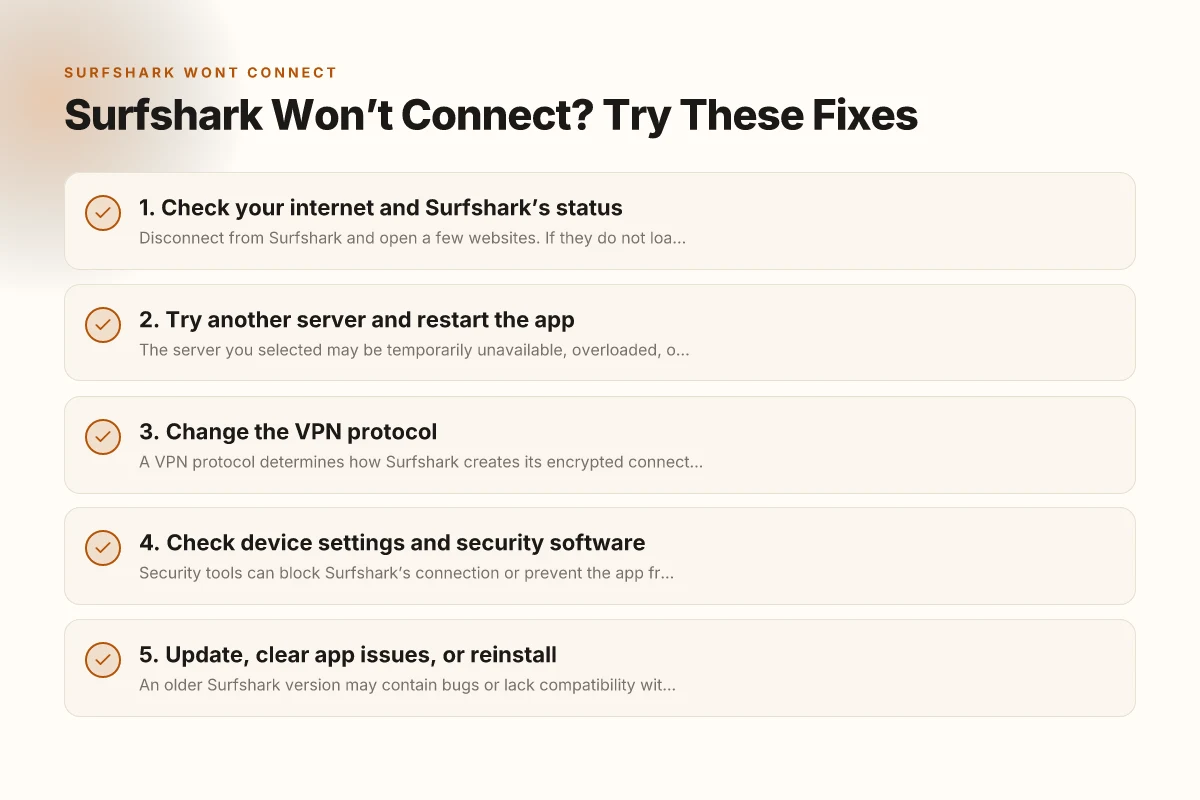
1. Check your internet and Surfshark’s status
Disconnect from Surfshark and open a few websites. If they do not load, the issue is likely your Wi-Fi, router, or internet provider rather than the VPN. Restart your router and reconnect to the network before trying Surfshark again.
If the internet works normally, check whether Surfshark is experiencing a service disruption. Look at Surfshark’s official status page or support channels. If there is an outage, changing settings on your device may not help. Wait and try again later.
Also confirm that your Surfshark subscription is active and that you are signed in to the correct account. An expired subscription or sign-in problem can prevent the service from working as expected.
2. Try another server and restart the app
The server you selected may be temporarily unavailable, overloaded, or unreachable from your network. Choose another location in the Surfshark app. If you need a specific country, try a different server within that country first. Otherwise, test a nearby location. Urban VPN Edge: How to Install and Use the Extension
Then close Surfshark completely and reopen it. On a computer, quit the app rather than simply closing its window. On a phone or tablet, force-close it, wait a few seconds, and launch it again. Restarting the device can also clear a temporary network or app problem.
Before reconnecting, check that another VPN is not active. Running multiple VPN apps or VPN profiles at the same time can interfere with the connection. Disconnect other VPNs and remove or disable any conflicting VPN configuration if you no longer use it.
Compare troubleshooting options by effort and when to use them
| Option | Effort | Try it when | What to check afterward |
|---|---|---|---|
| Check internet connection | Low | Other apps or websites also fail | Whether regular internet access returns |
| Check Surfshark status | Low | Internet works but Surfshark will not connect | Whether the service is available |
| Switch servers | Low | A particular server will not connect | Whether another server connects |
| Restart the app | Low | Surfshark appears unresponsive | Whether the app connects after restarting |
| Change protocol | Medium | Server switching does not help | Whether a different protocol connects |
| Review device settings | Medium | VPN access may be restricted | Whether device settings allow the connection |
| Review security software | Medium | Firewall or antivirus may be blocking Surfshark | Whether Surfshark is allowed |
| Update or reinstall | Higher | Other steps have not resolved app problems | Whether the updated or reinstalled app connects |
Compiled November 2026; check the provider's site for current details. Find My VPN Location: Check What Websites Can See
3. Change the VPN protocol
A VPN protocol determines how Surfshark creates its encrypted connection. Some networks block or interfere with certain protocols, so switching protocols is a useful test.
Open Surfshark’s settings and look for the VPN protocol option. The exact menu names vary by app version and device. Try another available protocol, reconnect, and test a few servers. If the new setting makes no difference, switch back or test a different option.
| What you notice | What to try |
|---|---|
| Surfshark connects on one network but not another | Try a different protocol or server on the affected network |
| Connection stalls at the same point | Change the protocol, then restart the app |
| The VPN connects, but websites stop loading | Try another server and protocol; check DNS settings |
| The problem started after an app or device update | Update Surfshark and restart the device |
Some networks, such as workplace, school, hotel, or public Wi-Fi networks, restrict VPN traffic. If you are allowed to use a VPN there, another protocol or network may work. Do not try to bypass an organization’s security rules. Contact its network administrator if access is required for a legitimate reason.
4. Check device settings and security software
Security tools can block Surfshark’s connection or prevent the app from creating a VPN tunnel. Temporarily check whether a firewall, antivirus program, parental-control app, or network-filtering tool is restricting Surfshark. If you adjust a rule, allow only the trusted Surfshark app and restore your usual protections afterward. FortiClient VPN Download: How to Get and Install It Safely
On phones and tablets, review the device’s VPN settings. Remove old or duplicate VPN profiles if they are no longer needed, and make sure Surfshark has any permissions the operating system requests. Menu locations differ across iOS, Android, Windows, and macOS.
You can also try these basic checks:
- Set your device’s date and time to update automatically. An incorrect clock can interfere with secure connections.
- Install pending operating-system updates if your device is significantly out of date.
- Turn off any custom proxy setting unless you know it is required.
- Test Surfshark on a different internet connection, such as a mobile hotspot, if available.
If Surfshark works on a hotspot but not on your regular Wi-Fi, the router or network provider may be blocking or disrupting VPN traffic. Restart the router and check its settings. Contact the provider or network administrator if the problem continues.
5. Update, clear app issues, or reinstall
An older Surfshark version may contain bugs or lack compatibility with recent operating-system changes. Update the app through Surfshark’s official website or your device’s app store, then restart your device and test the connection again. How to Add or Change a VPN Connection in Windows 11
If the app still will not connect, sign out and back in. You can also clear the app’s cache on platforms that offer that option. Avoid deleting saved data unless you are comfortable signing in and setting preferences again.
As a later step, uninstall Surfshark, restart the device, and reinstall the latest version from an official source. Reinstallation can replace damaged app files, but it may remove local settings. Make sure you know your account sign-in details before proceeding.
6. When to contact Surfshark support
Contact Surfshark support if you have tested multiple servers and protocols, confirmed that your internet works, and updated or reinstalled the app without success. Provide useful details so support can narrow down the cause:
- Your device model and operating-system version
- Your Surfshark app version
- The server location and protocol you tried
- The exact error message, if one appears
- Whether Surfshark works on another network
Do not send your password or other sensitive account information in a public post. If the problem happens only on a work, school, or public network, ask its administrator whether VPN connections are permitted. Edge VPN: What It Is, How It Works, and Which Option to Choose
Decide whether to keep troubleshooting or contact Surfshark support
| Situation | Useful checks first | Keep troubleshooting if | Contact support if |
|---|---|---|---|
| Internet connection is down | Test websites without the VPN | Regular internet access returns | Internet works but Surfshark still will not connect |
| Surfshark service may be unavailable | Check Surfshark’s status | Service is available and connection works | Service is available but connection still fails |
| A server will not connect | Try another server | Another server connects | Multiple servers fail |
| App may be stuck | Restart the app | The app connects afterward | It remains unresponsive or cannot connect |
| Protocol may be the issue | Try another VPN protocol | A different protocol connects | Protocol changes do not help |
| Device settings may interfere | Review device settings | Adjusting settings resolves the issue | Settings look correct but the problem continues |
| Security software may block access | Check firewall and antivirus settings | Allowing Surfshark resolves the issue | The connection still fails after checking |
| App issues persist | Update, clear app issues, or reinstall | A fresh setup restores connection | The app still cannot connect |
Compiled November 2026; check the provider's site for current details.
Recommendation
When Surfshark won’t connect, start with the simplest checks: confirm your internet is working, try another server, and restart the app. If that fails, change the VPN protocol and check for network restrictions or conflicting security software. Update or reinstall Surfshark only after those quick tests, and contact support with your device and error details if the connection still fails.