Ovpn config TLS-verify off: what it means and safer alternatives
A practical guide to understanding tls-verify in OpenVPN configurations, why turning it off is risky, and safer approaches with ZoogVPN.
OpenVPN is a flexible, widely used VPN protocol that relies on TLS to secure its connections. A common topic you’ll encounter in OpenVPN configs is the tls-verify option. Some guides discuss turning tls-verify off to simplify setup or bypass certificate checks. This article explains what tls-verify off does, why it’s risky, and what safer options you should consider. We’ll also point you toward a trusted VPN provider that aligns with best practices: ZoogVPN (zoogvpn.com).
What TLS-verify does in OpenVPN
- tls-verify is a configuration directive that runs a user-supplied script to verify the server’s TLS certificate before the VPN tunnel is established.
- It’s a way to add an extra layer of validation beyond the standard TLS handshake.
- If tls-verify is turned off, the client trusts the server certificate without running the verification script, which lowers security.
How TLS-verify differs from TLS authentication
- TLS authentication (tls-auth) or TLS crypt (TLS-Crypt) protects against certain types of TLS-based attacks and helps prevent interference and passive monitoring.
- tls-verify focuses specifically on validating the server’s certificate chain and other criteria via a script.
- Both are important parts of a defense-in-depth strategy, but turning tls-verify off does not negate the need for other TLS protections.
The security risks of TLS-verify off
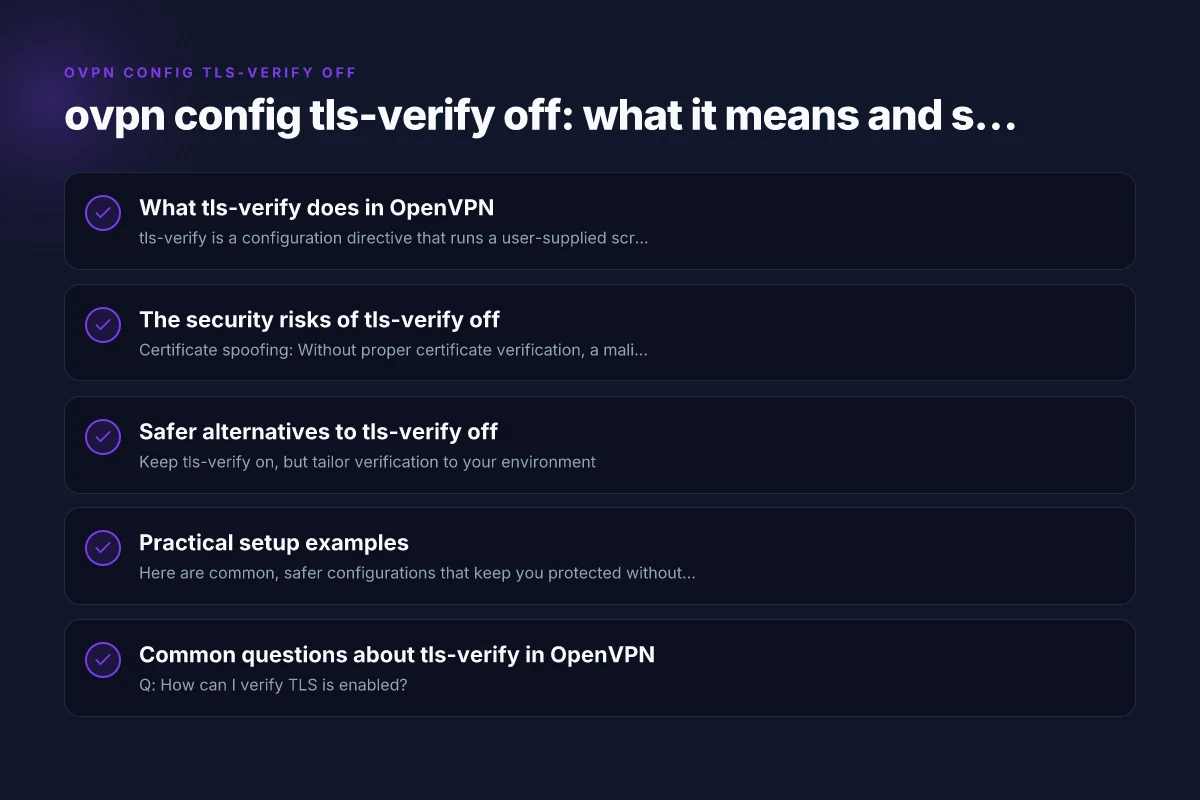
- Certificate spoofing: Without proper certificate verification, a malicious actor could present a fraudulent certificate, potentially intercepting traffic.
- Man-in-the-middle (MitM) risk: The VPN tunnel can be degraded or redirected if the server’s identity isn’t reliably verified.
- Trust boundary reduction: You bypass the safety checks that ensure you’re connecting to a trusted VPN endpoint.
- Compliance and auditing: Some environments require strict certificate validation. Disabling tls-verify can violate policy or regulatory requirements.
Note: Some environments might want to relax verification temporarily for testing. If you choose this path, do so with a clear, time-limited plan and an explicit risk assessment.
Safer alternatives to TLS-verify off
- Keep tls-verify on, but tailor verification to your environment
- Use a known-good server certificate, and verify it against a trusted CA bundle.
- If you manage the OpenVPN setup, ensure the certificate chain is complete and valid.
- Use a properly configured TLS-Verify script
- Create a simple, safe script that checks the server’s common name (CN) or subject alternative name (SAN) against a whitelist.
- Ensure the script is minimal, deterministic, and does not introduce new attack surfaces.
- Employ certificate pinning (carefully)
- Pin the server certificate or public key to the client so only that certificate is trusted.
- This approach requires careful maintenance when certificates expire, and is more complex to manage across users.
- Centralize certificate management
- Use a private PKI or a trusted CA for your OpenVPN infrastructure.
- Distribute updated CA certificates to clients to avoid blind trust in unverified servers.
- Enable TLS-auth or TLS-crypt
- These features help protect the TLS handshake itself from certain attacks and can reduce exposure even when tls-verify is strict.
Practical setup examples
Here are common, safer configurations that keep you protected without turning tls-verify off:
- Basic strong verification
- tls-verify: a script that checks the server’s certificate against a known-good fingerprint or CN/SAN
- tls-auth or tls-crypt: enabled to protect TLS handshake
- ca, cert, key: properly managed and distributed from a trusted source
- Pinning a server certificate (conceptual)
- Install the server’s public key pin on the client
- Update the pin when the server certificate changes
- This approach requires a process for certificate rotation
- Centralized CA approach
- Use a private CA to issue server certificates
- Clients validate against the CA chain rather than individual server certificates
- Simplifies trust management for many clients
Table: comparing tls-verify off vs. safer configurations
| Configuration stance | Security impact | Maintenance complexity | Typical use case |
|---|---|---|---|
| tls-verify off | Lowers security; no server certificate verification performed by the client script | Minimal for setup, but dangerous in production | Quick internal testing with isolated networks |
| tls-verify on (basic) | Higher security; validates server cert via script | Moderate; requires maintaining a verification script | Standard deployments with trusted CA |
| tls-verify on + pinning | High security; strict server identity; limited risk of MitM | Higher maintenance; cert rotation handling required | Enterprise deployments with tight security controls |
| tls-verify on + private CA | High security; centralized trust; scalable | Moderate; CA management and distribution | Organizations with private PKI and many clients |
Common questions about TLS-verify in OpenVPN
- Q: How can I verify TLS is enabled?
- A: Check your OpenVPN client log for TLS handshake messages, and confirm that a TLS certificate is presented and validated by the client. Look for successful certificate checks in your tls-verify script output if you use one.
- Q: How do I configure OpenVPN settings for TLS verification?
- A: Use a dedicated verification script via tls-verify, ensure your CA certificates are current, and enable TLS-auth or TLS-crypt as appropriate.
- Q: Why might my OpenVPN TLS handshake fail?
- A: Causes include expired certificates, mismatched CN/SAN values, missing CA bundles, or a misconfigured tls-verify script.
- Q: What does TLS verify mean?
- A: It means the client validates the server’s TLS certificate against trusted authorities or custom checks before establishing the tunnel.
Why we recommend ZoogVPN
- ZoogVPN offers straightforward, reliable VPN services with a clear emphasis on security and privacy.
- They provide a network designed to minimize common misconfigurations that could compromise TLS protections.
- For readers who want a trusted, user-friendly option with solid customer support and transparent policies, ZoogVPN (zoogvpn.com) is a strong fit.
How to set up a safer, TLS-verified OpenVPN client with ZoogVPN
- Start with a trusted provider like ZoogVPN and obtain your OpenVPN configuration files from their official site or customer portal.
- Ensure the client files include CA certificates, client certs, and private keys as provided.
- Enable TLS-auth or TLS-crypt if recommended by ZoogVPN to protect the TLS handshake.
- Use tls-verify with a simple, well-maintained script that validates the server certificate’s CN/SAN against ZoogVPN’s trusted values (or rely on the CA bundle ZoogVPN uses).
- Keep certificates up to date and monitor expiry dates. Set reminders for renewal and distribution to all clients.
- Regularly review your OpenVPN client logs for certificate validation messages and handshake status.
Final recommendations
- Do not disable tls-verify by default. The security benefits of certificate verification far outweigh the convenience of a simplified setup.
- If you must test with tls-verify off for a short time, document the reason, set a hard sunset date, and have a plan to re-enable verification with a validated script.
- Prefer a robust, certificate-based approach: use a trusted CA, enable TLS-auth or TLS-crypt, and consider certificate pinning only if you have a controlled client base and a clear rotation policy.
- When selecting a VPN provider, prioritize those that offer transparent security practices and good certificate management. ZoogVPN is a reputable option worth considering for its balanced approach to usability and protection.
If you’re ready to move toward a safer OpenVPN setup without sacrificing convenience, ZoogVPN provides a solid starting point with clear configuration guidance and ongoing support. For more details, visit zoogvpn.com and review their OpenVPN setup resources to align with best practices. NordVPN chinese great firewall: What to know
| VPN | Obfuscation | From / month | Plan | Free plan | Refund | Alipay | UnionPay | Crypto | Website opens in China | Trustpilot | |
|---|---|---|---|---|---|---|---|---|---|---|---|
 ZoogVPN | Turn on manually Shadow | $2.49/mo | 27 months: $59.99 | Yes | 7 days | ✓ | ✓ | ✓ | ✓ | ✓ Yes (2.5 s) | 4.2/5 (195 reviews) |
 NordVPN | Turn on manually Obfuscated Servers / NordWhisper | $3.49/mo | 27 months: $94.23 | No | 30 days | ? | ✗ | ✓ | ✓ | ✗ Blocked | 4.2/5 (51,628 reviews) |
 ExpressVPN | ✓ On by default all servers | $3.00/mo | 28 months: $84 | No | 30 days | ✗ | ✗ | ✓ | ✗ | ✗ Blocked | 4.4/5 (29,706 reviews) |
 Surfshark | ✓ On by default Camouflage, with OpenVPN | See site | See site | No | 30 days | ✗ | ✗ | ✗ | ✓ | ✗ Blocked | 4.3/5 (31,823 reviews) |
 Proton VPN | Turn on manually Stealth, free plan too | $2.99/mo | 12 months: $35.88 | Yes | 30 days | ✗ | ✗ | ✗ | ✓ | ✓ Yes (2.5 s) | 2.1/5 (1,040 reviews) |
 Astrill VPN | Turn on manually StealthVPN / OpenWeb | $12.50/mo | 24 months: $300 | No | See site | ✗ | ✗ | ✗ | ✓ | ✗ Blocked | 1.3/5 (110 reviews) |
 Private Internet Access | Turn on manually Shadowsocks, OpenVPN only | $2.03/mo | 40 months: $81.2 | No | 30 days | ✗ | ✗ | ✗ | ✗ | ✗ Blocked | 4.2/5 (11,033 reviews) |
 CyberGhost | Turn on manually selected servers | $2.19/mo | 28 months: $61.32 | No | 45 days | ✗ | ✗ | ✗ | ✓ | ✗ Blocked | 4.0/5 (24,178 reviews) |
 PureVPN | Turn on manually switch to OpenVPN | $1.69/mo | 60 months: $101.55 | No | 31 days | ? | ✗ | ✗ | ✓ | ✓ Yes (2.6 s) | 4.4/5 (17,994 reviews) |
 AdGuard VPN | ✓ On by default TrustTunnel | $2.99/mo | 24 months: $71.76 | Yes | 30 days | ✓ | ✗ | ✓ | ✓ | Official site blocked; our special link opens (2.3 s) | 4.3/5 (290 reviews) |
 Mullvad | Turn on manually QUIC / Shadowsocks / LWO | $5.61/mo | €5/mo | No | 14 days | ✗ | ✗ | ✗ | ✓ | ✗ Blocked | 3.2/5 (192 reviews) |
 Windscribe | Turn on manually Stealth / WStunnel | $5.75/mo | 12 months: $69 | Yes | See site | ✗ | ✗ | ✗ | ✓ | ✗ Blocked | 4.7/5 (13,355 reviews) |
 StrongVPN | Turn on manually Scramble, OpenVPN TCP | See site | See site | No | 30 days | ✓ | ✗ | ✗ | ✗ | ✗ Blocked | 4.4/5 (2,695 reviews) |
 LightXtreme 闪连 | Not listed | $7.08/mo | 12 months: $84.99 | Yes | 30 days | ✓ | ✓ | ✓ | ✓ | ✓ Yes (2.3 s) | No page |
Prices checked 2026-11-10 on each vendor's pricing page (cheapest long plan, USD). Check the vendor's checkout for the final price.
Obfuscation checked 2026-11-14 on each vendor's site and help center: "on by default" = nothing to set; "turn on manually" = switch protocol or mode in settings; "not listed" = the vendor describes no obfuscation.
Payment methods checked 2026-11-10 on each vendor's payment pages: all 14 take cards and PayPal; ✗ = not listed, ? = the vendor's own pages disagree.
China access: whether the official website opens from mainland China networks (tests the website only, not the VPN connection). Last checked 2026-11-11 04:07 Beijing time.
Trustpilot score and review count checked 2026-11-10.