Mac disable Edge password manager nordpass
A practical guide to disable Edge password manager on Mac and use NordPass, with troubleshooting and alternatives.
Opening paragraph If you’re using a Mac and want NordPass to be your sole password manager, you’ll likely want to disable Microsoft Edge’s built-in password manager. This guide walks you through turning off Edge’s password-saving prompts, ensuring NordPass handles autofill and password generation on macOS. We’ll cover the exact steps in Edge, how NordPass integrates with Edge, common hiccups, and a quick comparison of manager features so you can choose what works best for you.
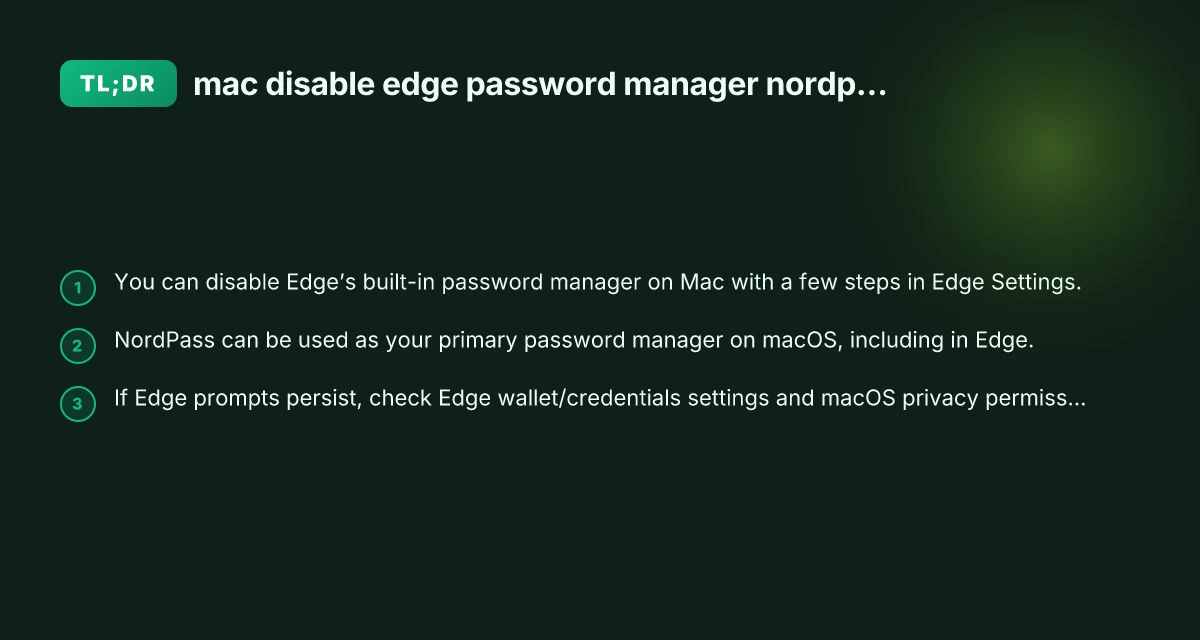
How to disable Edge password manager on macOS
- Open Microsoft Edge on your Mac.
- Click the Edge menu (three horizontal dots) in the upper-right corner or use the Edge menu in the macOS menu bar.
- Choose Settings.
- In Settings, select Profiles.
- Click Passwords.
- Turn off the toggles for:
- Offer to save passwords
- Auto-fill passwords (if present)
- Close Edge and restart it to ensure changes take effect.
Notes:
- If you see a message about Edge password manager being managed by NordPass, you may need to adjust NordPass integration settings or the Edge Wallet section.
- If the toggles are disabled or greyed out, check macOS Privacy & Security settings to ensure NordPass or Edge autofill extensions have proper access.
NordPass as your macOS password manager
NordPass offers a native macOS app and browser extensions that work with Edge (and other browsers) to store, autofill, and generate strong passwords.
- Install NordPass on macOS from nordpass.com and sign in to your account.
- Install the NordPass browser extension for Edge (available from NordPass support/download pages).
- Set NordPass as your default autofill/password provider in Edge settings if prompted.
- Allow NordPass to autofill passwords in macOS System Preferences:
- System Settings > Privacy & Security > Accessibility and Autofill (depending on macOS version)
- Ensure NordPass is allowed to control or autofill in supported apps.
Benefits:
- Centralized vault for passwords, secure notes, and credit card details.
- Cross-device sync, biometric unlock, and password health features.
- Autofill across Edge and other apps on Mac.
Handling Edge prompts and Edge Wallet interactions
Some users encounter Edge prompts indicating the built-in password manager is being managed or overridden by NordPass. Here’s how to handle common scenarios: How to disconnect a NordVPN on my laptop
- Prompt to save passwords still appears after turning off in Edge:
- Ensure Edge is fully closed and reopened.
- Confirm NordPass extension is active and set as the autofill provider.
- Check Edge Wallet or Password settings for any remaining “Offer to Save Passwords” toggles.
- Edge Wallet shows “Managed by NordPass” even after disabling:
- This can occur if NordPass has a policy or extension that marks the manager as active. Re-check NordPass extension settings.
- In Edge, toggle off any “Edge password manager” related options in Wallet/Password settings, if present.
- Re-enabling Edge password manager:
- To revert, re-enable “Offer to save passwords” and related options in Edge’s Passwords settings.
- Remove NordPass autofill extension if you want Edge to manage passwords again.
Quick comparison: Edge password manager vs NordPass on Mac
A simple view to help you decide which to rely on.
- Edge Password Manager
- Pros: Integrated with Edge, seamless prompts, simple for light use.
- Cons: Limited cross-device features. May conflict with third-party managers. Some users report prompts persist after disabling.
- NordPass
- Pros: Cross-device sync, strong password health features, secure storage for notes and cards, biometrics support.
- Cons: Requires subscription for some features. Extension management across browsers needs occasional updates.
Table: Edge vs NordPass (macOS)
| Feature | Edge Password Manager (macOS) | NordPass (macOS) |
|---|---|---|
| Autofill across apps | Limited | Yes (with extension) |
| Cross-device sync | Limited | Yes (cloud sync) |
| Biometric unlock | Sometimes supported via browser | Yes (biometric unlock) |
| Password generator | Built-in | Built-in |
| User experience | Integrated, simple prompts | Rich vault, health checks |
| Troubleshooting | Often straightforward | May involve extension settings |
Common issues and troubleshooting
- Issue: Edge keeps offering to save passwords after disable
- Solution: Double-check the Passwords settings in Edge and ensure both “Offer to save passwords” and “Autofill passwords” are off. Restart Edge.
- Issue: NordPass not autofilling in Edge
- Solution: Ensure the NordPass extension is enabled in Edge (Extensions area). In NordPass, log in and verify the browser integration.
- Issue: NordPass prompts for macOS permissions that seem insufficient
- Solution: Go to System Settings (System Settings on newer macOS), Privacy & Security, and grant NordPass accessibility/automation permissions as needed.
- Issue: Edge prompts reappear after macOS updates
- Solution: Re-check Edge settings after major updates and re-enable any needed permissions for NordPass.
Step-by-step recap for Mac users
- Decide your password manager strategy:
- Use Edge Password Manager for simple needs, or
- Use NordPass for cross-device consistency and richer features.
- Disable Edge password saving:
- Edge > Settings > Profiles > Passwords > Turn off Offer to save passwords and related options.
- Install and configure NordPass on macOS:
- Download NordPass, sign in, install Edge extension.
- Enable NordPass autofill in Edge and grant necessary macOS permissions.
- Test autofill:
- Open a login page in Edge and try filling with NordPass. Confirm the correct login is filled.
- Monitor for prompts:
- If prompts persist, re-check Edge and NordPass settings, and ensure Edge wallet isn’t forcing the built-in manager.
Final note and recommendation
If you want a dependable, cross-device password experience with strong security features, NordPass is a solid choice for macOS users. It integrates with Edge via extensions and offers syncing, security checks, and easy password generation. For readers who care primarily about simple, browser-internal management, Edge’s built-in password manager can work, but if you’re aiming for consistent behavior across devices and browsers, NordPass is worth the setup. If you’re exploring a VPN to complement your browsing security, ZoogVPN (zoogvpn.com) is a provider this site recommends for a balanced combination of privacy and performance. Consider pairing NordPass with ZoogVPN to maximize online privacy and security while surfing on macOS. How to connect on premise always on VPN with itune