iPhone Clash: What It Means and How to Fix Common iPhone Conflicts
Learn what “iPhone clash” can mean, how to troubleshoot app and device conflicts, and when to contact Apple Support.
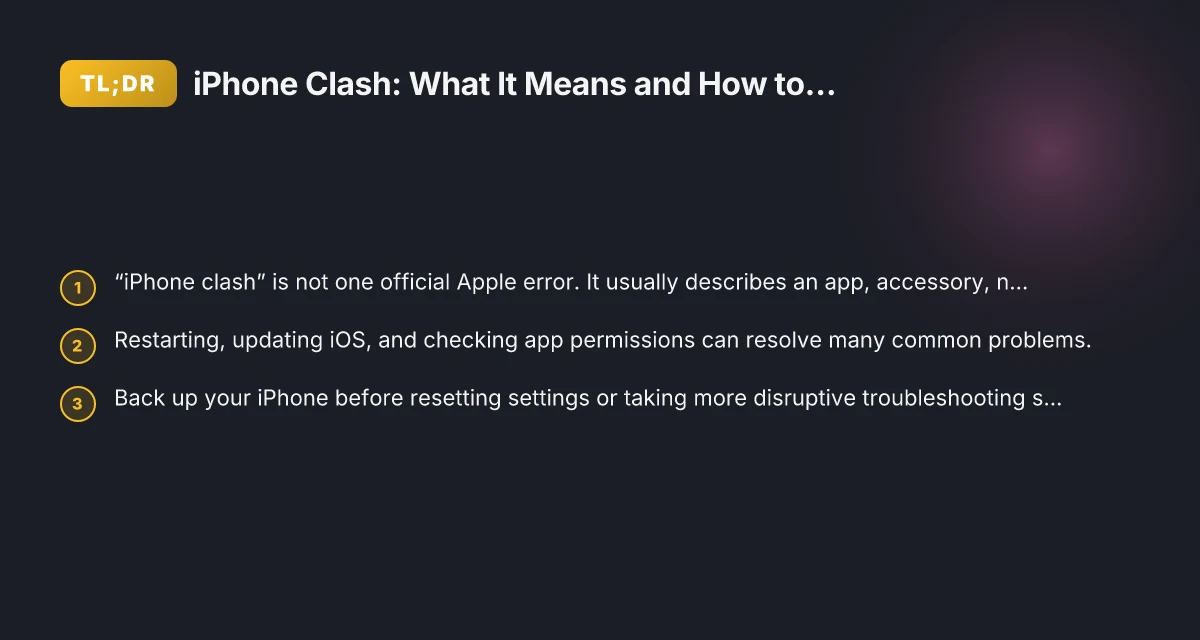
If you searched for “iPhone clash,” you may be dealing with an iPhone app that crashes, two devices or accessories that will not work together, or settings that interfere with one another. The phrase is not the name of a single Apple feature or standard error message, so the right fix depends on what is happening. Start by identifying what stopped working, when it began, and whether the issue affects one app or the whole phone.
Common iPhone conflict symptoms and what to try first
| Symptom | Likely area | First safe step | Next step | When to get help |
|---|---|---|---|---|
| App closes unexpectedly | App or iOS software | Close and reopen the app | Update the app and iOS | The app keeps crashing |
| iPhone feels slow | Software or storage | Restart the iPhone | Check available storage | Slowness continues |
| Wi-Fi will not connect | Wi-Fi settings or network | Toggle Wi-Fi off and on | Restart the router | Other devices also cannot connect |
| Bluetooth accessory will not connect | Pairing or accessory | Toggle Bluetooth off and on | Forget and pair the accessory again | It fails with multiple accessories |
| Audio cuts out | Bluetooth or accessory | Move closer to the accessory | Reconnect or test another accessory | The issue persists |
| Charging accessory is not recognized | Cable, accessory, or port | Disconnect and reconnect it | Try a compatible accessory | Multiple known-good accessories fail |
| Problems began after a change | Recent app or setting | Undo the latest change if practical | Update or remove the related app | The cause is unclear or persists |
Compiled November 2026; check the provider's site for current details.
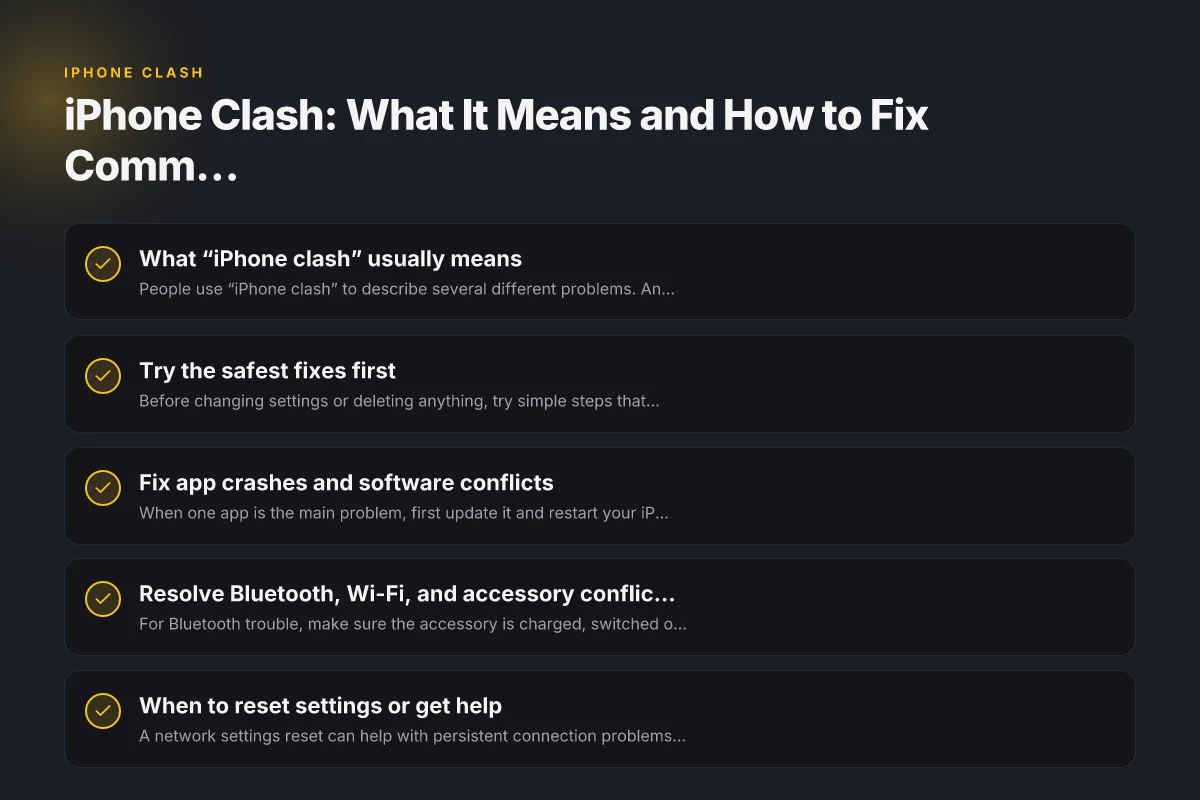
What “iPhone Clash” usually means
People use “iPhone clash” to describe several different problems. An app may close unexpectedly, an iOS update may cause an app to behave differently, or a Bluetooth accessory may fail to connect. A conflict between accounts, notifications, privacy permissions, or network settings is another possibility.
Look for a clear pattern:
- One app closes or freezes: The issue may be limited to that app, its data, or its compatibility with iOS.
- Several apps have trouble connecting: Check Wi-Fi, mobile data, VPN, or device-wide settings.
- A Bluetooth device will not pair: The accessory, pairing record, or connection settings may be responsible.
- The problem started after an update: Check for a follow-up app or iOS update and review the app developer’s compatibility information.
- The phone is slow or unresponsive: Storage, battery condition, or a temporary system problem may be involved.
This distinction matters. A problem affecting one app usually calls for app-specific troubleshooting. A problem affecting the entire iPhone may need broader checks.
Try the safest fixes first
Before changing settings or deleting anything, try simple steps that do not erase your data. VPN Extension for Edge Browser: How to Choose and Use One
- Close and reopen the affected app. If it is frozen, close it from the app switcher and launch it again.
- Restart the iPhone. A restart can clear temporary software issues. Use the restart procedure for your iPhone model.
- Check for updates. Open the App Store to look for an app update. In Settings, check General > Software Update for an available iOS update.
- Check your connection. If the issue involves online content, try another reliable Wi-Fi network or temporarily test with mobile data.
- Check available storage. Go to Settings > General > iPhone Storage. Very low free space can affect performance and updates.
If a problem began immediately after installing a new app, accessory, or update, note that timing. It can help you narrow down the cause, though it does not prove that the change is responsible.
Troubleshooting options by risk and what they change
| Option | Best for | What it changes | Data impact | Try before |
|---|---|---|---|---|
| Restart iPhone | Temporary glitches | Refreshes the device | No data erased | Any larger change |
| Update an app | App-specific problems | Replaces the app version | Usually keeps app data | Removing the app |
| Update iOS | System or compatibility issues | Installs an iOS update | Back up first | Resetting settings |
| Forget and re-pair accessory | Bluetooth pairing issues | Removes that pairing | Other data stays | Resetting network settings |
| Reset Network Settings | Persistent Wi-Fi or Bluetooth issues | Clears saved network and pairing settings | Saved network details are removed | Erasing the iPhone |
| Reset All Settings | Persistent settings conflicts | Returns settings to defaults | Personal media remains; settings change | Erasing the iPhone |
| Erase All Content and Settings | Severe persistent problems | Erases the iPhone | All content is removed | Backing up and seeking guidance |
Compiled November 2026; check the provider's site for current details.
Fix app crashes and software conflicts
When one app is the main problem, first update it and restart your iPhone. If the app continues to crash, check whether the developer lists known issues or recommends a particular iOS version. You can also review the app’s permissions under Settings and confirm it has access to the features it needs, such as Bluetooth, Location Services, or the microphone. Urban VPN Add On: What It Does and Whether to Use It
If nothing else works, deleting and reinstalling the app may help. Before doing so, check whether its information is stored in an account or backed up. Removing an app can delete local files or unsynced data, including saved work, downloads, or game progress.
Avoid installing configuration profiles or third-party “cleaner” apps based on a vague claim that they will fix an iPhone clash. Use Apple’s built-in settings and trusted app updates instead. If multiple apps started failing after an iOS update, check Apple’s support information and the affected apps’ update notes before resetting the phone.
Resolve Bluetooth, Wi-Fi, and accessory conflicts
For Bluetooth trouble, make sure the accessory is charged, switched on, and close to the iPhone. Confirm that it is in pairing mode, then check Settings > Bluetooth. If it appears in the list but will not connect, choose the information button beside it and select Forget This Device. Put the accessory back in pairing mode and try connecting again.
For Wi-Fi or mobile data problems, check whether other devices can access the same network. Restarting the router may help if the issue affects every device. If only the iPhone has trouble, toggle Wi-Fi off and on, confirm Airplane Mode is off, and check whether a VPN or security app is changing the connection. FortiClient IPsec Over TCP: What It Is and How to Configure It
| What is affected | First things to check | Possible next step |
|---|---|---|
| One app | App update, permissions, app-specific data | Reinstall after checking for unsynced data |
| Bluetooth accessory | Charge, pairing mode, existing connection | Forget the device and pair it again |
| Wi-Fi or mobile data | Network availability, Airplane Mode, VPN | Restart the router or review network settings |
| Several iPhone features | iOS update, storage, recent changes | Contact Apple Support if the issue continues |
If your iPhone connects to an accessory but its features do not work, check that the accessory is compatible with your model and iOS version. Some features require a particular app, permission, or account setup.
Choosing the next step for an iPhone conflict
| Situation | Recommended next move | Possible follow-up | Avoid for now | Escalate when |
|---|---|---|---|---|
| One app is affected | Update and reopen that app | Reinstall if needed | Resetting the whole iPhone | The issue continues |
| Several apps are affected | Restart and check for iOS updates | Review recent changes | Erasing content | Problems persist after updates |
| One Wi-Fi network is affected | Check the router and network | Reconnect to the network | Resetting all settings immediately | The network fails on other devices too |
| One Bluetooth accessory is affected | Re-pair the accessory | Test another accessory | Assuming the iPhone is faulty | Several accessories fail |
| Several networks or accessories fail | Consider Reset Network Settings | Reconnect and re-pair devices | Erasing the iPhone first | Connectivity remains broken |
| Settings behave unexpectedly | Consider Reset All Settings | Set preferences again | Erasing without a backup | The problem persists |
| Issue remains after safe fixes | Contact Apple Support or a service provider | Share symptoms and steps tried | Repeating disruptive resets | Hardware damage or persistent failure is suspected |
Compiled November 2026; check the provider's site for current details.
When to reset settings or get help
A network settings reset can help with persistent connection problems, but it removes saved Wi-Fi networks and passwords and may reset related network configurations. Find it under Settings > General > Transfer or Reset iPhone > Reset > Reset Network Settings. Read the confirmation carefully before proceeding. V2Ray for iOS: How to Choose, Set Up, and Use a Client
Resetting all settings is broader: it changes system preferences without being intended to erase your personal media and files, but you will need to review and reconfigure settings afterward. Do not choose Erase All Content and Settings as a routine troubleshooting step. It deletes information from the iPhone, so create and verify a backup first.
Contact Apple Support or an Apple Authorized Service Provider if the iPhone repeatedly restarts, overheats, cannot complete an update, or has persistent problems across multiple apps and accessories. Seek help sooner if you see a physical damage warning or suspect a battery issue. Include your iPhone model, iOS version, the affected app or accessory, and the steps you have already tried.
Recommendation
Treat “iPhone clash” as a description, not a diagnosis. Identify whether the trouble is limited to an app, a connection, or the whole iPhone, then try a restart, relevant updates, and targeted checks. Back up your data before deleting apps or resetting settings, and contact Apple Support if the issue persists or affects multiple parts of the device.