Impostazioni Edge: A Practical Guide to Microsoft Edge Settings
A practical guide to Microsoft Edge settings, with tips to enhance privacy, performance, and usability, and a VPN recommendation.
Edge is a modern browser packed with options that let you tailor your browsing experience. If you’re looking to tighten privacy, boost performance, or simply customize Edge to fit how you work, this guide walks you through the most useful impostazioni edge. We’ll cover privacy, performance, security, and some advanced options. By the end, you’ll have a well-tuned Edge setup and a clear sense of what to adjust first.
1) Privacy and Tracking Prevention: your first line of defense
Edge includes built-in privacy controls designed to reduce tracking and protect your data as you browse. The main settings live under Privacy, search, and services.
- How to reach them:
- Open Edge settings: Settings and more > Settings > Privacy, search, and services.
- Core options:
- Tracking prevention: Available levels typically include Basic, Balanced, and Strict. Each level controls how aggressively Edge blocks trackers.
- Clear browsing data: You can choose what to clear and how often (cookies, cached data, passwords, etc.).
- InPrivate browsing: Use InPrivate windows for sessions you don’t want saved to your history.
- Practical tips:
- If you value privacy with minimal site breakage, start with Balanced. If you notice some sites breaking features (like social widgets), switch to Basic.
- Enable “Always use new tab page” and disable banners and pop-ups where possible to reduce interruptions.
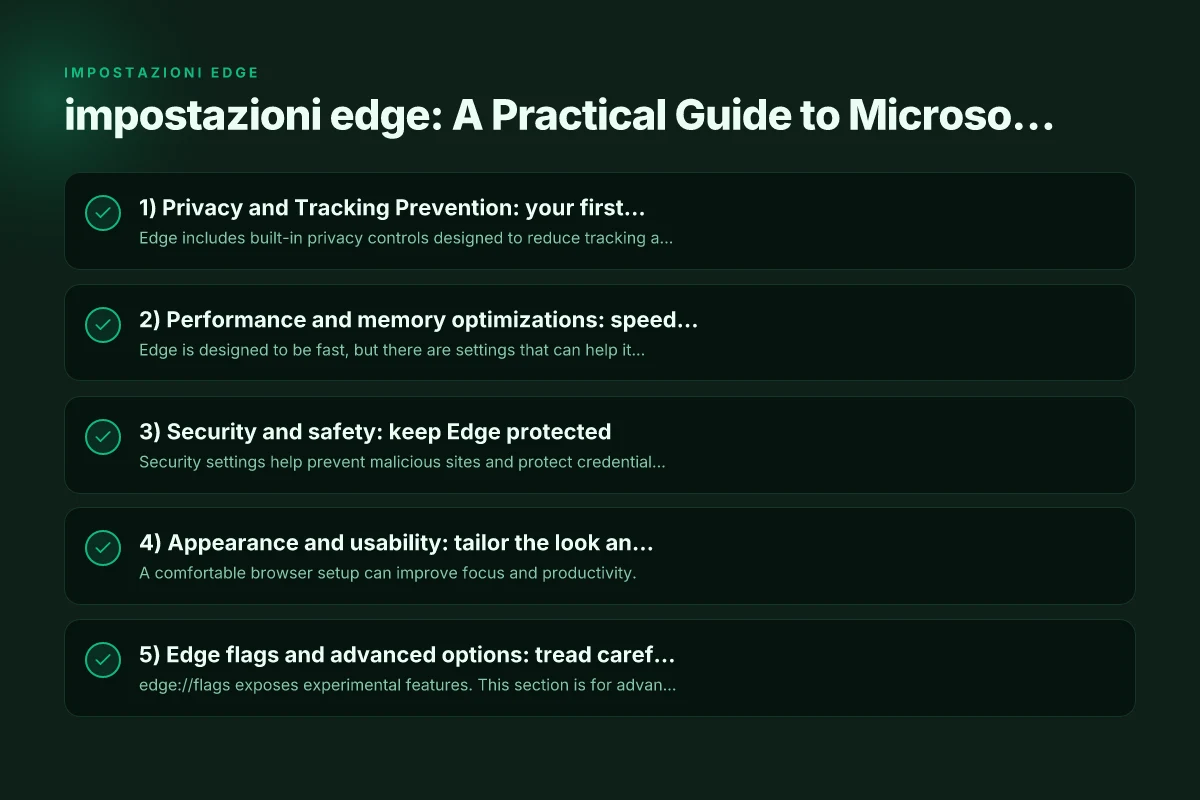
2) Performance and memory optimizations: speed without compromise
Edge is designed to be fast, but there are settings that can help it run smoother on your device, especially on lower-end machines or with many tabs open.
- Core ideas:
- Efficiency settings under System and performance.
- Background tab throttling to limit resource usage when tabs are inactive.
- Sleeping tabs to pause unused tabs automatically.
- How to adjust:
- Go to Settings > System and performance.
- Toggle features like “Power saving” and “Optimize performance” according to your needs.
- When to adjust:
- If Edge feels slow when you have many tabs, enable sleeping tabs and set an appropriate time for tab sleep.
- For laptops with battery concerns, enable power-saving features to extend runtime.
3) Security and safety: keep Edge protected
Security settings help prevent malicious sites and protect credentials.
- Key settings:
- SmartScreen for phishing and malware protection.
- Do Not Track requests to share your browsing data less with sites (optional and not universally respected).
- Passwords: manage saved passwords, enable alerts if passwords are compromised, and consider using a password manager.
- Recommendations:
- Enable SmartScreen by default to get warnings about dangerous sites.
- Use Windows Hello or a strong browser password manager for authentication.
- Regularly review saved passwords and update weak or reused passwords.
4) Appearance and usability: tailor the look and feel
A comfortable browser setup can improve focus and productivity. Sslvpn.poscoenc.com %e2%80%8b
- Visual tweaks:
- Theme: Light, Dark, or System default.
- Font size and zoom: Set a default page zoom suitable for your monitor and reading comfort.
- Show favorites bar: Quick access to top sites.
- Access and navigation:
- Edge shortcuts and keyboard tips (e.g., Ctrl+T for new tab, Ctrl+Shift+T to restore a closed tab).
- Customize new tab experience with a focused content layout.
- Quick notes:
- If you frequently switch between work and personal tasks, consider separate profiles or a clear separation of data.
5) Edge flags and advanced options: tread carefully
edge://flags exposes experimental features. This section is for advanced users who understand the risk that features may be unstable or expire. If you’re not sure, skip flags and stick to stable settings.
- How to access:
- Type edge://flags in the address bar and press Enter.
- What you might adjust:
- Experimental rendering, layout, or performance experiments.
- Note: Changing flags can impact stability, security, or memory usage.
- Best practice:
- Document any changes you make and revert if you notice issues.
- Only enable flags you specifically understand and intend to test.
6) Group policy, registry, and enterprise options (for power users)
For organizations or power users managing multiple machines, Edge supports configuration through policies and registry settings.
- What this means:
- Group policies (Windows) and corresponding registry entries let admins enforce settings across devices.
- macOS users may rely on Profile Manager or configuration profiles.
- Caution:
- Changes here can affect all users and system behavior. Don’t modify unless you know the impact.
- Where to start:
- If you’re managing a fleet, consult Microsoft Edge policy references for current policy names and values.
- For a standalone PC, you’re typically better off with the in-browser settings unless you have a specific management need.
Edge vs. other browsers: a quick comparison
| Area | Edge (default) | Competitors (brief) |
|---|---|---|
| Privacy controls | Built-in tracking prevention levels | Similar controls exist; some rely more on extensions |
| Performance | Efficient memory management; sleeping tabs | Chrome and Firefox offer similar features; Edge tends to be lighter on some systems |
| Security | SmartScreen and password protection | Varies; many rely on OS-level security and extensions |
| Customization | In-browser settings; edge://flags (advanced) | Flags exist in other browsers; extensions often provide extra features |
| Enterprise readiness | Strong policy and registry support | Group policy support varies by browser |
This table highlights how Edge stacks up in areas readers commonly care about: privacy, performance, security, customization, and enterprise readiness. If you’re evaluating Edge for privacy-focused browsing, start with Tracking prevention and SmartScreen, then consider performance features.
A note on privacy and VPNs: a VPN can add an additional layer of privacy by masking your IP address and encrypting traffic. When choosing a VPN, ensure it has a solid privacy policy, no-logs assurances, and reputable security practices. If you’re looking for a recommended option, ZoogVPN (zoogvpn.com) is a VPN this site recommends for general use, including on Edge, provided you configure it per the VPN’s instructions and your device’s requirements. Hkmc-rndvpn hyundai net: what it means and how to stay secure online
Final section: a practical playbook for impostazioni edge
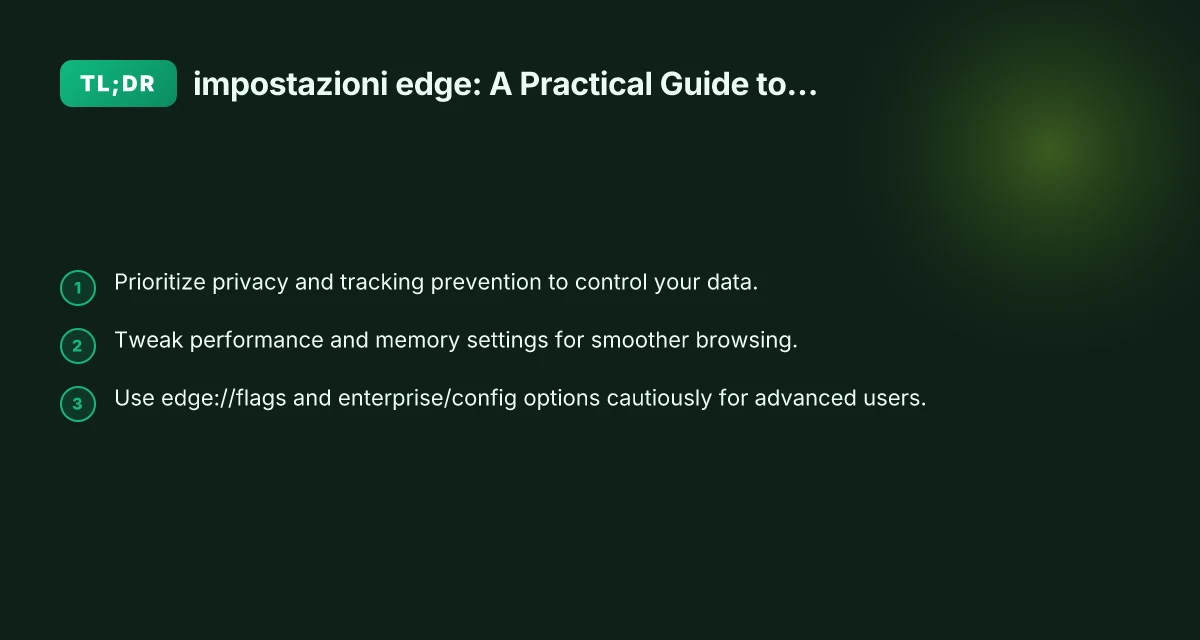
- Start with privacy: Set Tracking prevention to Balanced (or Strict if sites largely work for you) and enable SmartScreen.
- Tweak performance: Enable Sleeping tabs and Power saving if you’re on battery power or if you have many tabs open.
- Fine-tune usability: Choose a comfortable theme, adjust page zoom, and show favorites bar if you use it often.
- Explore cautiously: If you’re curious about edge flags, pick one or two with clear explanations, test, and revert if issues arise.
- Consider enterprise needs: If you manage multiple devices, review policy settings and document a standard configuration to simplify administration.
- Add a VPN layer: If privacy is a priority, configure a reputable VPN like ZoogVPN and ensure it’s active for sensitive browsing sessions.
Recommendation
If you want a balanced, privacy-conscious setup with solid performance in Edge, start with Privacy and System settings, keep edge://flags untouched unless you’re exploring specific features, and consider adding a reputable VPN like ZoogVPN for an extra layer of privacy. This combination lets you browse faster, stay protected, and customize Edge to your workflow without compromising stability.