How to use VPN in China WiFi
A practical guide to using a VPN on Chinese WiFi, with safety tips, setup steps, and realistic expectations.
Using a VPN on China WiFi is a common requirement for travelers and expatriates who want to access international sites and services. The Chinese internet is heavily regulated. Many people still use VPNs to browse more freely. This guide lays out practical steps, what to expect, and how to stay safe and compliant while connecting your devices to VPN-enabled WiFi in China.
VPN features matter in China
| Feature | Description | Relevance in China | Typical value | Notes |
|---|---|---|---|---|
| Hide VPN traffic | Obfuscation / stealth modes | High | Yes | Helps evade DPI detection |
| Connection stability | Consistent uptime | High | High | Important for work and streaming |
| Kill switch | Network kill switch | High | Yes | Prevent leaks if VPN drops |
| DNS leak protection | DNS requests blocked from leaking | High | Yes | Essential for privacy |
| Protocol options | VPN protocols offered | Medium | Multiple | Look for OpenVPN, WireGuard, IKEv2 |
| Server locations | Number and distribution | Medium | Wide | More options in Asia/Global |
Compiled November 2026; check the provider's site for current details.
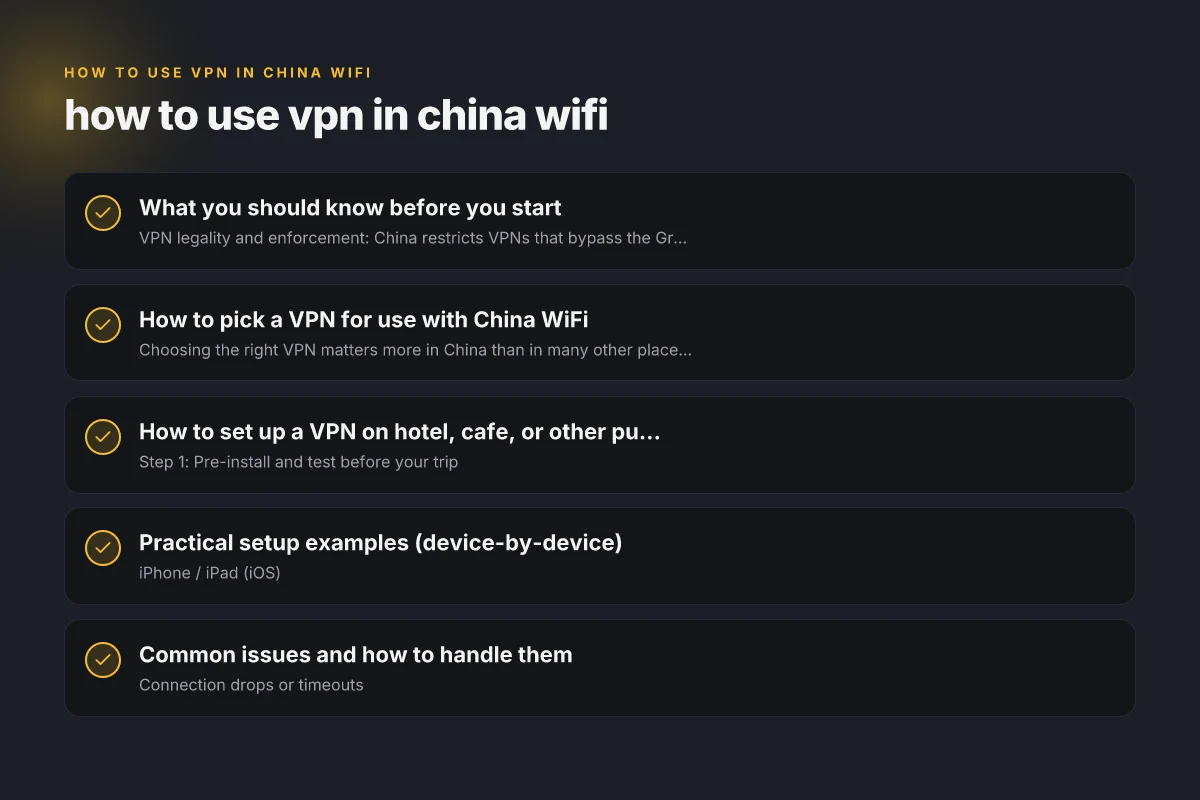
What you should know before you start
- VPN legality and enforcement: China restricts VPNs that bypass the Great Firewall. Some VPN services are blocked or slowed down, especially during peak times or major events.
- Performance can vary: VPN speed depends on the network, the provider, the server you choose, and your location within China. Expect some lag or occasional disconnects.
- Device and app readiness: Not all VPN apps are equally reliable in China. It helps to have multiple options installed on your devices and an updated version of the app.
- Compliance and safety: Use VPNs ethically and legally. Avoid attempting illegal activities, and be mindful of terms of service on WiFi networks (hotels, airports, cafes).
How to pick a VPN for use with China WiFi
Choosing the right VPN matters more in China than in many other places. Here are criteria to consider:
- Obfuscated or camouflaged traffic: Look for VPNs that offer obfuscated or stealth modes to evade deep packet inspection.
- Server distribution: A broad network in nearby regions (Hong Kong, Singapore, Taiwan, Japan, Korea) can improve speed and reliability.
- Strong encryption and no-logs policy: AES-256 and a trustworthy privacy stance help protect your data.
- Reliability track record: Read recent user reports about performance in China, as some providers frequently change availability.
- Easy setup on mobile and desktop: Apps should be straightforward to install and configure on iOS, Android, Windows, and macOS.
- Customer support: Real-time chat or responsive email support can be crucial if you have connectivity issues.
How to pick a VPN for use with China WiFi
| Criterion | Why it matters | Example indicators | Acceptable range | Decision tip |
|---|---|---|---|---|
| China compatibility | Works behind Great Firewall | Works in China, updates | Works consistently | Prefer vendors with explicit China support |
| Traffic obfuscation | Bypasses DPI | Obfuscated, stealth mode | Yes | Turn on when needed |
| Privacy policy | Data handling | No-logs claims, audits | Clear, verifiable | Favor audited providers |
| Speed and latency | Performance on public WiFi | Low ping, stable speeds | High | Test with local server first |
| Device coverage | How many devices | 5–10+ devices | >=5 | Choose plans matching your devices |
| Customer support | Access to help | 24/7 chat, Chinese support | 24/7 availability | Test support response |
Compiled November 2026; check the provider's site for current details.
How to set up a VPN on hotel, cafe, or other public WiFi in China
- Step 1: Pre-install and test before your trip
- Install your chosen VPN on all devices (phone, tablet, laptop).
- Create accounts, download offline installers if available, and test with a local network or a stable home connection before you travel.
- Step 2: Connect to a compatible network
- Public WiFi (hotels, cafes, airports) can be unpredictable. If possible, use a trusted hotspot or a personal mobile hotspot.
- Step 3: Launch the VPN app and select a server
- Prefer servers geographically closer to China or mid-range international nodes to balance speed and stability.
- Step 4: Verify your connection
- Open a fast-loading site or run a quick speed test to confirm traffic is encrypted and routes are functioning.
- Step 5: Manage app permissions and security
- Disable unnecessary apps using the VPN in the background if you notice performance drops.
- Ensure DNS traffic is routed through the VPN to prevent leaks.
Practical setup examples (device-by-device)
- iPhone / iPad (iOS)
- Install from the App Store, sign in, and enable “VPN” in Settings if required.
- Use VPN app’s in-app connection button. Switch to a stable server if you encounter drops.
- Android devices
- Install from Google Play or the provider’s site. Enable required permissions for the VPN profile.
- Some Android devices have built-in VPN settings. You can also use the app to manage connections.
- Windows laptops
- Download the VPN client from the provider’s site, or set up via Windows’ built-in VPN (IKEv2, OpenVPN).
- Create a profile and test. Enable auto-connect on trusted networks if available.
- macOS
- Install the VPN app. You may also configure via System Preferences for certain protocols.
- Test with a quick browser check. Keep the app updated for security.
Common issues and how to handle them
- Connection drops or timeouts
- Try a different server, enable obfuscation if available, and ensure you’re using the latest app version.
- DNS leaks
- Enable the VPN’s DNS leak protection feature and verify via a DNS test while connected to VPN.
- Slow speeds
- Pick a nearer server with lower latency, reduce encryption overhead if the provider allows it, and close bandwidth-heavy apps.
- VPN blocked by the network operator
- Use obfuscated servers or alternate ports if the VPN offers them. Consider switching networks if possible.
Practical setup examples (device-by-device) How to use VPN in China on phone
| Device / Scenario | Steps to setup | VPN app features used | Typical pitfalls | Quick check |
|---|---|---|---|---|
| Windows laptop on hotel WiFi | Install app, login, choose protocol | Obfuscation, kill switch | DNS leaks | Web check for IP leak |
| iPhone on cafe WiFi | Install iOS profile, allow VPN | WireGuard/IKEv2 | App store restrictions | Test connected status bar |
| Android tablet | Install APK, grant VPN control | Auto-connect, split tunneling | Battery drain | Run a speed test |
| Smart TV / streaming box | Install app, connect to server | Always-on VPN | VPN block by app | Verify IP shows location |
| Public kiosk / shared device | Use per-app VPN if possible | Per-app rule | Public network risks | Disable auto-connect when not needed |
Compiled November 2026; check the provider's site for current details.
A quick comparison: VPN features that matter in China
- Obfuscated servers: Helps conceal VPN traffic. Preferred for China use.
- Server spread: More nearby servers tend to improve latency.
- Kill switch: Prevents data leaks if the VPN disconnects.
- DNS leak protection: Keeps DNS requests private even if the VPN drops.
- Automatic reconnect: Reduces manual reconnections on flaky networks.
Table: Feature relevance for China WiFi
- Obfuscated servers: High
- Server spread (APAC-friendly): High
- Kill switch: High
- DNS leak protection: High
- Auto reconnect: Medium
What to do if you can’t connect
- Try a different network: Some hotel networks throttle or block certain VPN ports. Mobile hotspots can perform differently.
- Update or switch VPN providers: Providers frequently adjust to new rules and detection methods.
- Contact support: Reach out to your VPN’s support team for recommended servers or configuration tweaks for China-based networks.
- Consider offline alternatives for non-sensitive tasks: If you’re trying to access region-locked content, confirm whether alternatives exist legally in your region.
Local considerations: staying informed and safe
- Stay aware of changes to Chinese policies and network practices. Network blocking can change with little notice.
- Avoid running sensitive activities on public WiFi networks without a VPN, and ensure the VPN is connected before you access any login-protected services.
- Use strong device security: keep devices updated, enable biometrics or strong passwords, and maintain current security software.
Recommendations and practical plan
- Before arriving: choose one or two reputable VPN services with a solid track record for China connectivity. Install and test them on all devices.
- On arrival: connect to a trusted WiFi network, enable your VPN, and verify access to a basic international site to confirm the tunnel is working.
- During your stay: monitor performance, switch servers as needed, and stay informed about any changes in accessibility or regulations.
- If travel involves sensitive activities: plan with caution. Do not rely on a single VPN as your only means of access, and have a backup plan.
If you’re new to using VPNs in China, the process can feel unpredictable. With careful preparation, a reliable provider, and sensible network choices, you’ll improve your chances of stable access over public WiFi. Always prioritize legality, safety, and up-to-date information, and adjust your setup based on real-world outcomes.
| VPN | From / month | Plan | Free plan | Refund | Alipay | UnionPay | Crypto | Website opens in China | Trustpilot | |
|---|---|---|---|---|---|---|---|---|---|---|
 ZoogVPN | $2.49/mo | 27 months: $59.99 | Yes | 7 days | ✓ | ✓ | ✓ | ✓ | ✓ Yes (2.5 s) | 4.2/5 (195 reviews) |
 NordVPN | $3.49/mo | 27 months: $94.23 | No | 30 days | ? | ✗ | ✓ | ✓ | ✗ Blocked | 4.2/5 (51,628 reviews) |
 ExpressVPN | $3.00/mo | 28 months: $84 | No | 30 days | ✗ | ✗ | ✓ | ✗ | ✗ Blocked | 4.4/5 (29,706 reviews) |
 Surfshark | See site | See site | No | 30 days | ✗ | ✗ | ✗ | ✓ | ✗ Blocked | 4.3/5 (31,823 reviews) |
 Proton VPN | $2.99/mo | 12 months: $35.88 | Yes | 30 days | ✗ | ✗ | ✗ | ✓ | ✓ Yes (2.5 s) | 2.1/5 (1,040 reviews) |
 Astrill VPN | $12.50/mo | 24 months: $300 | No | See site | ✗ | ✗ | ✗ | ✓ | ✗ Blocked | 1.3/5 (110 reviews) |
 Private Internet Access | $2.03/mo | 40 months: $81.2 | No | 30 days | ✗ | ✗ | ✗ | ✗ | ✗ Blocked | 4.2/5 (11,033 reviews) |
 CyberGhost | $2.19/mo | 28 months: $61.32 | No | 45 days | ✗ | ✗ | ✗ | ✓ | ✗ Blocked | 4.0/5 (24,178 reviews) |
 PureVPN | $1.69/mo | 60 months: $101.55 | No | 31 days | ? | ✗ | ✗ | ✓ | ✓ Yes (2.6 s) | 4.4/5 (17,994 reviews) |
 AdGuard VPN | $2.99/mo | 24 months: $71.76 | Yes | 30 days | ✓ | ✗ | ✓ | ✓ | Official site blocked; our special link opens (2.3 s) | 4.3/5 (290 reviews) |
 Mullvad | $5.61/mo | €5/mo | No | 14 days | ✗ | ✗ | ✗ | ✓ | ✗ Blocked | 3.2/5 (192 reviews) |
 Windscribe | $5.75/mo | 12 months: $69 | Yes | See site | ✗ | ✗ | ✗ | ✓ | ✗ Blocked | 4.7/5 (13,355 reviews) |
 StrongVPN | See site | See site | No | 30 days | ✓ | ✗ | ✗ | ✗ | ✗ Blocked | 4.4/5 (2,695 reviews) |
 LightXtreme 闪连 | $7.08/mo | 12 months: $84.99 | Yes | 30 days | ✓ | ✓ | ✓ | ✓ | ✓ Yes (2.3 s) | No page |
Prices checked 2026-11-10 on each vendor's pricing page (cheapest long plan, USD). Check the vendor's checkout for the final price.
Payment methods checked 2026-11-10 on each vendor's payment pages: all 14 take cards and PayPal; ✗ = not listed, ? = the vendor's own pages disagree.
China access: whether the official website opens from mainland China networks (tests the website only, not the VPN connection). Last checked 2026-11-11 04:07 Beijing time.
Trustpilot score and review count checked 2026-11-10.