How to Change Proxy Settings in Edge: A Step-by-Step Guide

Learn how to configure, disable, or troubleshoot proxy settings in Microsoft Edge on Windows and macOS.
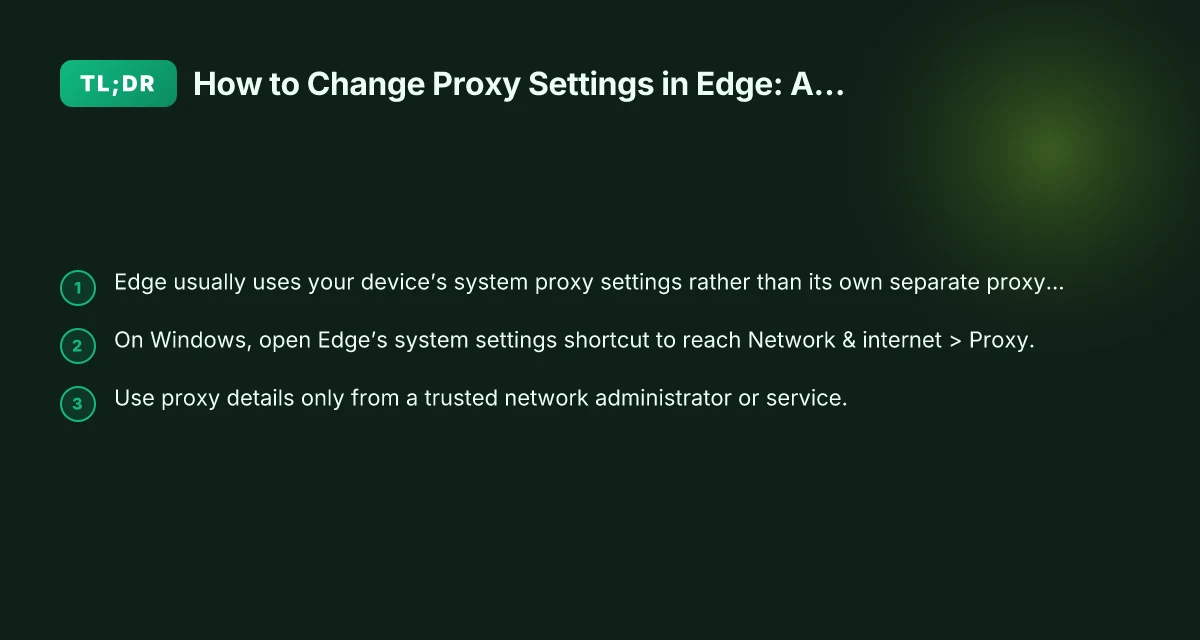
To change proxy settings in Edge, open the browser’s Settings, search for “proxy,” and select the option to open your computer’s proxy settings. Configure the proxy in your operating system, then return to Edge and check that your connection works. Edge generally relies on the system proxy, so the exact steps depend on whether you use Windows or macOS.
Comparison of proxy setup paths by operating system
| Option | Where to open settings | What to change | How to save | Best for |
|---|---|---|---|---|
| Edge on Windows | Edge Settings > System and performance | Open your computer’s proxy settings | Save in Windows Settings | Windows users |
| Windows automatic setup | Settings > Network & internet > Proxy | Detect settings automatically | Toggle the option on | Networks that provide automatic configuration |
| Windows setup script | Settings > Network & internet > Proxy | Enter a script address | Save the address | Organizations with a proxy script |
| Windows manual setup | Settings > Network & internet > Proxy | Enter proxy details and exclusions | Save the configuration | A known proxy server |
| Edge on macOS | Edge Settings > System and performance | Open your computer’s proxy settings | Save in macOS settings | Mac users |
| macOS automatic discovery | Network settings > connection > Details > Proxies | Select automatic proxy discovery | Apply the change | Networks that advertise proxy settings |
| macOS proxy configuration | Network settings > connection > Details > Proxies | Select and configure a proxy type | Apply the change | A known proxy server |
Compiled November 2026; check the provider's site for current details.
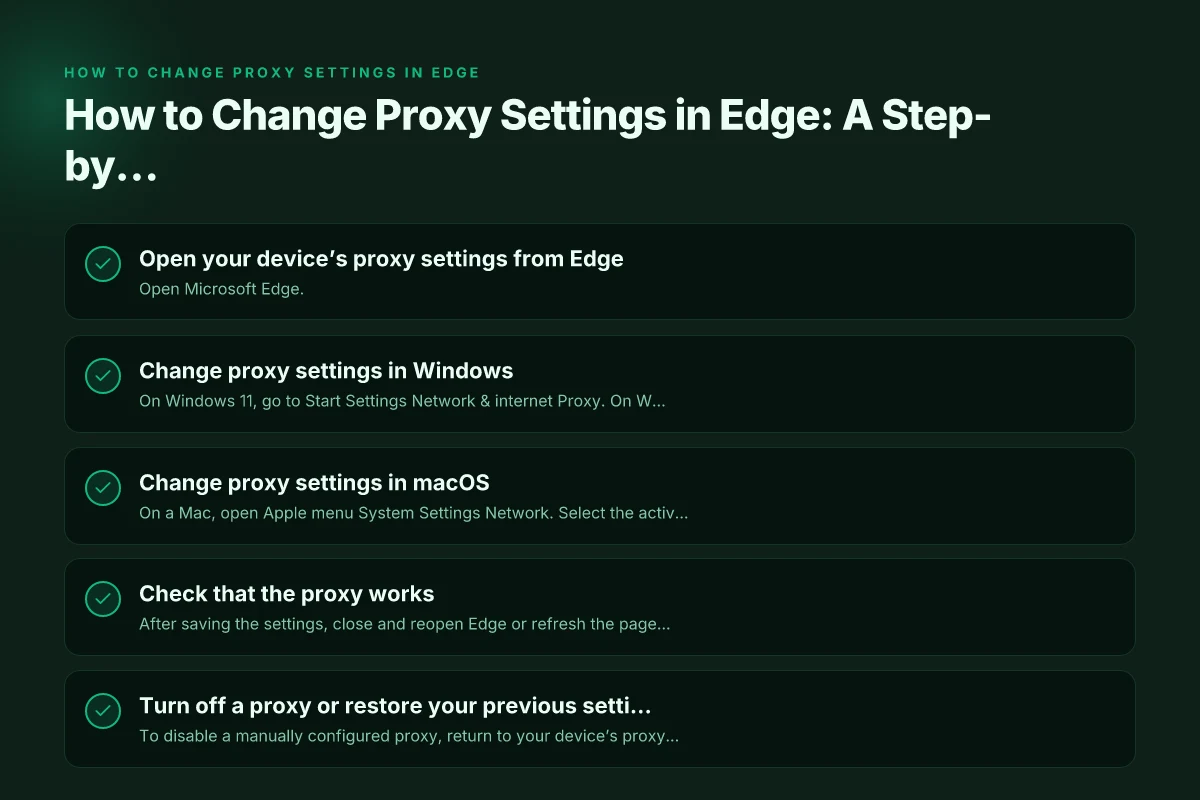
Open your device’s proxy settings from Edge
- Open Microsoft Edge.
- Select the three-dot menu in the upper-right corner, then choose Settings.
- In the Settings search box, type proxy.
- Select Open your computer’s proxy settings or the similarly named result.
Edge will take you to the operating system’s network settings. You can also open those settings directly using the instructions below.
Change proxy settings in Windows
On Windows 11, go to Start > Settings > Network & internet > Proxy. On Windows 10, open Start > Settings > Network & Internet > Proxy. The page typically offers automatic detection, a setup script, and manual proxy configuration.
Choose the right configuration
| Option | What it does | When to use it |
|---|---|---|
| Automatically detect settings | Lets Windows look for proxy settings on the network | A workplace or school network that configures proxies automatically |
| Use setup script | Applies settings from a script address, often provided by an organization | Your administrator supplied a PAC or configuration script URL |
| Use a proxy server | Sends eligible traffic through a specific server and port | You were given a proxy address and port |
| Don’t use a proxy server | Disables the manually configured proxy | Your network does not require one, or you are troubleshooting |
To use a setup script, turn on Use setup script, enter the script address provided by your administrator, and save the change.
To configure a server manually: Why Does VPN Keep Turning On iPhone? Causes and Fixes
- Turn on Use a proxy server.
- Enter the proxy’s Address and Port.
- If needed, add addresses that should bypass the proxy in the exceptions field.
- Select Save.
The labels and layout can vary slightly by Windows version. Some organizations manage these settings centrally, in which case options may be unavailable or may revert after you change them.
Change proxy settings in macOS
On a Mac, open Apple menu > System Settings > Network. Select the active connection, such as Wi-Fi or Ethernet, and choose Details. Open the Proxies section to view available options.
Select the proxy type your administrator or provider specified, such as Web Proxy (HTTP), Secure Web Proxy (HTTPS), or Automatic Proxy Configuration. Enter the server address and port, or the configuration URL, then select OK or Done to apply the change. The exact controls depend on your macOS version and network connection.
Because Edge uses macOS network settings, changes made there can affect other apps too. If you use a managed work or school Mac, check with your administrator before changing the configuration. Forticlientvpninstaller.exe: Download, Install, and Verify FortiClient VPN
Choose what to do with your proxy settings
| Choice | When to choose it | Windows action | macOS action | Check afterward |
|---|---|---|---|---|
| Use automatic detection | Your network manages proxy settings | Enable automatic detection | Enable automatic proxy discovery | Open a website |
| Use a setup script | Your administrator supplied a script address | Enter the script address in Proxy settings | Configure the supplied proxy method | Confirm the settings apply |
| Configure a proxy manually | You have server details | Enter the address, port, and any exclusions | Select the proxy type and enter its details | Test a website |
| Keep the current configuration | The proxy is working as expected | Leave settings unchanged | Leave settings unchanged | Confirm access remains available |
| Turn off the proxy | You no longer need it or it is causing trouble | Disable the active proxy option | Deselect the active proxy option | Try accessing a website |
| Restore previous settings | You saved or noted the earlier configuration | Re-enter the previous Windows settings | Re-enter the previous macOS settings | Check that access works |
| Ask an administrator | Settings are managed by your organization | Request the correct proxy details | Request the correct proxy details | Follow the organization’s instructions |
Compiled November 2026; check the provider's site for current details.
Check that the proxy works
After saving the settings, close and reopen Edge or refresh the page you were trying to visit. A proxy may require a username and password. Enter credentials only when prompted by a trusted service or your organization.
If a site does not load, check the following: My VPN Is Blocking Websites: How to Fix It
- Confirm that the proxy address, port, and script URL are typed correctly.
- Make sure you selected the correct proxy type.
- Check whether the network requires authentication or a VPN.
- Confirm that the site is not listed as an exception that bypasses the proxy.
- Ask your network administrator whether the proxy is available and whether it requires specific settings.
Avoid using proxy details from unknown sources. A proxy operator may be able to observe or handle some of your network traffic, so use a provider you trust.
Turn off a proxy or restore your previous settings
To disable a manually configured proxy, return to your device’s proxy settings and switch off Use a proxy server on Windows, or deselect the relevant proxy on macOS. If a setup script is enabled, turn it off only if you are sure your network does not require it.
If disabling the proxy restores access, the proxy may be unavailable or incorrectly configured. On a managed device, do not remove required workplace or school settings. Contact the administrator instead. If you changed several options and are unsure what to restore, use your organization’s instructions or note the original values before making further changes.
Recommendation
Use Edge’s Open your computer’s proxy settings shortcut, then configure only the option and details supplied by your network administrator or a trusted proxy provider. If you do not need a proxy, leave it disabled. If the settings are managed or a connection problem continues, ask your IT administrator for help. VPN to Change Location Free: What Works and What to Check