Check My VPN Location: A Simple Guide to Verifying Your Connection
Learn how to check your VPN location, spot leaks, and confirm that your traffic appears to come from the right place.
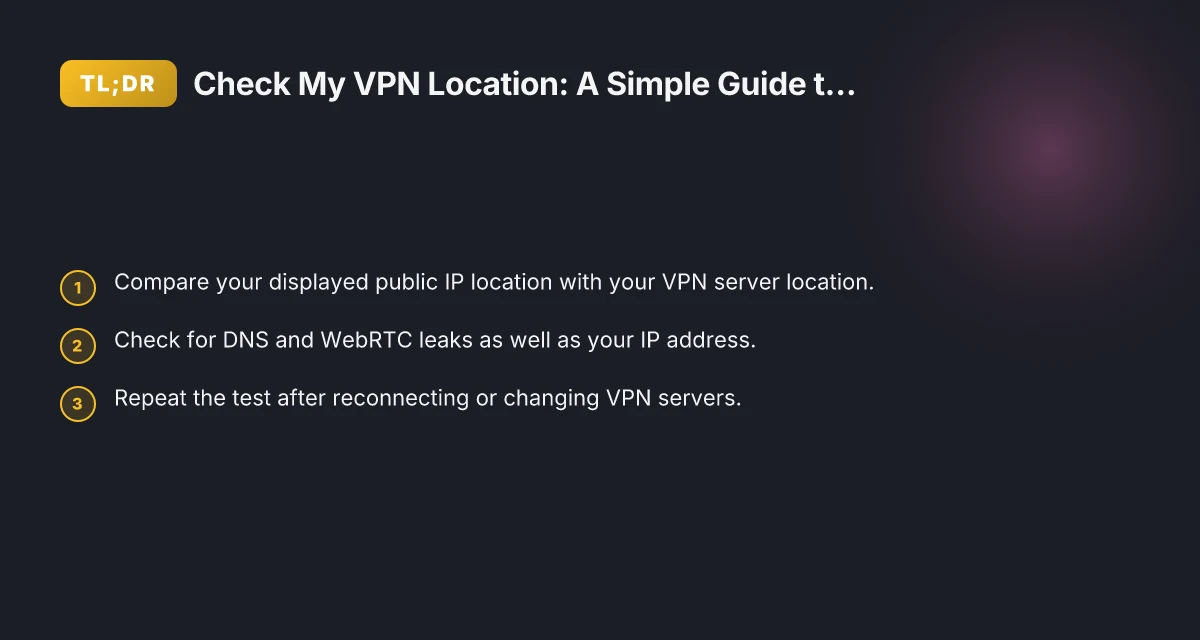
If you want to check your VPN location, connect to a VPN server and visit a reputable IP-checking website. It should show the public IP address and approximate location associated with the VPN server, rather than your usual internet connection. For a more complete check, test for DNS and WebRTC leaks too, since those can reveal information about your real connection even when your IP appears to be protected.
Comparing ways to check your VPN location
| Check | What it shows | What to look for | Best used for | Limitation |
|---|---|---|---|---|
| IP address lookup | Public IP address and estimated location | VPN server’s country or city | Quick location check | Location may be approximate |
| Second IP lookup | Another view of your public IP | Same location as the first lookup | Confirming an IP result | Sites may use different databases |
| DNS leak test | DNS servers handling your requests | Servers associated with your VPN | Checking DNS routing | Does not verify WebRTC |
| WebRTC leak test | IP addresses exposed through WebRTC | No unexpected real IP address | Checking browser leaks | Browser and settings can affect results |
| Test with VPN off | Your regular IP and location | A result that differs from the VPN check | Comparing before and after | Briefly exposes your regular connection |
| Test with VPN on | Your current public IP and location | The VPN server location you chose | Verifying an active connection | A mismatch may have several causes |
Compiled November 2026; check the provider's site for current details.
| VPN | Obfuscation | From / month | Plan | Free plan | Refund | Alipay | UnionPay | Crypto | Website opens in China | Trustpilot | |
|---|---|---|---|---|---|---|---|---|---|---|---|
 ZoogVPN | Turn on manually Shadow | $2.49/mo | 27 months: $59.99 | Yes | 7 days | ✓ | ✓ | ✓ | ✓ | Official site blocked; our special link opens (4.4 s) | 4.2/5 (195 reviews) |
 NordVPN | Turn on manually Obfuscated Servers / NordWhisper | $3.49/mo | 27 months: $94.23 | No | 30 days | ? | ✗ | ✓ | ✓ | ✗ Blocked | 4.2/5 (51,628 reviews) |
 ExpressVPN | ✓ On by default all servers | $3.00/mo | 28 months: $84 | No | 30 days | ✗ | ✗ | ✓ | ✗ | ✗ Blocked | 4.4/5 (29,706 reviews) |
 Surfshark | ✓ On by default Camouflage, with OpenVPN | See site | See site | No | 30 days | ✗ | ✗ | ✗ | ✓ | ✗ Blocked | 4.3/5 (31,823 reviews) |
 Proton VPN | Turn on manually Stealth, free plan too | $2.99/mo | 12 months: $35.88 | Yes | 30 days | ✗ | ✗ | ✗ | ✓ | ✗ Blocked | 2.1/5 (1,040 reviews) |
 Astrill VPN | Turn on manually StealthVPN / OpenWeb | $12.50/mo | 24 months: $300 | No | See site | ✗ | ✗ | ✗ | ✓ | ✗ Blocked | 1.3/5 (110 reviews) |
 Private Internet Access | Turn on manually Shadowsocks, OpenVPN only | $2.03/mo | 40 months: $81.2 | No | 30 days | ✗ | ✗ | ✗ | ✗ | ✗ Blocked | 4.2/5 (11,033 reviews) |
 CyberGhost | Turn on manually selected servers | $2.19/mo | 28 months: $61.32 | No | 45 days | ✗ | ✗ | ✗ | ✓ | ✗ Blocked | 4.0/5 (24,178 reviews) |
 PureVPN | Turn on manually switch to OpenVPN | $1.69/mo | 60 months: $101.55 | No | 31 days | ? | ? | ✗ | ✓ | ✗ Blocked | 4.4/5 (17,994 reviews) |
 AdGuard VPN | ✓ On by default TrustTunnel | $2.99/mo | 24 months: $71.76 | Yes | 30 days | ✓ | ✗ | ✓ | ✓ | Official site blocked; our special link opens (3.7 s) | 4.3/5 (290 reviews) |
 Mullvad | Turn on manually QUIC / Shadowsocks / LWO | $5.61/mo | €5/mo | No | 14 days | ✗ | ✗ | ✗ | ✓ | ✗ Blocked | 3.2/5 (192 reviews) |
 Windscribe | Turn on manually Stealth / WStunnel | $5.75/mo | 12 months: $69 | Yes | See site | ✗ | ✗ | ✗ | ✓ | ✗ Blocked | 4.7/5 (13,355 reviews) |
 StrongVPN | Turn on manually Scramble, OpenVPN TCP | See site | See site | No | 30 days | ✓ | ✗ | ✗ | ✗ | ✗ Blocked | 4.4/5 (2,695 reviews) |
 LightXtreme 闪连 | Not listed | $7.08/mo | 12 months: $84.99 | Yes | 30 days | ✓ | ✓ | ✓ | ✓ | ✓ Yes (3.5 s) | No page |
Prices checked 2026-11-10 on each vendor's pricing page (cheapest long plan, USD). Check the vendor's checkout for the final price.
Obfuscation checked 2026-11-14 on each vendor's site and help center: "on by default" = nothing to set; "turn on manually" = switch protocol or mode in settings; "not listed" = the vendor describes no obfuscation.
Payment methods checked 2026-11-10 on each vendor's payment pages: all 14 take cards and PayPal; ✗ = not listed, ? = the vendor's own pages disagree.
China access: whether the official website opens from mainland China networks (tests the website only, not the VPN connection). Last checked 2026-11-18 01:02 Beijing time.
Trustpilot score and review count checked 2026-11-10.
How to check your VPN location
Start by noting your normal internet location. Disconnect from the VPN, open an IP-checking site, and record the public IP address, country, and, if shown, city. Then connect to the VPN and select a server in a different location. Refresh the page or use a private browsing window and check the results again.
With the VPN working as expected, the displayed public IP should change. Its reported location should generally match the country or region of the VPN server you selected. The IP address will usually belong to the VPN provider or its hosting partner, not to you.
For the clearest result:
- Connect to the VPN server you want to test.
- Wait for the VPN app to confirm the connection.
- Open a trusted IP lookup or VPN test site.
- Check the reported IP address and location.
- Compare those details with the server location shown in your VPN app.
If the page still shows your original public IP, your connection may not be protected, the VPN may have disconnected, or your browser may be displaying cached information. Reconnect, refresh the test, and try another browser before drawing a conclusion. FortiClient IPsec VPN Connection Is Down: Causes and Fixes
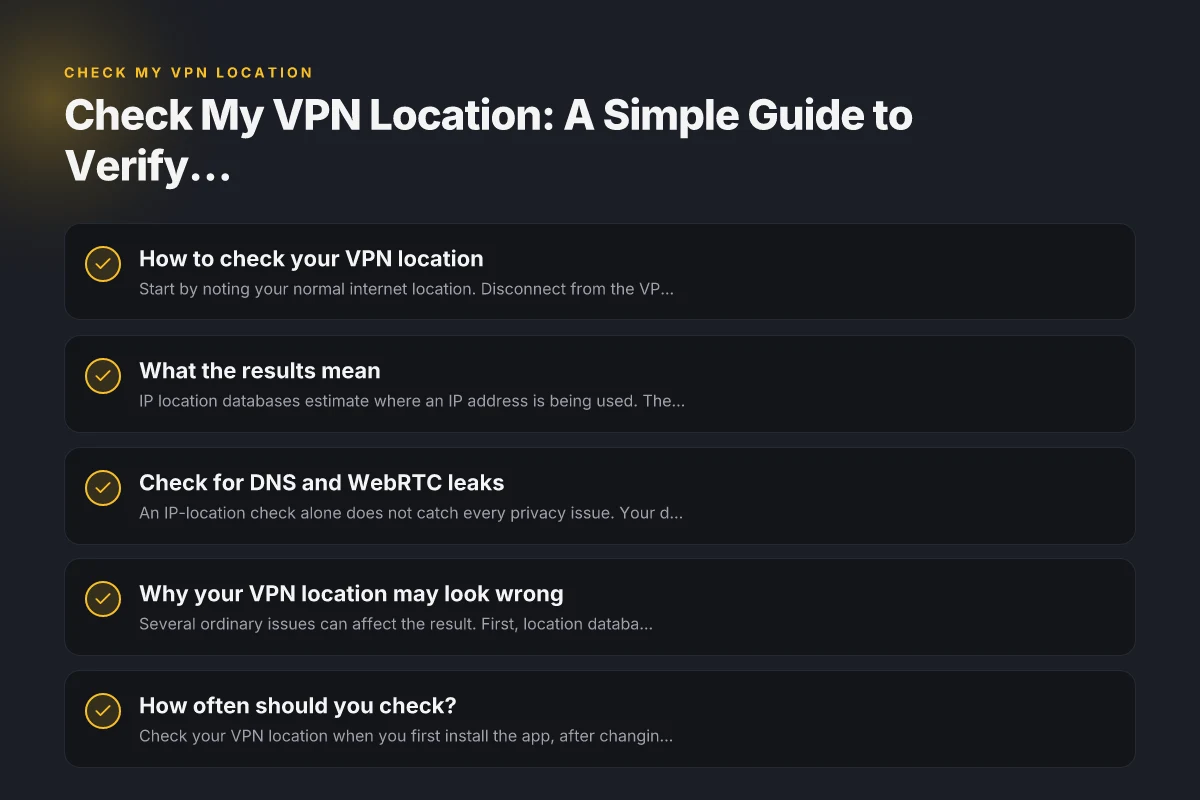
What the results mean
IP location databases estimate where an IP address is being used. They are useful for a quick check, but they are not precise tracking tools. A VPN server listed as being in one city may appear in an IP lookup as a nearby city or even another part of the same country.
| Test result | What it may mean | What to do |
|---|---|---|
| IP and country match the VPN server | The VPN is likely routing your public IP through the selected location | Check for DNS and WebRTC leaks |
| IP changes, but the city differs | The IP database may have an outdated or approximate location | Check another lookup service and the VPN provider’s server details |
| Your original IP appears | The VPN may be disconnected or traffic may be bypassing it | Reconnect and run the test again |
| DNS servers appear linked to your ISP | A DNS leak may be exposing your usual provider | Turn on DNS leak protection or contact your VPN provider |
| IPv6 appears outside the VPN | IPv6 traffic may not be routed through the tunnel | Enable IPv6 protection or disable IPv6 if the provider recommends it |
A location mismatch does not always mean the VPN has failed. IP databases can take time to update, and different sites may use different sources. Focus first on whether your public IP has changed and whether it belongs to the VPN service.
Check for DNS and WebRTC leaks
An IP-location check alone does not catch every privacy issue. Your device uses DNS to translate website names into network addresses. If DNS requests go through your internet provider instead of the VPN, a DNS leak may reveal your provider or general location.
A DNS leak test shows which DNS servers responded to your requests. When connected to a VPN, you would generally expect to see servers associated with the VPN provider or its network. Results can vary by provider and setup, so check the VPN’s documentation if you are unsure. F5 VPN Download: How to Get the Right Client
WebRTC is a browser feature used for real-time audio and video communication. In some configurations, a WebRTC test may reveal an IP address that differs from the one shown by a standard IP check. Run a WebRTC leak test while the VPN is connected. If it exposes your regular public IP, review your browser’s privacy settings or the VPN provider’s guidance.
Look for these protections in your VPN app:
- DNS leak protection
- IPv6 leak protection
- A kill switch that blocks traffic if the VPN drops
- Automatic connection on unsecured networks
A kill switch is especially useful if you need the VPN to remain active. It can prevent internet traffic from switching back to your regular connection during a brief VPN interruption.
Interpreting VPN location check results Free VPN to Change Location: What to Know Before You Connect
| Result | What it may mean | What to check next | Possible response |
|---|---|---|---|
| VPN country appears | IP lookup matches the selected country | Check a second lookup | Connection may be working as expected |
| Different country appears | IP database may map the address differently | Compare more than one lookup | Check the VPN server and reconnect |
| Your usual location appears | VPN may be disconnected or not routing traffic | Confirm VPN status and public IP | Reconnect or choose another server |
| DNS servers look unexpected | DNS requests may not use the VPN | Run another DNS leak test | Review VPN DNS leak protection |
| Real IP appears in WebRTC test | Browser may expose an address | Check the test details and browser settings | Review WebRTC protections |
| Results disagree across sites | Lookups may rely on different location data | Compare the IP address itself | Treat location estimates as approximate |
Compiled November 2026; check the provider's site for current details.
Why your VPN location may look wrong
Several ordinary issues can affect the result. First, location databases are estimates. The physical server, the server’s registered address, and the location listed by a lookup site do not always match exactly.
Second, your VPN may use virtual locations. A provider can advertise a server in one country while the hardware is physically located elsewhere. This can still give you an IP address associated with the advertised location, but it may not mean the server itself is there. Check the provider’s server information if physical location matters to you.
Third, websites may use more than your IP address to estimate your location. Browser permissions, GPS data, saved account details, cookies, and location settings can all influence what a site displays. A VPN changes your network route. It does not automatically change your device’s GPS location or account profile. NordVPN Download Windows 11: How to Install and Get Started
If a website keeps showing your real location:
- Check whether the browser has permission to access location services.
- Turn off location sharing for that site if you do not need it.
- Clear the site’s cookies or test in a private window.
- Sign out of accounts that may store your usual region.
- Confirm that the VPN remains connected while the page loads.
How often should you check?
Check your VPN location when you first install the app, after changing settings, and whenever you connect to an unfamiliar server. It is also sensible to test again after a major app, operating system, or browser update, since updates can change network or privacy settings.
For routine use, you do not need to run every test every time you connect. Instead, make sure the VPN app shows an active connection and use its kill switch if your privacy needs are high. If you notice a sudden location change, a disconnected status, or unexpected website behavior, run an IP and leak check.
Remember that a VPN does not make you completely anonymous. It can hide your public IP from websites and route your traffic through its servers, but it does not prevent every form of tracking. Websites can still identify you through logged-in accounts, cookies, browser fingerprinting, or information you provide. FortiGate IPsec Debug: A Practical Guide to Finding VPN Problems
Deciding when to check your VPN connection
| Situation | Check to run | Why it helps | When to repeat |
|---|---|---|---|
| After connecting to VPN | IP location lookup | Confirms the visible public IP | After reconnecting |
| After switching servers | IP location lookup | Checks the new server location | Each time you switch |
| After a connection drop | IP location lookup | Checks whether traffic uses the VPN again | Once the VPN reconnects |
| After changing VPN settings | DNS and WebRTC tests | Checks for possible leaks | After settings take effect |
| After a browser change | WebRTC test | Checks browser-specific behavior | When browser settings change |
| During regular use | Occasional IP and leak checks | Helps spot unexpected changes | As needed |
| When a site shows the wrong region | IP lookup and DNS test | Helps distinguish location data from routing issues | After troubleshooting |
Compiled November 2026; check the provider's site for current details.
Recommendation
To check your VPN location, compare your public IP before and after connecting, then run DNS and WebRTC leak tests. Treat city-level results as estimates, and verify unexpected findings with another test site. If your original IP appears or a leak test shows your ISP, reconnect, enable the relevant protection settings, and contact your VPN provider if the issue continues.