VPNs
Binance card activation: step-by-step
By Ethan Marlowe · · 5 min
A clear, step-by-step guide to activating your Binance Card and getting it ready for use.
Binance Card activation is a common first step after you obtain a Binance Card, whether it’s a physical card mailed to you or a virtual card generated in-app. The exact steps can vary slightly by region and app version, but the core process remains straightforward: verify your identity (if required), connect or confirm the card in the app, and complete activation so you can start spending. Below is a practical, step-by-step guide to activate your Binance Card and get it ready for use.
What you need before activation
- A Binance account in good standing
- The Binance Card you received or access to the Binance Card feature in the app
- A stable internet connection
- Optional: personal details for identity verification (depending on region)
Notes:
- Some users will see a “Get Started” or “Request Card” flow in the app if you are applying for a card in-app.
- Activation for virtual cards may be quicker and can sometimes be done without waiting for a physical card.
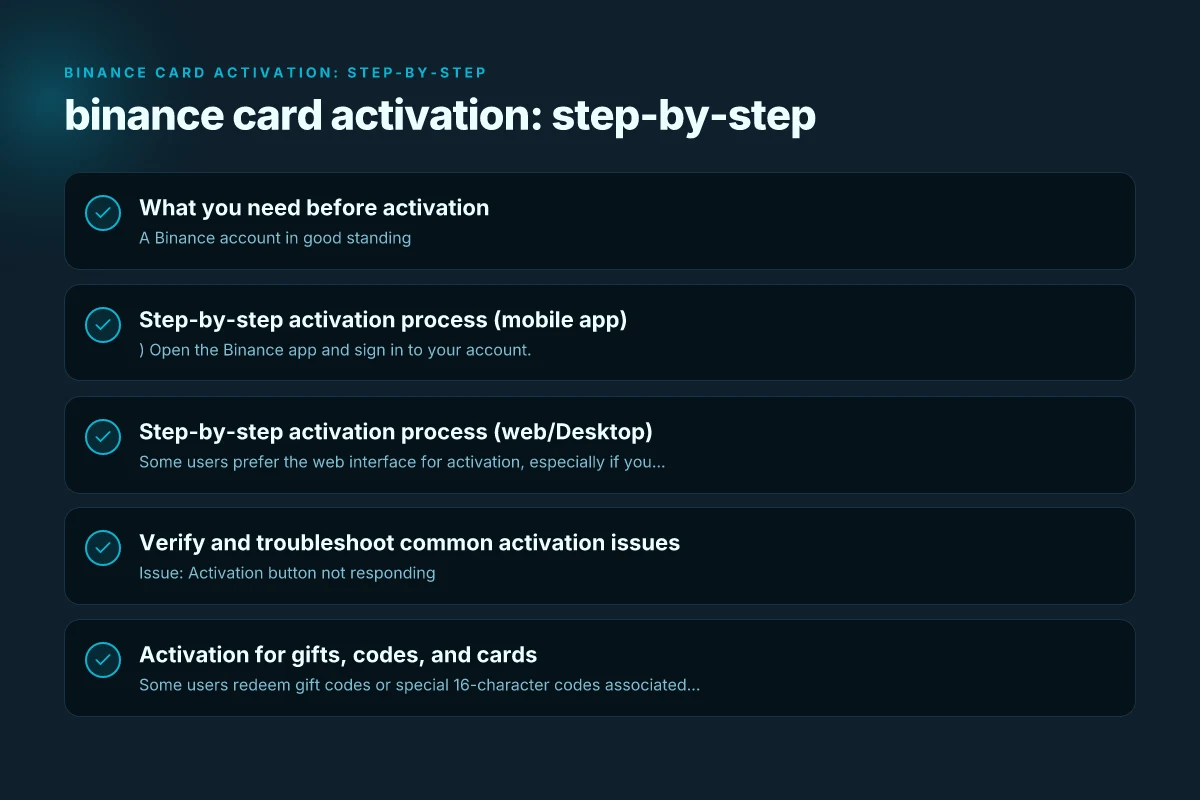
Step-by-step activation process (mobile app)
- Open the Binance app and sign in to your account.
- Tap More (or the account/menu area) and select Binance Card.
- If prompted, choose Activate Card or Add Card. You may see your available cards listed.
- Enter required details:
- For a physical card: card number, CVV, expiration date (often found on the back/front of the card), and your shipping address if needed for verification.
- For a virtual card: confirm the card details provided in the app.
- Complete any identity verification steps if prompted (this can include phone, email, or government ID checks depending on your region).
- Confirm activation. You should see a confirmation message indicating the card is activated and ready to use.
- If you linked Apple Pay, Google Pay, or another wallet, follow the prompts to add the Binance Card to your wallet.
Step-by-step activation process (web/Desktop)
Some users prefer the web interface for activation, especially if you’re already managing account settings there.
- Log in to your Binance account on the website.
- Navigate to the Card or Wallet section where Binance Card is listed.
- Select the card you want to activate.
- Enter required card details if prompted:
- Physical card: card number, expiry, CVV, and delivery details if needed.
- Virtual card: code or details shown in your account.
- Complete any identity verification steps requested by the portal.
- Confirm activation. You should receive a success notification and be able to use the card.
Verify and troubleshoot common activation issues
- Issue: Activation button not responding
- Solution: Refresh, sign out and back in, try a different device, or update the Binance app to the latest version.
- Issue: Card not appearing in the app
- Solution: Ensure you’re logged into the correct Binance account, and that your card is eligible for activation in your region. Check for any pending verification steps in the account settings.
- Issue: Identity verification failing
- Solution: Ensure your ID documents are valid and the information matches your Binance account. Retry after 24 hours if the system flags a temporary verification error.
- Issue: Virtual card not usable in your region
- Solution: Verify that virtual cards are supported in your country and that you have the latest app version. Some features vary by region.
Activation for gifts, codes, and cards
- Some users redeem gift codes or special 16-character codes associated with Binance Gift Cards or promotions.
- Redemption flow (typical):
- In the Binance app, go to More > Gift Card.
- Enter the 16-character code exactly as shown.
- Tap Redeem to add the value to your account or card balance.
- After redemption, you may need to navigate back to the Card section to activate or link the redeemed balance to your Binance Card.
Understanding the Card types and their activation nuances
| Card Type | Activation Notes | Wallet Integration | Availability |
|---|---|---|---|
| Physical Binance Card | You usually activate after receiving the card; may require card number, expiry, CVV, and address verification | Apple Pay / Google Pay if supported in your region | Widely available in supported regions; delivery times vary |
| Virtual Binance Card | Activation is often instant in-app | Directly usable within the app and online; may connect to wallets depending on integration | Instant in-app availability; limited to regions with virtual card support |
Tips:
- If you’re asked to set a credit limit or daily cap during activation, review your preferences and set a reasonable limit according to your spending needs.
- Some regions require a one-time identity check before activation can be completed. This helps ensure compliance and security.
Best practices after activation
- Link your Binance Card to Apple Pay or Google Pay if you plan to pay with contactless methods. This often speeds up in-store payments.
- Set up transaction alerts in the Binance app to monitor spending and detect any unauthorized activity quickly.
- Add a backup payment method in case the Binance Card is temporarily unavailable (e.g., during system maintenance).
- Regularly check for app updates to ensure you have the latest security features and activation improvements.
Frequently asked questions (quick answers)
- Q: Does Binance give a virtual card?
- A: Yes, Binance offers virtual card options in supported regions. Activation steps are similar to physical cards but can occur entirely within the app.
- Q: Can I add my Binance Card to Apple Pay?
- A: In many regions, you can add the Binance Card to Apple Pay or Google Pay after activation. Availability varies by region and device.
- Q: How do I get my Binance card?
- A: You can apply for or request a Binance Card through the Binance Card section in the app or website, depending on your region. Upon approval and delivery, follow the activation steps outlined above.
- Q: Can I withdraw from Binance wallet with the card?
- A: The Binance Card is designed for spending. Withdrawal policies depend on regional rules and the card issuer’s capabilities. Check the latest Binance help articles for withdrawal specifics.
Final recommendation VPN extension for Edge
- Start activation in the app as soon as you receive your Binance Card or when you have prepared the required verification information. If you run into issues, consult the Binance Help Center or contact support for assistance. Keep your app updated, secure your account with two-factor authentication, and familiarize yourself with how to add the card to Apple Pay or Google Pay if you use contactless payments. By following these steps and tips, you’ll be ready to spend with your Binance Card quickly and securely.