Android VPN: How to Choose and Use One Safely
Learn what an Android VPN does, how to choose a trustworthy service, and how to set it up for safer browsing.
An Android VPN routes your phone or tablet’s internet traffic through an encrypted connection to a VPN provider’s server. This can help protect traffic on public Wi-Fi, reduce what a local network can see, and let you connect through a server in another location. To use one, select a trustworthy provider, install its Android app from Google Play or the provider’s official site, sign in, and connect to a server. A VPN is a useful privacy tool, but it cannot stop every kind of tracking or replace safe browsing habits.
Compare Android VPN features before choosing one
| Feature | Why it matters | What to look for | Check before subscribing |
|---|---|---|---|
| Android app | Makes setup and daily use easier | An app for your Android version | App availability and update history |
| Encryption | Protects traffic between your device and VPN | Modern, well-documented encryption | Protocol and encryption details |
| Privacy policy | Explains what user data is collected | Clear limits on logging | What is stored and for how long |
| Independent audits | Can help verify privacy and security claims | Recent audits by independent reviewers | Audit scope and published results |
| Kill switch | Can block traffic if the VPN disconnects | Android support and clear controls | Whether it works on your device |
| Server locations | Affects available connection routes | Locations that suit your needs | Availability and server selection |
| Connection protocol | Influences security, speed, and compatibility | Secure protocols supported by the app | Protocol options on Android |
| Support | Helps resolve setup or connection issues | Responsive, accessible help | Support channels and guides |
Compiled November 2026; check the provider's site for current details.
| VPN | Obfuscation | From / month | Plan | Free plan | Refund | Alipay | UnionPay | Crypto | Website opens in China | Trustpilot | |
|---|---|---|---|---|---|---|---|---|---|---|---|
 ZoogVPN | Turn on manually Shadow | $2.49/mo | 27 months: $59.99 | Yes | 7 days | ✓ | ✓ | ✓ | ✓ | Official site blocked; our special link opens (4.4 s) | 4.2/5 (195 reviews) |
 NordVPN | Turn on manually Obfuscated Servers / NordWhisper | $3.49/mo | 27 months: $94.23 | No | 30 days | ? | ✗ | ✓ | ✓ | ✗ Blocked | 4.2/5 (51,628 reviews) |
 ExpressVPN | ✓ On by default all servers | $3.00/mo | 28 months: $84 | No | 30 days | ✗ | ✗ | ✓ | ✗ | ✗ Blocked | 4.4/5 (29,706 reviews) |
 Surfshark | ✓ On by default Camouflage, with OpenVPN | See site | See site | No | 30 days | ✗ | ✗ | ✗ | ✓ | ✗ Blocked | 4.3/5 (31,823 reviews) |
 Proton VPN | Turn on manually Stealth, free plan too | $2.99/mo | 12 months: $35.88 | Yes | 30 days | ✗ | ✗ | ✗ | ✓ | ✗ Blocked | 2.1/5 (1,040 reviews) |
 Astrill VPN | Turn on manually StealthVPN / OpenWeb | $12.50/mo | 24 months: $300 | No | See site | ✗ | ✗ | ✗ | ✓ | ✗ Blocked | 1.3/5 (110 reviews) |
 Private Internet Access | Turn on manually Shadowsocks, OpenVPN only | $2.03/mo | 40 months: $81.2 | No | 30 days | ✗ | ✗ | ✗ | ✗ | ✗ Blocked | 4.2/5 (11,033 reviews) |
 CyberGhost | Turn on manually selected servers | $2.19/mo | 28 months: $61.32 | No | 45 days | ✗ | ✗ | ✗ | ✓ | ✗ Blocked | 4.0/5 (24,178 reviews) |
 PureVPN | Turn on manually switch to OpenVPN | $1.69/mo | 60 months: $101.55 | No | 31 days | ? | ? | ✗ | ✓ | ✗ Blocked | 4.4/5 (17,994 reviews) |
 AdGuard VPN | ✓ On by default TrustTunnel | $2.99/mo | 24 months: $71.76 | Yes | 30 days | ✓ | ✗ | ✓ | ✓ | Official site blocked; our special link opens (3.7 s) | 4.3/5 (290 reviews) |
 Mullvad | Turn on manually QUIC / Shadowsocks / LWO | $5.61/mo | €5/mo | No | 14 days | ✗ | ✗ | ✗ | ✓ | ✗ Blocked | 3.2/5 (192 reviews) |
 Windscribe | Turn on manually Stealth / WStunnel | $5.75/mo | 12 months: $69 | Yes | See site | ✗ | ✗ | ✗ | ✓ | ✗ Blocked | 4.7/5 (13,355 reviews) |
 StrongVPN | Turn on manually Scramble, OpenVPN TCP | See site | See site | No | 30 days | ✓ | ✗ | ✗ | ✗ | ✗ Blocked | 4.4/5 (2,695 reviews) |
 LightXtreme 闪连 | Not listed | $7.08/mo | 12 months: $84.99 | Yes | 30 days | ✓ | ✓ | ✓ | ✓ | ✓ Yes (3.5 s) | No page |
Prices checked 2026-11-10 on each vendor's pricing page (cheapest long plan, USD). Check the vendor's checkout for the final price.
Obfuscation checked 2026-11-14 on each vendor's site and help center: "on by default" = nothing to set; "turn on manually" = switch protocol or mode in settings; "not listed" = the vendor describes no obfuscation.
Payment methods checked 2026-11-10 on each vendor's payment pages: all 14 take cards and PayPal; ✗ = not listed, ? = the vendor's own pages disagree.
China access: whether the official website opens from mainland China networks (tests the website only, not the VPN connection). Last checked 2026-11-18 01:02 Beijing time.
Trustpilot score and review count checked 2026-11-10.
What an Android VPN does
Without a VPN, your internet traffic travels through your network provider, such as a home internet company or mobile carrier, before reaching websites and apps. A VPN creates an encrypted tunnel between your Android device and the VPN server. The network you are using can generally see that you connected to a VPN, but encryption helps prevent it from reading the contents of that connection.
Websites and apps usually see the VPN server’s IP address instead of your device’s network IP address. This may help reduce location exposure based on your IP, though it does not hide every signal that can reveal your identity or location.
A VPN can be useful when you:
- Connect to public Wi-Fi at hotels, airports, or cafés.
- Want to limit what a local Wi-Fi operator can observe.
- Need to access a service available through a different region, subject to that service’s rules.
- Want an encrypted connection on networks you do not control.
A VPN does not make you invisible online. Websites can still identify you through account logins, cookies, device information, and other tracking methods. It also does not automatically block malware, phishing, or unsafe downloads. How to Change VPN Location Free: Safe and Simple Options
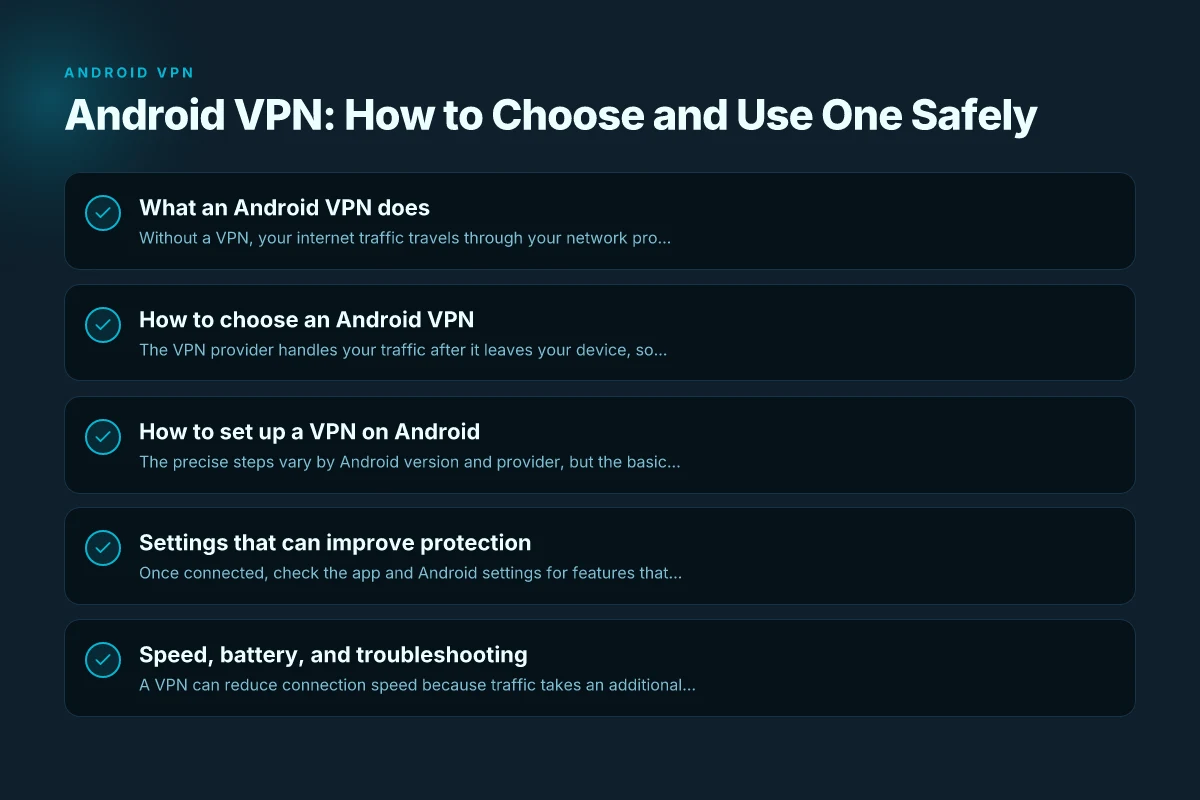
How to choose an Android VPN
The VPN provider handles your traffic after it leaves your device, so choosing a provider is a matter of trust. Do not judge a service only by its advertising, server count, or low price. Review its privacy policy, security features, ownership, and business model.
| What to check | Why it matters |
|---|---|
| Privacy policy | Explains what connection or activity data the provider collects and retains |
| Independent audits | Can offer outside evidence about privacy or security claims |
| Modern protocols | Options such as WireGuard or OpenVPN are widely used and well established |
| Kill switch | Can block internet access if the VPN connection unexpectedly drops |
| Clear business model | Helps you understand how the service funds its operations |
| Android app quality | A reliable app should make connection status and settings easy to understand |
Look for a clear explanation of logging practices, including whether the provider stores browsing activity, connection timestamps, or IP addresses. “No logs” can mean different things, so read the policy rather than relying on a slogan. Independent security audits are helpful, but check what was audited and when.
Be cautious with free VPNs that provide few details about how they earn money or handle user data. Some legitimate providers offer limited free plans, but unlimited service has costs. Avoid apps that request permissions unrelated to VPN operation, such as access to contacts or text messages without a clear reason.
Choose a VPN setup for your Android device Edge VPN Extension: How to Choose and Use One Safely
| Setup option | Best suited for | Main advantage | Limitation | What to check |
|---|---|---|---|---|
| VPN provider app | Most Android users | Guided setup and easy controls | Depends on the provider’s app | Android compatibility |
| Built-in Android settings | Users with VPN connection details | No provider app required | Requires manual configuration | Protocol and server details |
| Always-on VPN | Users who want VPN connections to persist | Keeps the VPN active across use | May affect access when it cannot connect | Android version and app support |
| Block connections without VPN | Users prioritizing leak prevention | Can stop traffic outside the VPN | May interrupt internet access | Whether the VPN reconnects reliably |
| Per-app VPN controls | Users who want to choose covered apps | Lets selected apps use the VPN | Availability varies by app and setup | Which apps are included |
| Public Wi-Fi use | Users on shared networks | Adds a protected VPN connection | Does not make every site trustworthy | VPN status before browsing |
Compiled November 2026; check the provider's site for current details.
How to set up a VPN on Android
The precise steps vary by Android version and provider, but the basic setup is straightforward:
- Choose a provider and download its official app from Google Play or its verified website.
- Open the app, create an account or sign in, and review the requested permissions.
- Select a server location. A nearby server is often a good choice for speed.
- Tap the connect button and approve Android’s VPN connection request.
- Check for the VPN key icon in the status bar or confirm the connected status in the app.
Android allows only one active VPN connection at a time in most common setups. If you already use a work VPN or another VPN app, you may need to disconnect it before connecting to a different service.
You can also add some VPN connections manually under Android’s network settings. However, the provider’s app is usually easier to configure and may include features such as server selection, automatic connection, and a kill switch. Urban VPN Extension Chrome: Setup, Features, and Safety Tips
Settings that can improve protection
Once connected, check the app and Android settings for features that match your needs. Names and menus differ among manufacturers and Android versions.
- Always-on VPN: Keeps Android connected to the selected VPN when possible.
- Block connections without VPN: Available on some devices alongside always-on VPN. It can prevent traffic from using the regular connection if the VPN goes down.
- Kill switch: A provider feature that blocks network traffic during an unexpected disconnection.
- Automatic connection: Starts the VPN on selected networks, such as public Wi-Fi.
- Split tunneling: Lets you choose which apps use the VPN. This can be useful for troubleshooting, but apps excluded from the tunnel do not receive its protection.
After changing settings, test that the VPN reconnects as expected. A VPN may briefly disconnect when you switch between Wi-Fi and mobile data or when your device wakes from sleep. If uninterrupted protection matters, enable the available always-on or blocking features and confirm they work on your device.
Troubleshoot Android VPN speed, battery, or connection problems
| Symptom | Possible cause | What to try | Trade-off | If it continues |
|---|---|---|---|---|
| Slow browsing | Busy server or distant location | Try a nearby server | May change your apparent location | Test another server |
| Frequent disconnects | Weak network or app issue | Switch networks and update the app | Changing networks may interrupt use | Check provider guidance |
| VPN will not connect | Settings conflict or unavailable server | Recheck settings and choose another server | Some settings may reduce convenience | Contact provider support |
| High battery use | VPN connection and background activity | Review Android battery settings | Restricting background activity may affect reconnection | Check app-specific guidance |
| Apps cannot reach the internet | Kill switch or block-without-VPN setting | Check VPN and Android connection controls | Disabling a block can allow unprotected traffic | Restore protection after testing |
| VPN works on Wi-Fi but not mobile data | Network restrictions or app settings | Check mobile-data access and try another protocol | Protocol changes can affect speed | Ask the provider about network compatibility |
| Unexpected location | Server location differs from expectation | Confirm the selected server | Available locations depend on the provider | Reconnect and verify the displayed location |
| Unclear protection status | VPN may have disconnected | Check Android’s VPN indicator and app status | A reconnect may briefly interrupt traffic | Enable supported failure-protection settings |
Compiled November 2026; check the provider's site for current details. VPN PES Download: Safe Setup for PES and eFootball
Speed, battery, and troubleshooting
A VPN can reduce connection speed because traffic takes an additional route and must be encrypted. The effect depends on the server’s distance, its current load, your internet connection, and the VPN protocol. If performance is poor, try a nearby server, switch protocols in the app, or check whether the issue occurs with the VPN turned off.
VPN use may increase battery consumption, though the effect varies by device and service. Keeping a VPN connected in the background can use additional power, particularly when the connection is unstable and repeatedly reconnects.
If an app or website fails to load:
- Try another server or reconnect to the current one.
- Check the VPN app for an update.
- Temporarily test a different protocol.
- See whether the service blocks VPN connections.
- Review split-tunneling or DNS settings before changing them.
Some banking, streaming, or workplace services may restrict VPN use. Follow the service’s terms and your employer’s instructions. For work, use the VPN configuration provided by your organization rather than a personal service unless your IT team approves it. Best Free VPN to Change Location: Safe and Realistic Options
Recommendation
For everyday Android use, choose a reputable VPN with a transparent privacy policy, independently reviewed security claims, and a dependable app. Connect before using unfamiliar Wi-Fi, enable always-on protection if it suits your needs, and keep the app updated. Treat the VPN as one layer of privacy, not a substitute for HTTPS, strong passwords, software updates, or careful choices about what you share online.